
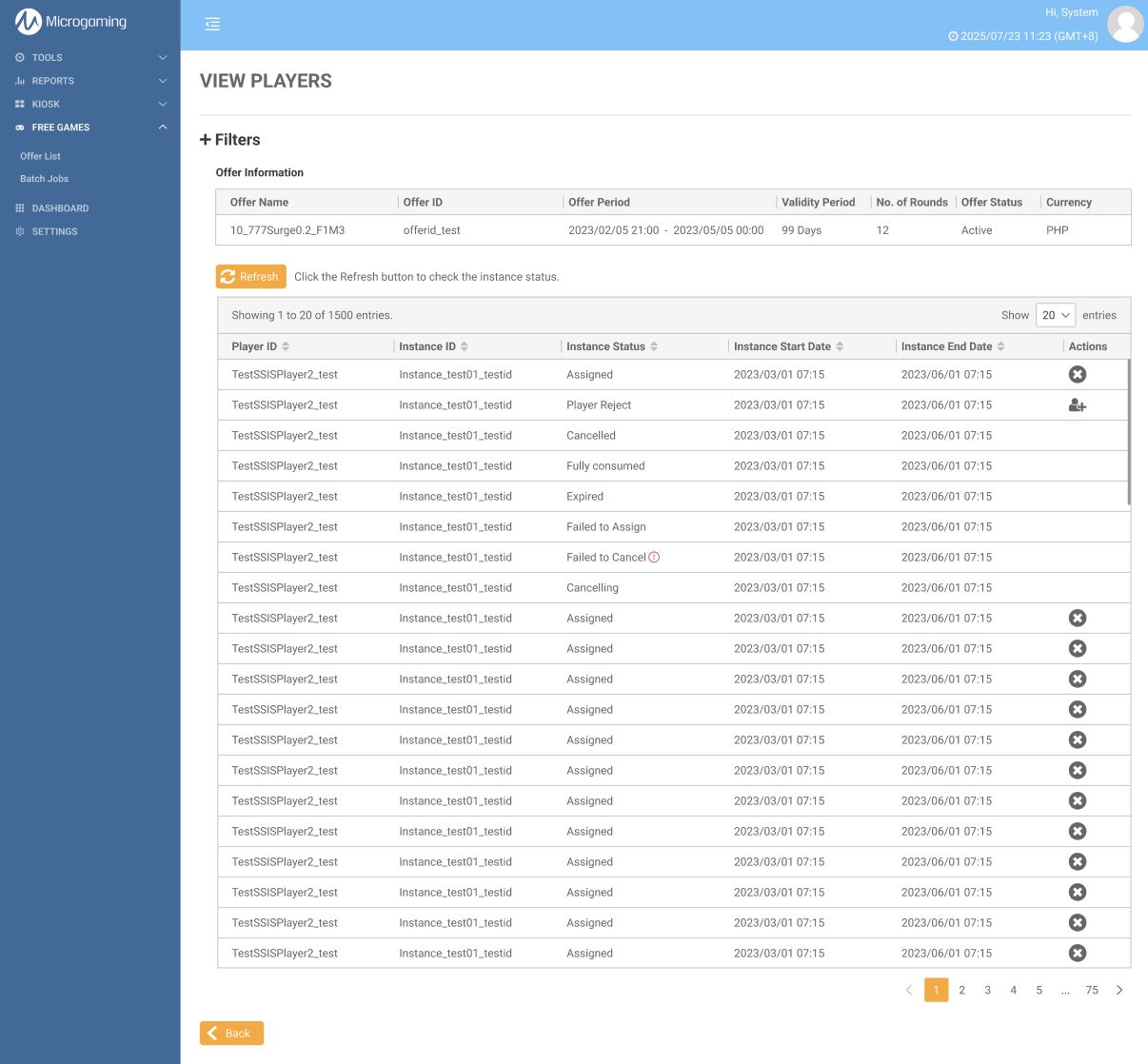
The View Players page allows the user to see a list of players that have been assigned to an offer.
The user can view the player list by clicking on the View Player List action icon. This icon can be found on the row of the offer on the Offer List page, or in the offer info section of the Offer Details page.
On this page, users can access a summary of the offer along with a list of players assigned to it. The user has the option to utilize filters to narrow down the player list.
|
Filtering the View Player List
Use the filters to refine your search criteria. Click the Submit button to view the results, or click Clear Filters to reset and start over.
|
Filter |
Description |
|---|---|
|
Instance Status |
Users can filter the report by selecting the Instance Status:
|
|
Range |
The date and time range can be specified using the provided parameters. |
|
Time Zone |
Changing the time zone will impact the time zone displayed in the results. Setting the time zone enables Master Agents and Head Offices to view financial information from all Agents in one time zone. The default time zone will be based on the chosen time zone in the Settings page. If the user does not modify the time zone, the default time zone will be set to GMT+0. |
|
Player |
The results can be filtered for a single player's data by searching for them using the text box. |
Offer Information
This is a quick summary of the offer. To change the details of the offer, refer to the Edit an Offer article.
Player List
This is the list of players that have been assigned to the offer.
|
Column Name |
Description |
|---|---|
|
Player ID |
The player ID of the player. |
|
Instance ID |
The unique identifier for the free game offer instance. |
|
Instance Status |
The status of the free game offer instance. |
|
Instance Start Date |
The start date of the instance period - this is the start of the availability period. |
|
Instance End Date |
The end date of the instance period - this is the end of the availability period. |
|
Actions |
These action buttons can be used to change the instance status. Players can change status or use action icons only when the instance status is Assigned or Player Rejected. Assigned can be changed to Cancelled Player Rejected can be changed to Assigned (if within the validity period) |