
The Players Management tool enables users to search for a single player or compile a list of up to 1000 players, ordered either by their last deposit date or date of registration.
For further details on an individual player, simply select the desired row from the generated list.
Players Management Permissions
The user must have the Player Management permission enabled to access the Players Management page.
To enable Players Management, refer to the Editing an Entities Information article.
Filtering the Players Management List
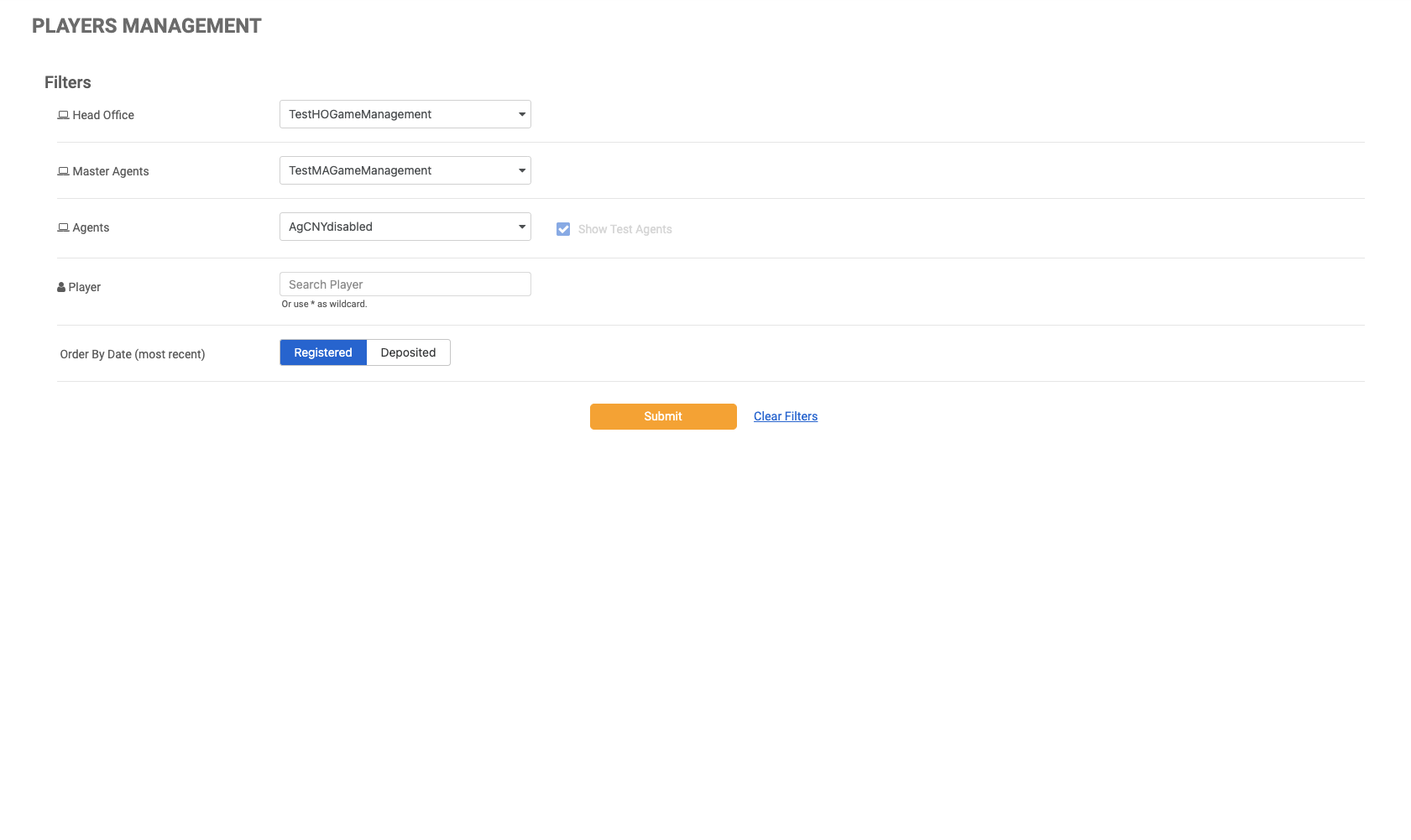
Use the filters to refine your search criteria. Click the Submit button to view the results, or click Clear Filters to reset and start over.
|
|
Filter |
Description |
|---|---|
|
Entities Filter |
Users can apply filters to view the data relevant to the entity. Only one value can be chosen from the drop-down menu. For menus with only one option, the option will be automatically displayed and selected. The Agents drop-down menu is accompanied by a checkbox that allows the user to filter the client's test agents (marked in red). By default, the Show Test Agents checkbox is unchecked. This option will be disabled for clients that do not have test agents on the MG+ system. |
|
Player |
The results can be filtered for a single player's data by searching for them using the text box. If the exact name of a player is unknown, users can use an asterisk (*) to search for them. Leaving this field empty will return up to 1000 players, sorted by their last registration date or deposited date. For example:
|
|
Order By Date (Most Recent) |
Users have the option to order the list of players based on either their registration date or their last deposit date. The Order By Date option is ignored when searching for a specific player. |
List of Players
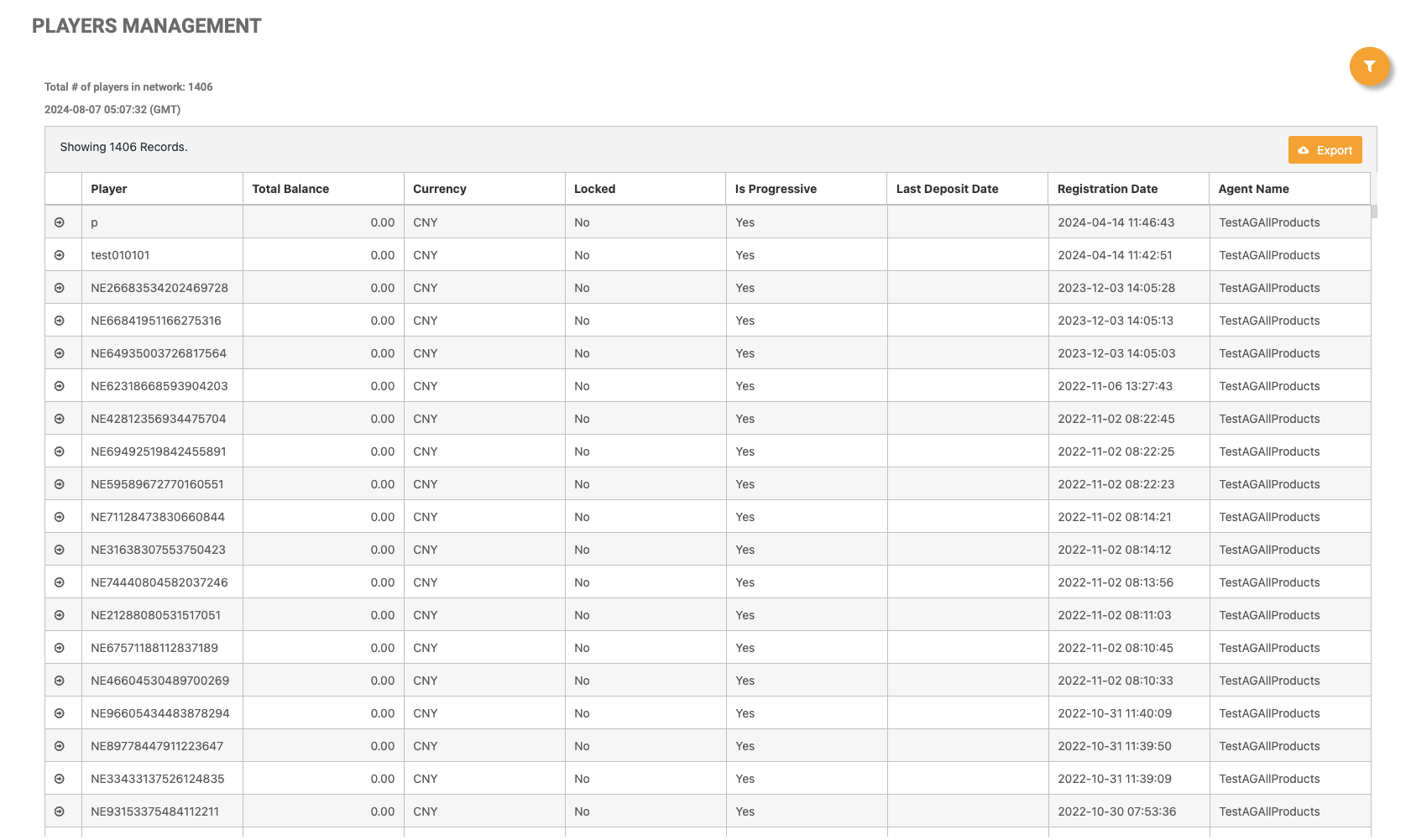
To adjust the filters for resubmission, click Filter (this may be displayed as an icon or as a link labeled +Filter).
Clicking on the Export button will provide the user with an Excel .CSV file of the table summary.
After the user submits the report, a list of players will be displayed in the order chosen by the Order By Date option. By clicking the arrow on the left side of the rows in the player list, the Player Info page will be displayed.
|