
The Batch Jobs page under Free Games enables users to easily monitor batch assignment and cancellation, providing visibility of players that have been successfully assigned and any errors encountered during the batch jobs. Users can also cancel assigned batch jobs directly from this page and review cancelled jobs.
Filtering the Batch Job List
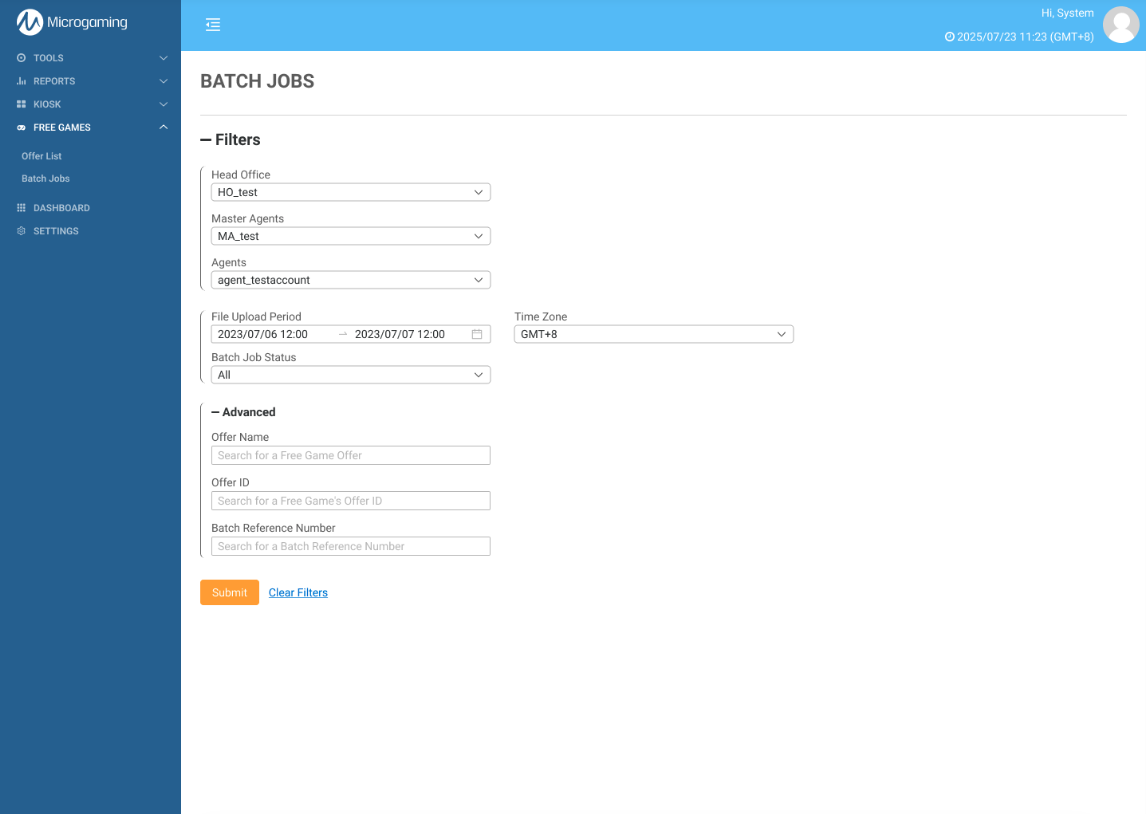
Use the filters to refine your search criteria. Click the Submit button to view the results, or click Clear Filters to reset and start over.
|
|
Filter |
Description |
|---|---|
|
Entity Filters |
Users can apply filters to view the data relevant to the entity. Only one value can be chosen from the drop-down menu. For menus with only one option, the option will be automatically displayed and selected. |
|
File Upload Period |
Users can define the file upload period for their reports using the available parameters. By default, the start date is automatically set to 24 hours before the current date and time, while the end date is set to the current date and time. |
|
Time Zone |
Changing the time zone will impact the time zone displayed in the results. Setting the time zone enables Master Agents and Head Offices to view financial information from all Agents in one time zone. The default time zone will be based on the chosen time zone in the Settings page. If the user does not modify the time zone, the default time zone will be set to GMT+0. |
|
Batch Job Status |
Select a batch job status (All, In Progress, or Completed) to filter the batch job list. |
|
Offer Name |
To retrieve data for specific offers, the report supports filtering by using the search box. The search function supports partial matching for names, as long as the beginning of the name matches. For example, if you enter "ABC" as the search query, the system will return results that have names starting with "ABC" such as "ABC123" or "ABCD456". |
|
Offer ID |
In order to obtain data for specific offers, you can filter the report by using the search box and entering the desired offer ID. The offer ID has the following limitations: a maximum length of 36 characters, and only letters, numbers, and the '-' character are allowed. The format for an offer ID is XXXXXXXX-XXXX-XXXX-XXXX-XXXXXXXXXXXX. The search function supports partial matching for IDs, as long as the beginning of the ID matches. For example, if you enter "ABC" as the search query, the system will return results that have IDs starting with "ABC" such as "ABC123" or "ABCD456". |
|
Batch Reference Number |
In order to obtain data for specific batch jobs, you can filter the report by using the search box and entering the batch reference number. The search function supports partial matching for IDs, as long as the beginning of the ID matches. For example, if you enter "ABC" as the search query, the system will return results that have IDs starting with "ABC" such as "ABC123" or "ABCD456". |
Viewing and Managing Batch Jobs
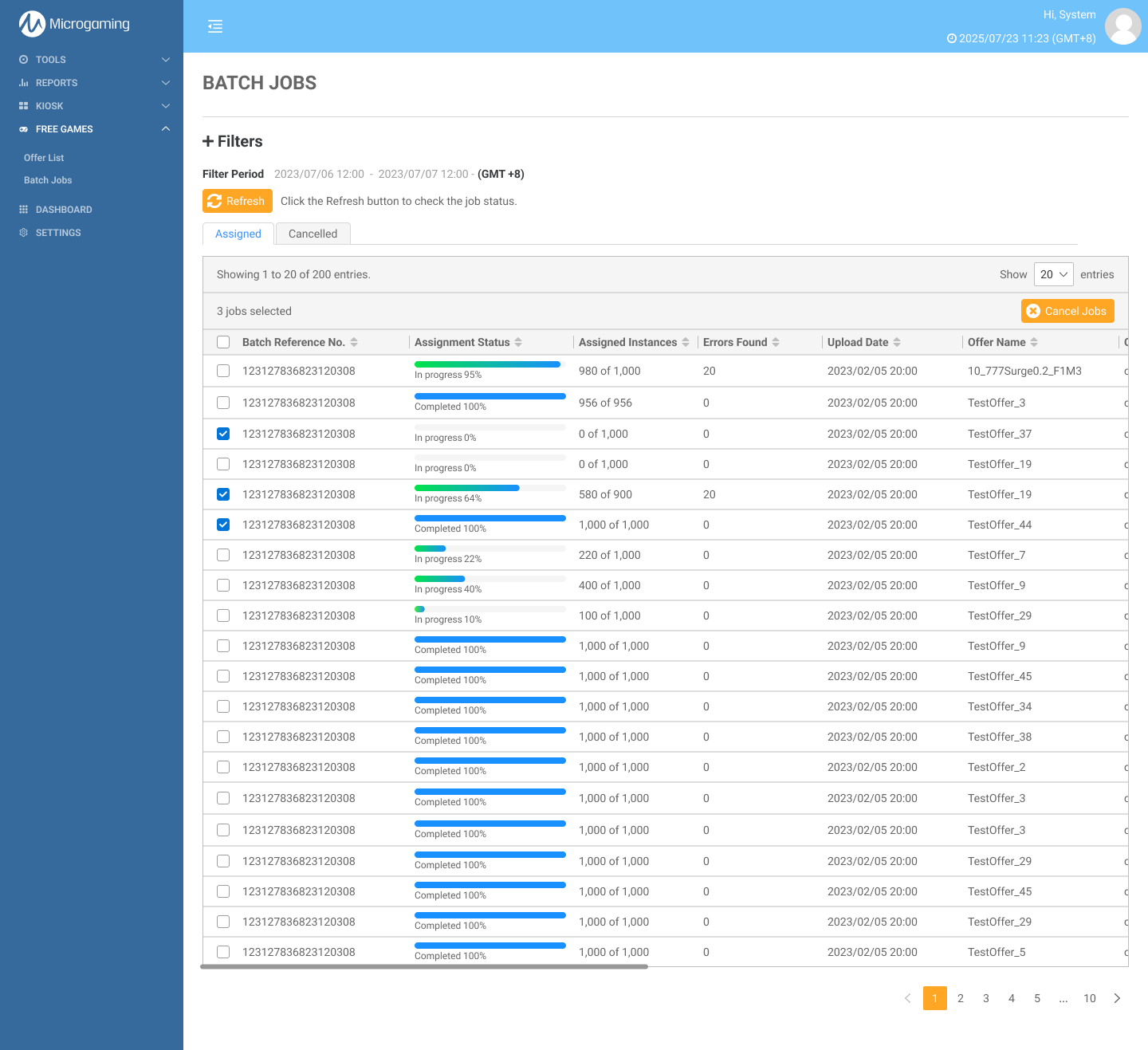
Once the filters are submitted, the user will see a table listing batch jobs that match the selected filter configurations.
Refreshing Data
Click Refresh to update the table with the latest player assignment numbers and error information.
Tabs Overview
The Batch Jobs page includes two tabs:
-
Assigned - Shows batch jobs that are currently assigned.
-
Cancelled - Shows batch jobs that have been cancelled.
|
Column Name |
Description |
|---|---|
|
Batch Reference No. |
The batch job reference number. |
|
Assignment Status |
The status of the file upload; Completed or In Progress. |
|
Assigned Instances |
This indicates the number of instances that have been successfully assigned out of the total instances. |
|
Errors Found |
Indicates the number of instances that were partially or fully consumed, rejected by the player, expired, or encountered assignment or cancellation API errors. |
|
Upload Date |
The date and time of when the batch job was started. |
|
Offer Name |
The name of the free game offer. |
|
Offer ID |
The unique identifier for the free game offer. |
|
Date Allocated for Players |
The date and time that the instance was assigned to the player. |
|
Actions |
The user can hover over the icon to view the tooltip. Clicking on the Download .CSV icon will give the user a copy of the .CSV file they uploaded, which includes the player list associated with the offer. |
Cancel Batch Jobs
In the Assigned tab, the user can cancel batch assignments by:
-
Select one or more batch jobs.
-
On the top right corner of the Batch Job List table, click Cancel Jobs.
-
Confirm the cancellation in the modal that appears.
Monitoring Cancellations
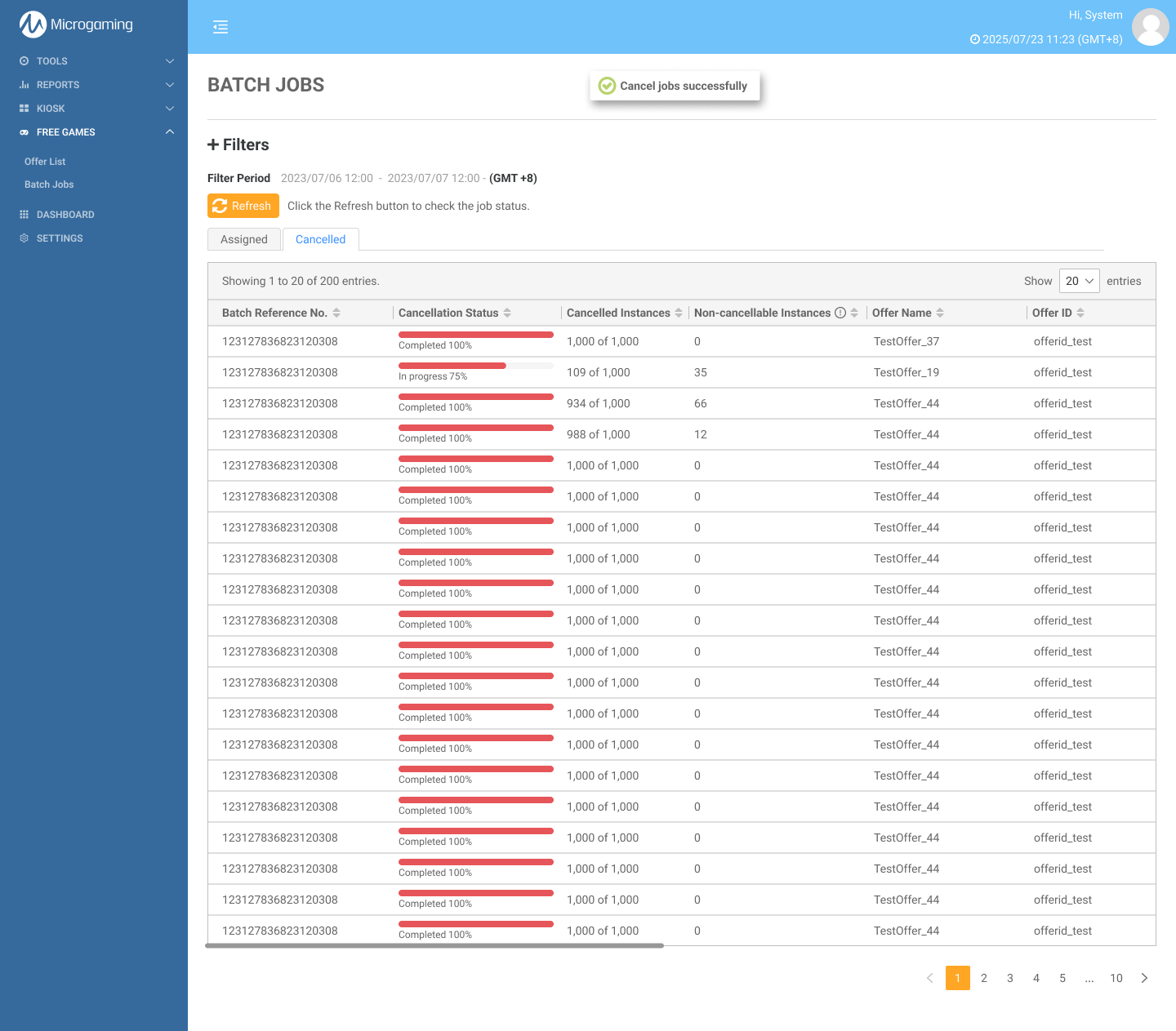
After cancellation, the batch jobs will move from the Assigned tab to the Cancelled tab. Users can monitor progress in the Cancelled tab.
Note: Cancellation will fail if any of the following apply: partially or fully consumed instances, player rejection, expired offer, assignment errors, or cancellation API errors.
|
|
Column Name |
Description |
|---|---|
|
Batch Reference No. |
The batch job reference number. |
|
Cancellation Status |
The status of the cancellation; In progress and Completed. |
|
Cancelled Instances |
This indicates the number of instances that have been cancelled out of the total instances. |
|
Non-cancellable Instances |
Indicates the number of instances that were partially or fully consumed, rejected by the player, expired, or encountered assignment or cancellation API errors. |
|
Offer Name |
The name of the free game offer. |
|
Offer ID |
The unique identifier for the free game offer. |
Viewing Batch Job Details
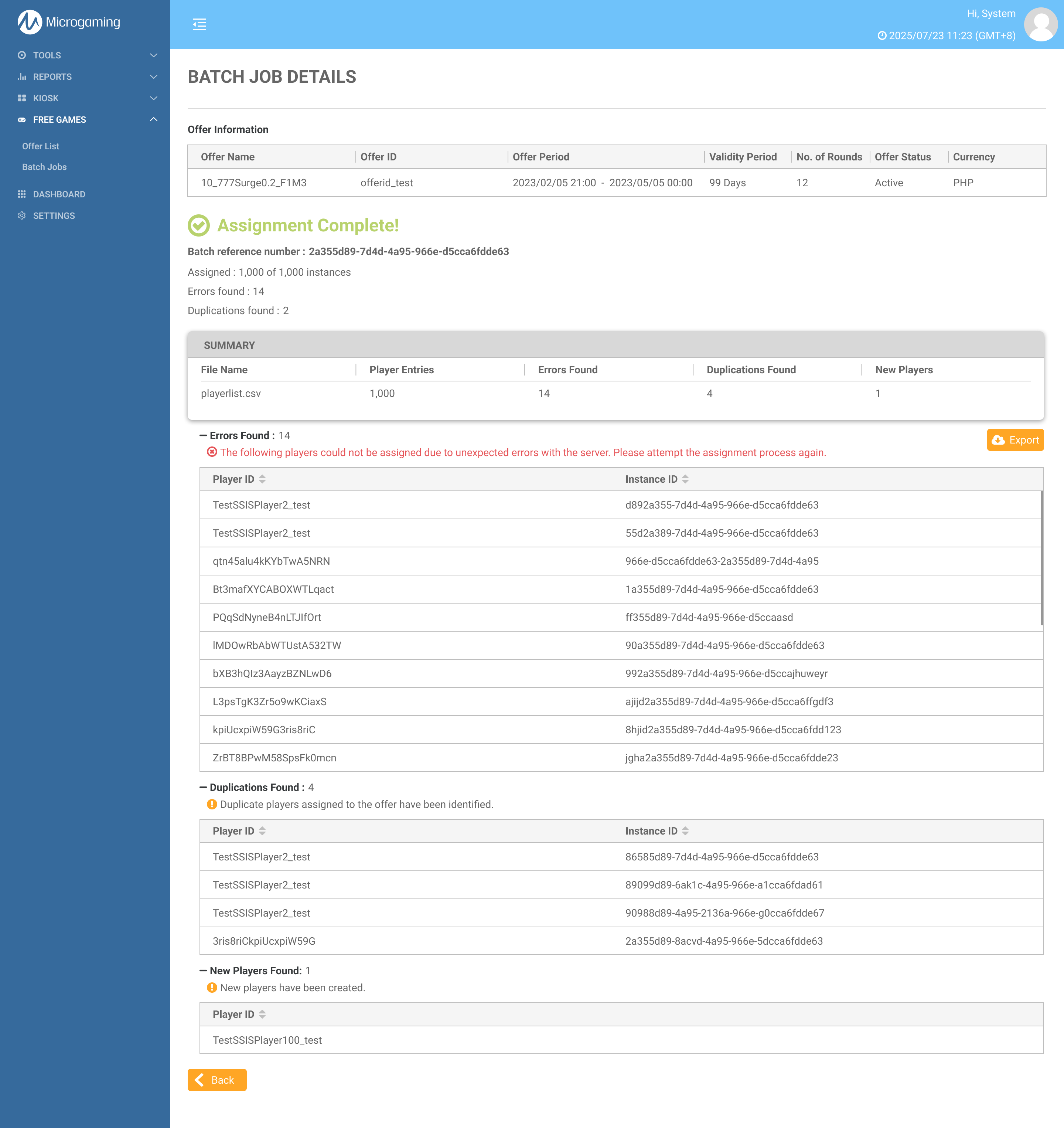
The Batch Job Details page can be accessed by clicking any row in either the Assigned or Cancelled tab on the Batch Job page. On this page, users can view information about the offer, progress, and related errors.
The content of this page depends on the type of batch job:
Batch Job Assignment Details
-
Offer Information
-
Batch Reference Number
-
Assigned Instances: Number of instances successfully assigned out of the total.
If a batch job encounters errors, duplicate entries, or newly detected players, the respective issue types will appear in the list. Click an issue type to view the affected Player IDs and Instance IDs.
Offer Information
|
Column Name |
Description |
|---|---|
|
Offer Name |
The name of the .CSV file that was uploaded. |
|
Offer ID |
The total number of players detected on the .CSV file. |
|
Offer Period |
The dates during which the offer is available. |
|
Validity Period |
Timeframe in which the player can use the offer. |
|
No. of Rounds |
Number of rounds included in the offer. |
|
Offer Status |
Current status of the offer. |
|
Currency |
Type of currency used for the offer. |
Summary Table[data-colorid=vmzo5afneq]{color:#36b37e} html[data-color-mode=dark] [data-colorid=vmzo5afneq]{color:#4cc994}Column NameDescriptionFile NameThe name of the .CSV file that was uploaded.Player EntriesThe total number of players detected on the .CSV file.Errors FoundThe number of players who encountered errors during the assignment process. Players with errors will not be assigned to the offer. To view a detailed list of these players, refer to the Errors Found table located below the Summary table.The Errors Found table includes an Export button, which allows users to download the table summary as an Excel .CSV file. Note: The Assignment Complete status does not necessarily mean that all player IDs have been successfully assigned. For example, if the API encounters an error during the assignment process, affected players will appear in the Errors Found list. In such cases, users must reupload a .CSV file containing only the failed player IDs. Duplications FoundThe count of players where the system has detected multiple assignments to the offer. If a player ID appears multiple times, each occurrence will result in a duplicate assignment instead of updating a single record. Note that this is not an error - player IDs that have encountered errors will be displayed in the Errors Found section.New PlayersThe count of new players that have been created and assigned to the offer, as the player IDs listed do not exist in the MG+ system.Batch Job Cancellation Details
-
Offer Information
-
Batch Reference Number
-
Cancelled Instances: Number of instances successfully cancelled out of the total instances.
-
Non-Cancellable Instances: Instances that could not be cancelled. The Non-cancellable Instance Details table below lists the causes and shows the affected Player IDs and Instance IDs.
.png?cb=ed42051a267bd8ff0071b824d41e25e3)
Non-cancellable Instance Details
|
Column Name |
Description |
|---|---|
|
Cancellation Unsuccessful |
Cancellation could not be completed due to a system/API error. Please contact support for assistance. |
|
Partially Consumed |
The player has used at least one round assigned to them. |
|
Fully Consumed |
The player has used up all the rounds assigned to them. |
|
Player Rejected |
The player declined the instance by clicking the rubbish bin icon. |
|
Expired |
The player did not finish playing all the rounds within the validity period. |
|
Assignment Error |
The assigning process has failed. An instance has not yet been created in this scenario. |