
This article covers how to create a new entity.
Logged-in users with the permission to add or edit entities can add new lower level entities by clicking the Add Network Entity + icon.

|
To create a new Master Agent entity, users should click on the icon in the same row as the relevant Head Office entity.
To create a new Agent entity, users should click on icon in the same row as the relevant Master Agent entity. There are no entities below the Agent’s level.
Info
|
Field |
Description |
|---|---|
|
Display Name |
The display name must be alphanumeric (A-Z, 0-9), may include an underscore (_) or hyphen (-), and have a maximum of 50 characters. Additionally, it must be unique across the entire network. |
|
Entity Type |
This can be a Master Agent or an Agent and will be automatically prefilled according to the entity owner. |
|
Entity Owner |
This is the display name of the entity owner and will be automatically prefilled. |
|
Currency |
The currency list is the same as the one available for the entity owner.
|
|
Truncate Currency (Available for Agents)
|
This checkbox is only available when the created Agent is a non-LVCS Single Wallet Agent and the selected currency is weak. When this checkbox is checked, the balance of the Agent is considered truncated on APIs and Single Wallet’s Transactions Audit report. Once the user or administrator creating an Agent selects this checkbox and saves the parameters, the action becomes permanent and cannot be reversed. The checkbox will visually remain checked but will be disabled in the Entity Information page, preventing any further alterations. If the checkbox is not enabled during Agent creation, it will not be available for modification later. LVCS - Low Value Currency Support |
|
Credits |
See the Credit Management page. |
|
Status |
The status of the entity can be either Active or Not Active.
If the selected status is Not Active, the option to use API calls to the MG+ system by the agent will be disabled. |
|
Created By |
Shows the logged in user’s display name and will be automatically prefilled. |
|
Field |
Description |
|---|---|
|
Display Name |
The display name must be alphanumeric (A-Z, 0-9), may include an underscore (_) or hyphen (-), and have a maximum of 50 characters. Additionally, it must be unique across the entire network. |
|
Entity Type |
This can be a Master Agent or an Agent and will be automatically prefilled according to the entity owner. |
|
Entity Owner |
This is the display name of the entity owner and will be automatically prefilled. |
|
Currency |
The currency list is the same as the one available for the entity owner.
|
|
Credits |
See the Credit Management page. |
|
Status |
The status of the entity can be either Active or Not Active.
If the selected status is Not Active, the option to use API calls to the MG+ system by the agent will be disabled. |
|
Created By |
Shows the logged in user’s display name and will be automatically prefilled. |
Permissions
The new entity has the same permission set as the entity owner. Checking the checkboxes will affect the entity's access to the system.
API Info
This section is only applicable to Agent entities and is intended to provide information for API call implementation. It is highly recommended that Agents copy the API secret key (using the clipboard button) before leaving the screen, in case they forget it.
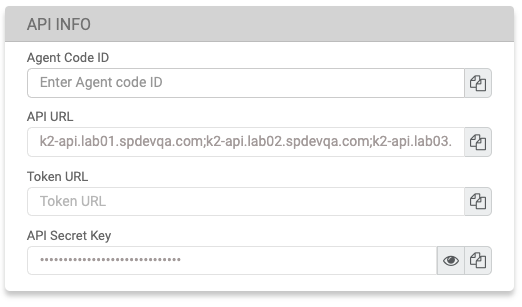
|
Field |
Description |
|---|---|
|
Agent Code ID |
The Agent Code ID for API calls must be alphanumeric (A-Z, 0-9), up to 50 characters in length and must be unique across the entire system. |
|
API URL |
The unique network API URL will be automatically prefilled and will be a part of the API calls. |
|
STS URL |
Secure Token Service. In order to use any of the MG+ systems, one must first authenticate and receive access to a valid token. |
|
API Secret Key |
The API secret key will be automatically prefilled and will be part of the API calls. The API secret key will only be displayed upon initial creation. For security reasons, it will not be shown again once the user exits the screen, requiring them to reset the key. |