This article covers how to enable or disable content for players.
The purpose of the Content Management feature is to enable business owners to determine what content their downline entities (including all their players) can see.

|
Content Management Permission
The user must have the Content Management permission enabled to access this feature.
-
If the Block/Unblock game or Block/Unblock channel checkbox is checked, the user will then have the ability to block and unblock games or channels for their entity and its downlines.
-
Games supported by MG+ can be blocked at the system level by the MG+ Support team or at the Head Office/Master Agent/Agent level by authorized users with enabled permissions.
-
-
If the Update Lobby Theme checkbox is checked, the user will then have the ability to update the lobby theme for their entity and its downlines.
If the features listed under the Content Management permission are not selected, users can still view the Content Management page but will be unable to make any changes.
Please contact your Account Manager if changes are needed.
To enable Content Management, refer to the Editing an Entities Information article.
Channels Management

|
Users can control the type of games available for their download entities via the channel toggles.
Click on the toggle to enable or disable access to specific channels. All channels are enabled by default.
Blocking a channel will remove all games associated with the channel from the Games Management table.
Blocking Individual Games
Users can choose to block access to specific games within enabled channels. To disable access for an individual game, see the Blocking Games section below.
Managing Games Access for Existing Downline Entities
When a higher entity blocks a channel, it will be inaccessible for all downline entities. The downline entity will not be able to see the channel on their Channels Management list and as such, won’t be able to manage its block status.
Subsequently, if the higher entity re-enables the channel, it will reappear on the Channels Management list for the downline entity as enabled.
For example, if a Master Agent blocks the Slots channel, the Agent assigned to that Master Agent will no longer be able to see Slots on their Channels Management list, even if they had previously enabled it.
If the Master Agent re-enables the Slots channel, it will then reappear as enabled for the Agent.
Games Access Inheritance for New Downline Entities
When a new entity is created at the Head Office level, it will automatically have access to all channels. When a downline entity is created, it will inherit all the channels that are allowed by its parent entity by default.
If the higher entity enables a channel, it will appear on the Channels Management list for the newly created downline entity as disabled. To use the channel, the downline entity will have to manually enable it.
For example, if a Head Office blocks the Slots channel and then creates a new Master Agent, the Slots channel will not appear on the Channels Management list for that new Master Agent.
The new Master Agent will inherit and have access to all the enabled channels permitted by the Head Office.
If the Head Office re-enables the Slots channel, it will then appear on the Channels Management list for that Master Agent as disabled. The Master Agent will have to manually enable it.
Lobby Theme Management

|
Users can change from the default lobby theme to a customized lobby theme. Theme options are the same for all entity hierarchies.
-
Customized themes: Expand the drop-down menu to see a list of themes assigned to the operator.
-
No customized themes: Only the Default theme will be displayed.
-
Fallback mechanism: In case of an error, the Default theme is the fallback option.
Theme Inheritance and Overrides
-
Inheritance: Higher-level entities can apply their theme to new and inherited downline entities or choose apply it for all downline entities.
-
New downline entities always inherit the higher-level theme upon creation.
-
-
Override: Downline entities can override the inherited theme with their own choice.
-
Enforcement: Higher-level entities can enforce their theme on all downline entities using the Apply to Downline Entities button.
Games Management Table
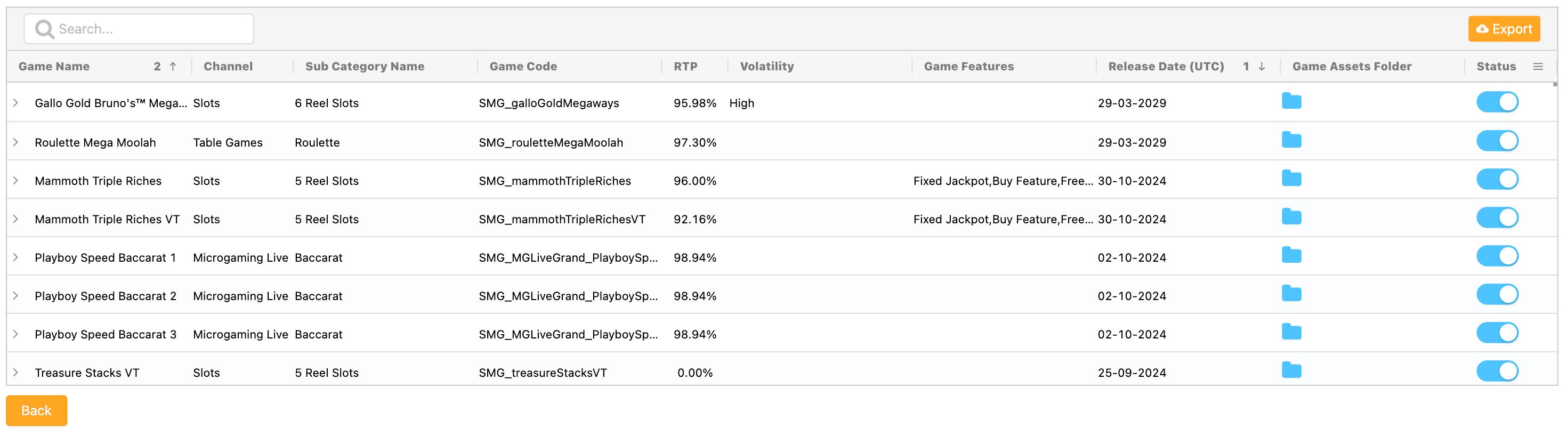
The games management table displays a list of games allowed for the current entity. You can search for specific games by their name, channel, or game code.
If a game is not listed, it has either been blocked by higher business entities or removed from the MG+ games catalog.
|
|
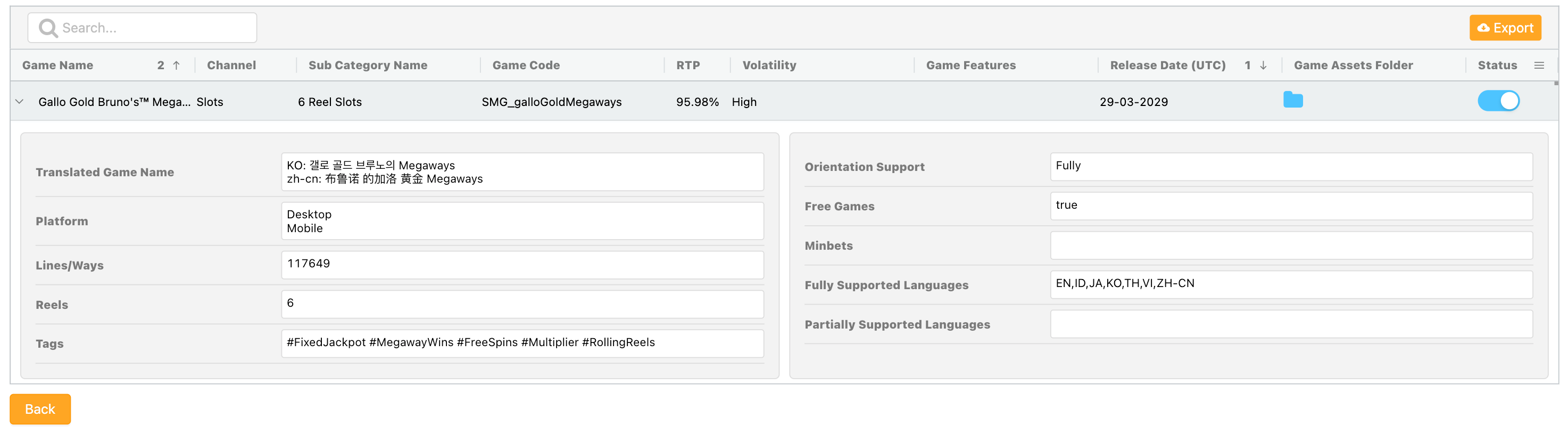
The games management table is divided into two sections to facilitate easier viewing. The first level of the table displays essential data for quick reference. To access the second level of detailed information, click on the arrow next to the game name to expand the view. The search functionality is limited to specific fields: Game Name, Channel, Sub Category Name, Volatility, Game Features, and Tags.
Game Tags
The game tags utility provides users with an additional method to search the games management table. To view the game tags, click the arrow next to the target game to access the second level of the table. Tags are set per game by the system.
Blocking Games
Games that are blocked will be displayed first when the status toggle is set to off, followed by games that are allowed.
You can toggle the game status by clicking the status toggle button; this must be confirmed by clicking the Confirm button on the prompt. Upon confirmation, the game status will be changed, saved, and the page will refresh automatically. If you click the Cancel button, the block/unblock action will be canceled.
If a game is blocked at any level, it will not appear in the game list of its downlines. For instance, if game X is blocked at the Head Office level, Master Agents under that Head Office will not be able to view it in their game list. The game will also be blocked for all platforms, but it will be blocked in the MG+ system only and not on the gaming server. The sessions API method will return an error on the request of the blocked game for the agent instead of the game URL, and the games list and details API methods will not include or provide details for the blocked game. However, the blocked game will still appear in a report's filters and outputs.
If a game is blocked on the MG+ system level, it will not appear on the games list at all.
Game Assets Folder
The Game Assets Folder column in the games management table is equipped with a folder icon. By clicking on it, users will be directed to the corresponding game's asset library in Canto. A link to the game asset library will be included in the exported excel file.
Exporting the Games Management Report
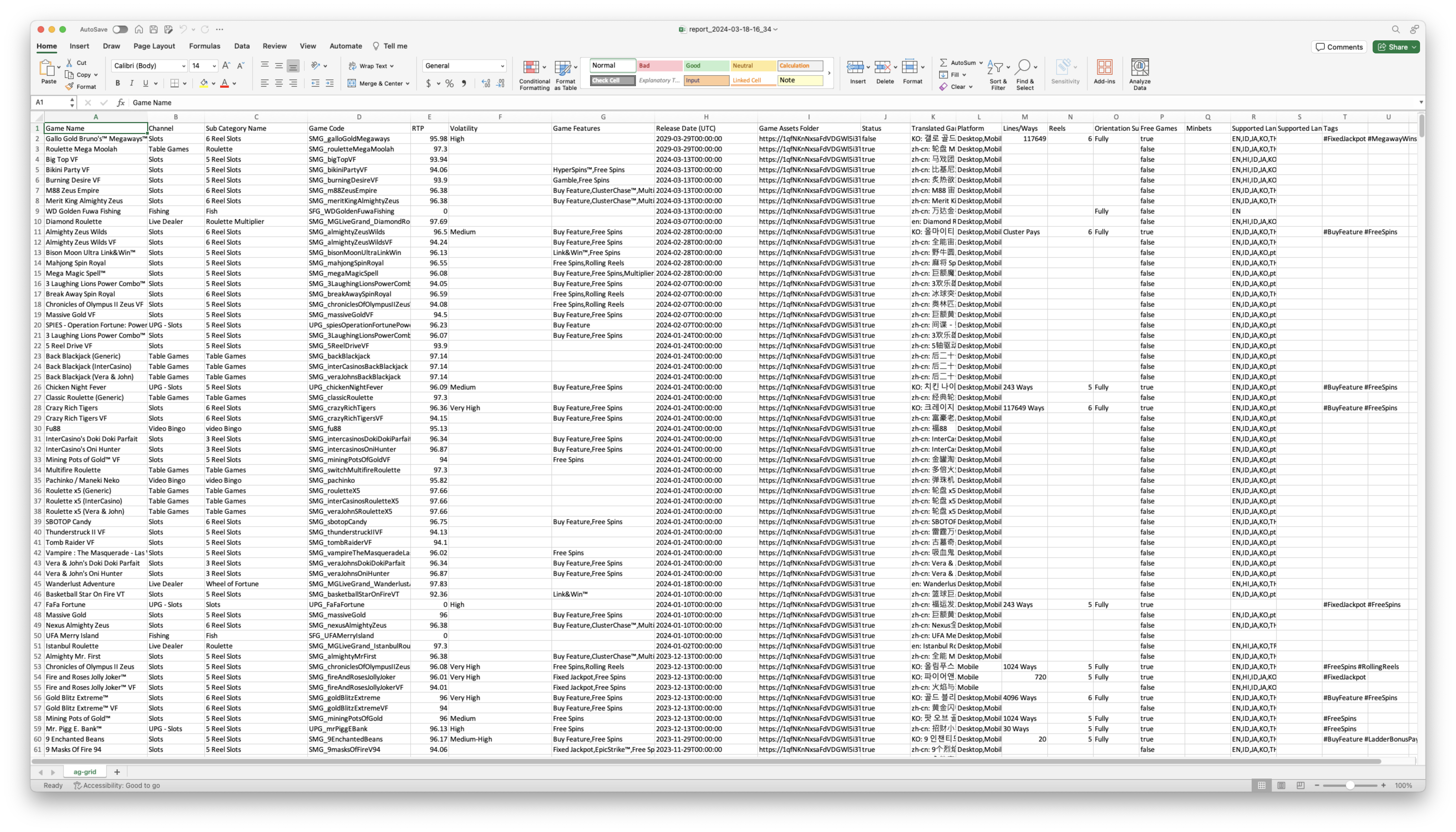
The Export button will allow users to download the games management table and export it to Excel, displaying the exact same data as seen in the filtered report. The Excel export will include data from both the first and second levels of the table.