
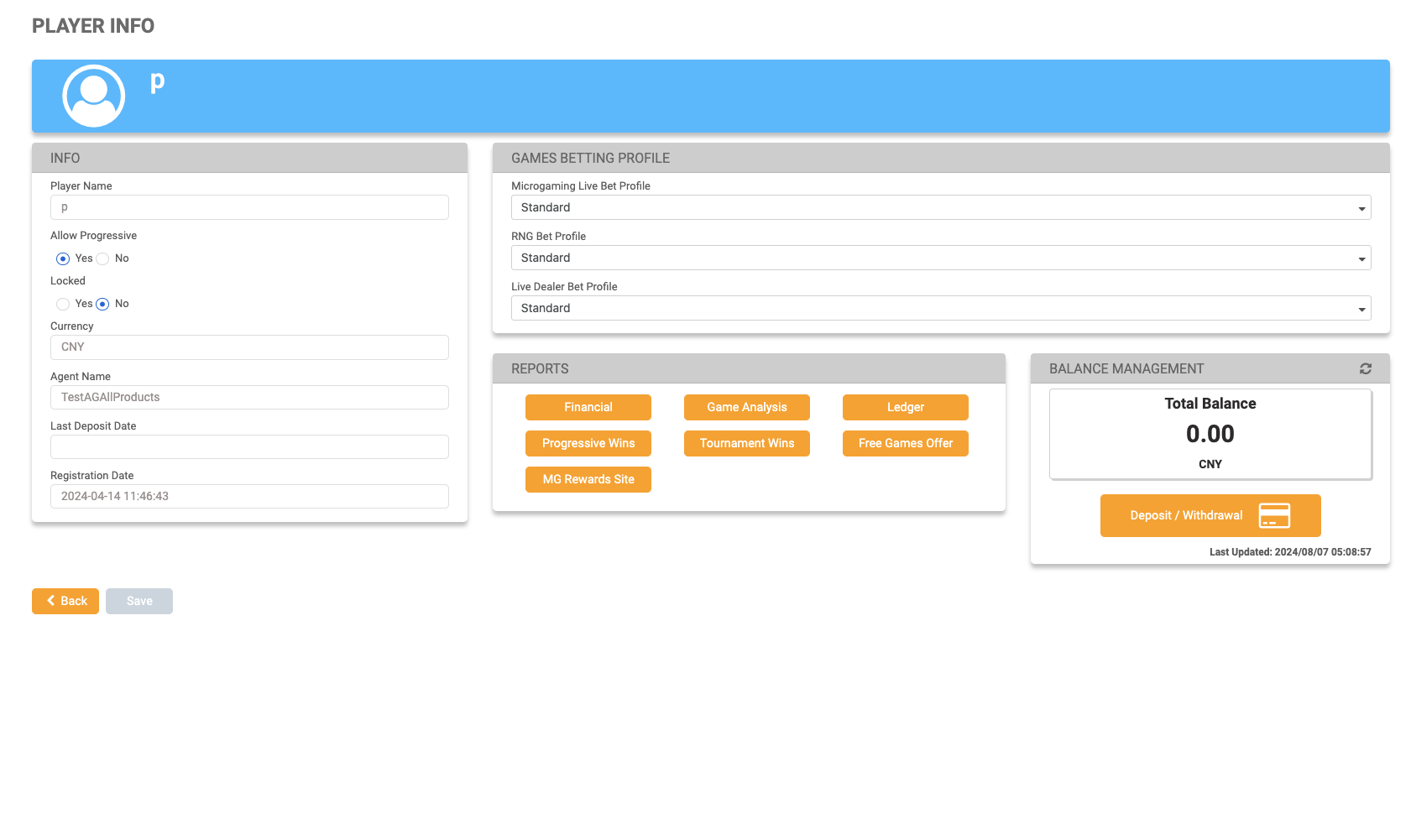
The Player Info page provides a platform to manage a player's details, view their games betting profile, generate player-specific reports, and manage their balance.
|
Info
|
Field |
Description |
|---|---|
|
Player Name |
The name of the player. |
|
Allow Progressive |
Permission toggle for progressive slots games. |
|
Locked |
The player’s status. If a player is partially locked, it is displayed as No on the player list. |
|
Currency |
The Agent’s currency. |
|
Agent Name |
The name of the Agent that the player is assigned to. |
|
Last Deposit Date |
The date in which the player made their last deposit. |
|
Registration Date |
The player’s registration date and time on the MG+ platform. |
Games Betting Profile
Users can utilize this section to choose a specific bet profile. The bet profile values are set according to the bet profile logic. Refer to Tools > Users Management > Betting Profiles Management for a detailed display regarding the bet profile logic.
Reports
Users can access specific reports from the player info page using buttons based on their report permissions. Upon selection, the chosen report is automatically populated with the filter criteria, such as the player's name and the entity that they belong to (Head Office/Master Agent/Agent).
The MG Rewards Site button will launch a view-only version of the player's stats on the MG Rewards site.
Return to Player Info Link
If the user is directed to a report from the Player Info page, they will see a Return to Player Info link. Clicking this link while viewing updated results after changing filter conditions will still return the user to the original Player Info page. However, if the user accesses the report from the reports menu rather than the Player Info page, this link will not appear.
Balance Management
The Balance Management box displays the player's total balance in the configured currency of the agent. This balance is subject to change depending on deposits and withdrawals made by the player.
|
Field |
Description |
|---|---|
|
Refresh |
The refresh icon located in the top right corner of the balance management box allows users to update the player's total balance amount. |
|
Last Updated |
This shows the last time the total balance was refreshed. |
|
Deposit/Withdrawal |
This feature is disabled and is for viewing only. |
Deposit/Withdrawal
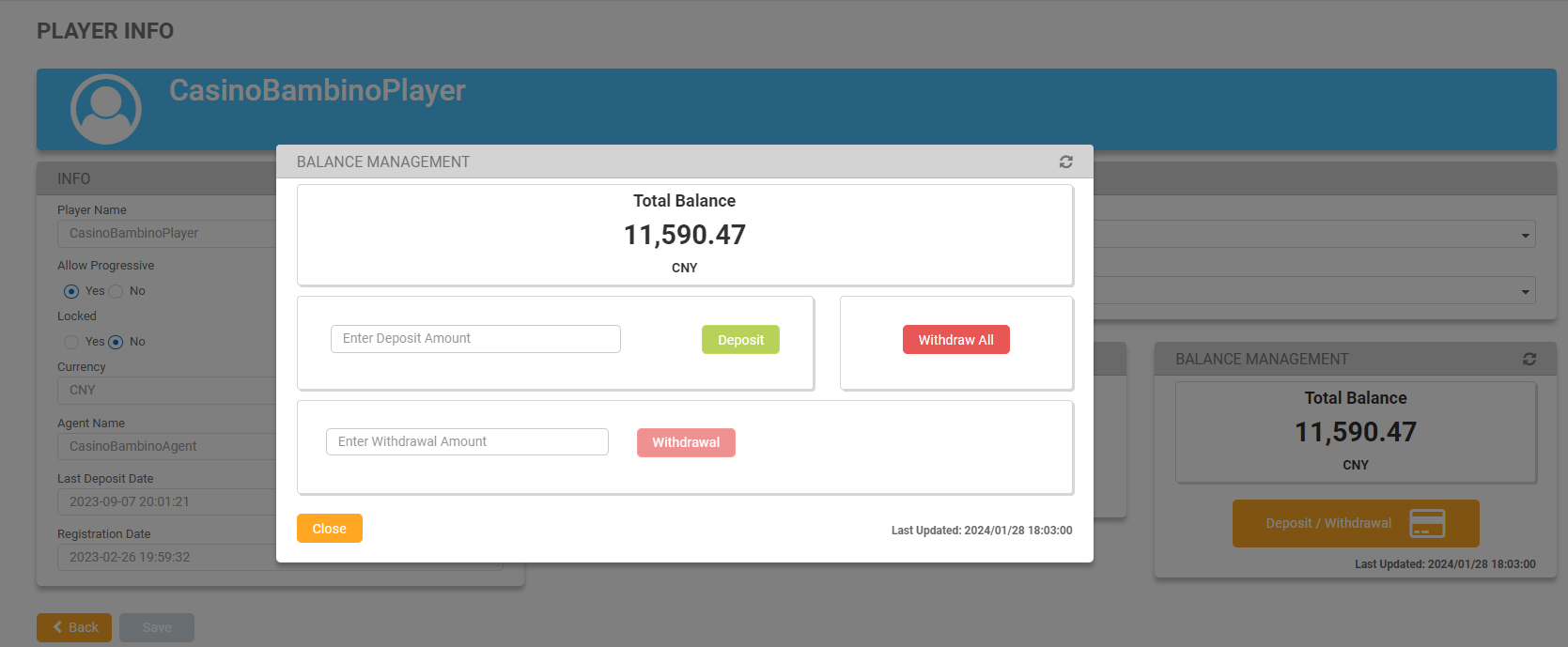
Clicking on the Deposit/Withdrawal button on the Player Info screen will open up the balance management prompt.
Deposit
Enter an amount in the deposit field and click on the Deposit button. A confirmation message will pop up. Clicking Accept will update the total balance amount.
Withdraw All
Clicking on Withdraw All will withdraw the player’s entire balance and update their total balance to 0.00. A confirmation message will pop up. Clicking Accept will update the total balance amount.
Be aware that the final withdrawal amount may differ from what is displayed, as the player’s balance may continue to fluctuate while they play.
Withdrawal
By clicking on Withdrawal, players can withdraw partial amounts from their wallet. However, it is important to note that valid withdrawal requests may be declined. Players can continue playing while their withdrawal is being processed, which may affect the amount they wish to withdraw.
To withdraw, enter an amount in the withdrawal text field then click the Withdrawal button. The button will remain disabled until a valid amount is entered; this amount can be equal to or less than the amount displayed on screen.
After clicking on Withdrawal, a confirmation message will pop up. Clicking Accept will update the total balance amount.
Back button
To return to the Player List, use the Back button.
When a user searches for a specific player and opens the player info page, they can click the Back button to be directed back to the player search results, with the exact player they were viewing still visible. If they wish to alter their search results, they can do so by changing the filter criteria and resubmitting.
If the initial report's Player filter was unpopulated, clicking Back from the Player Info page will display a new player list with the same filter criteria applied, though the list may differ from the original as new players may have been added that satisfy the query criteria between the time the user edited the Player Info and clicked Back.