
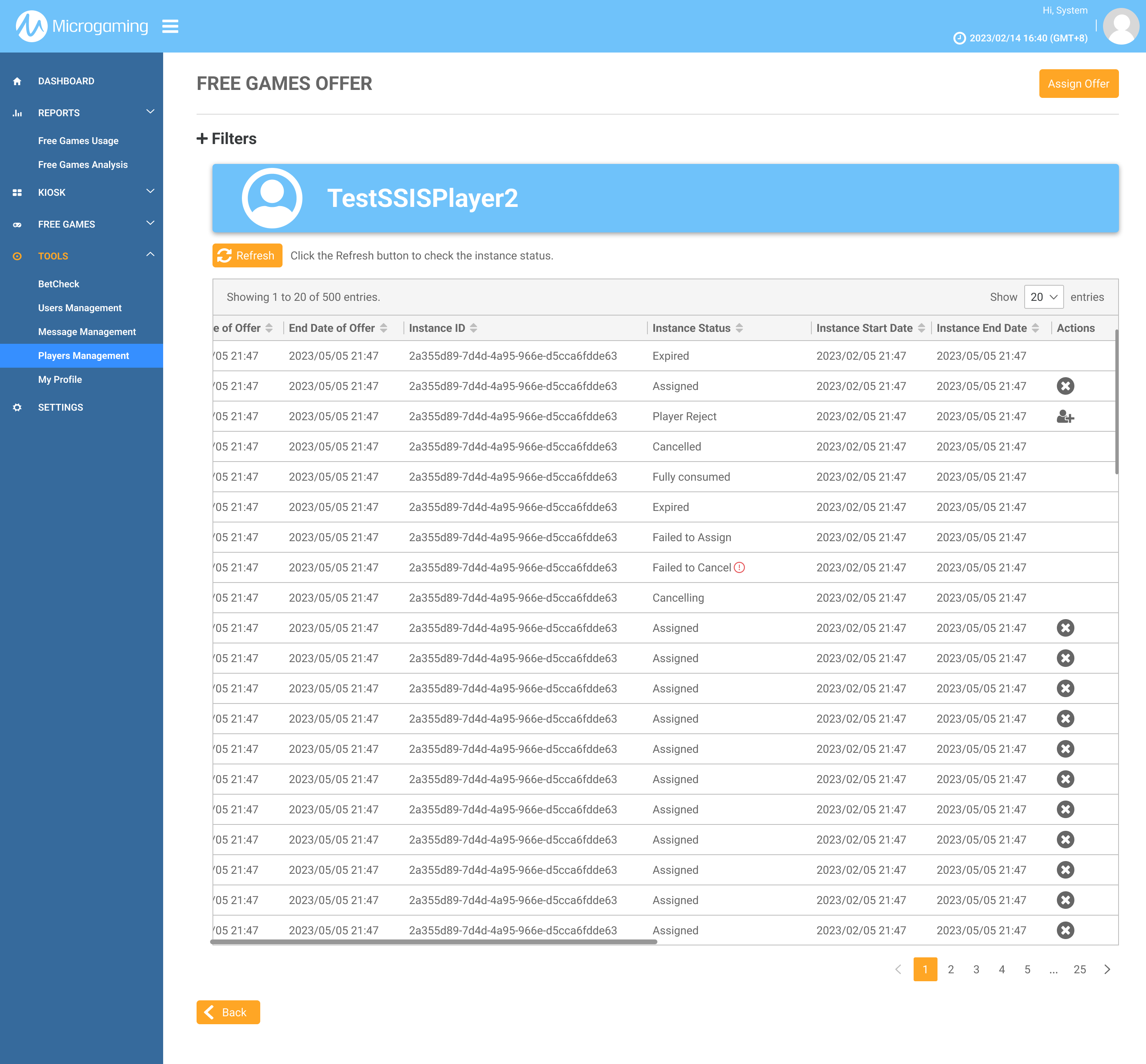
The Free Games Offer page allows the user to view a list of offers that have been assigned to the player.
For instructions on how to assign an offer to a specific player, refer to the Assign a Player to an Offer article.
Follow the steps below to navigate to the Free Games Offer page to view a list of offers assigned to the player:
-
Click Tools in the side menu of MG+ Backoffice.
-
Click Players Management.
-
Fill in the filters to narrow down the results for the specific player.
-
Click the Submit button.
-
Click on the row of the player to assign the offer to. This will take you to the Player Info page.
-
Under the Reports section, click the Free Games Offer button. This will take you to the Free Games Offer page.
|
Filtering the Free Games Offer Assigned to a Player List
Click Submit once the filters are configured to narrow down the player’s offer list.
|
Filter |
Description |
|---|---|
|
Instance Status |
Users can filter the report by selecting the Instance Status:
|
|
Offer Name |
To retrieve data for specific offers, the report supports filtering by using the search box. The search function supports partial matching for names, as long as the beginning of the name matches. For example, if you enter "ABC" as the search query, the system will return results that have names starting with "ABC" such as "ABC123" or "ABCD456". |
|
Offer ID |
In order to obtain data for specific offers, you can filter the report by using the search box and entering the desired offer ID. The offer ID has the following limitations: a maximum length of 36 characters, and only letters, numbers, and the '-' character are allowed. The format for an offer ID is XXXXXXXX-XXXX-XXXX-XXXX-XXXXXXXXXXXX. The search function supports partial matching for IDs, as long as the beginning of the ID matches. For example, if you enter "ABC" as the search query, the system will return results that have IDs starting with "ABC" such as "ABC123" or "ABCD456". |
Offer Information
|
Column Name |
Description |
|---|---|
|
Offer Name |
The name of the free game offer. |
|
Offer ID |
The unique identifier for the free game offer. |
|
Offer Status |
The status of the offer; Active or Closed. |
|
Start Date of Offer |
The start date of the offer period. |
|
End Date of Offer |
The end date of the offer period. |
|
Instance ID |
The unique identifier for the free game offer instance. |
|
Instance Status |
The status of the free game offer instance. |
|
Instance Start Date |
The start date of the instance period - this is the start of the availability period. |
|
Instance End Date |
The end date of the instance period - this is the end of the availability period. |
|
Actions |
The user can hover over the icon to view the tooltip. These action buttons can be used to change the instance status. Players can change status or use action icons only when the instance status is Assigned or Player Rejected. Assigned can be changed to Cancelled Player Rejected can be changed to Assigned (if within the validity period) |