
This article covers how to assign an offer to a specific player.
To assign multiple players to an offer, refer to the Assign a List of Players to an Offer article.
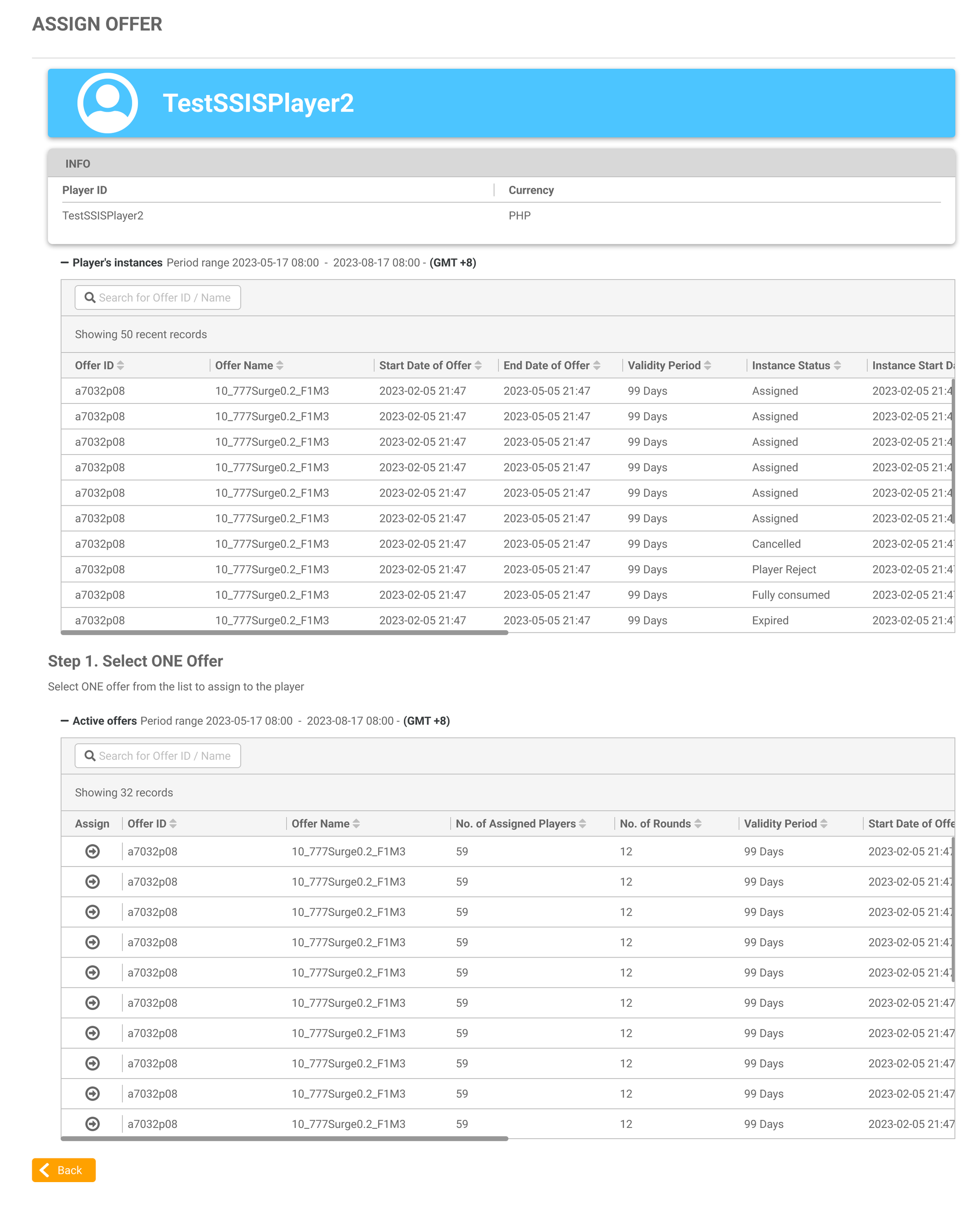
Click the Assign Offer button on the Free Games Offer page to assign the player to an offer. See the View a List of Offers Assigned to a Player page for more information.
|
This page provides a summary where users can easily view an overview of the player’s ID, associated currency, a historical list of their 50 most recent offer instances, and a list of active offers that can be selected.
Follow the steps below to assign an offer to the player:
-
In the Active Offers table, use the search bar to narrow down the list by the offer name or ID.
-
Select the offer by clicking the arrow button in the first column of the offer row.
-
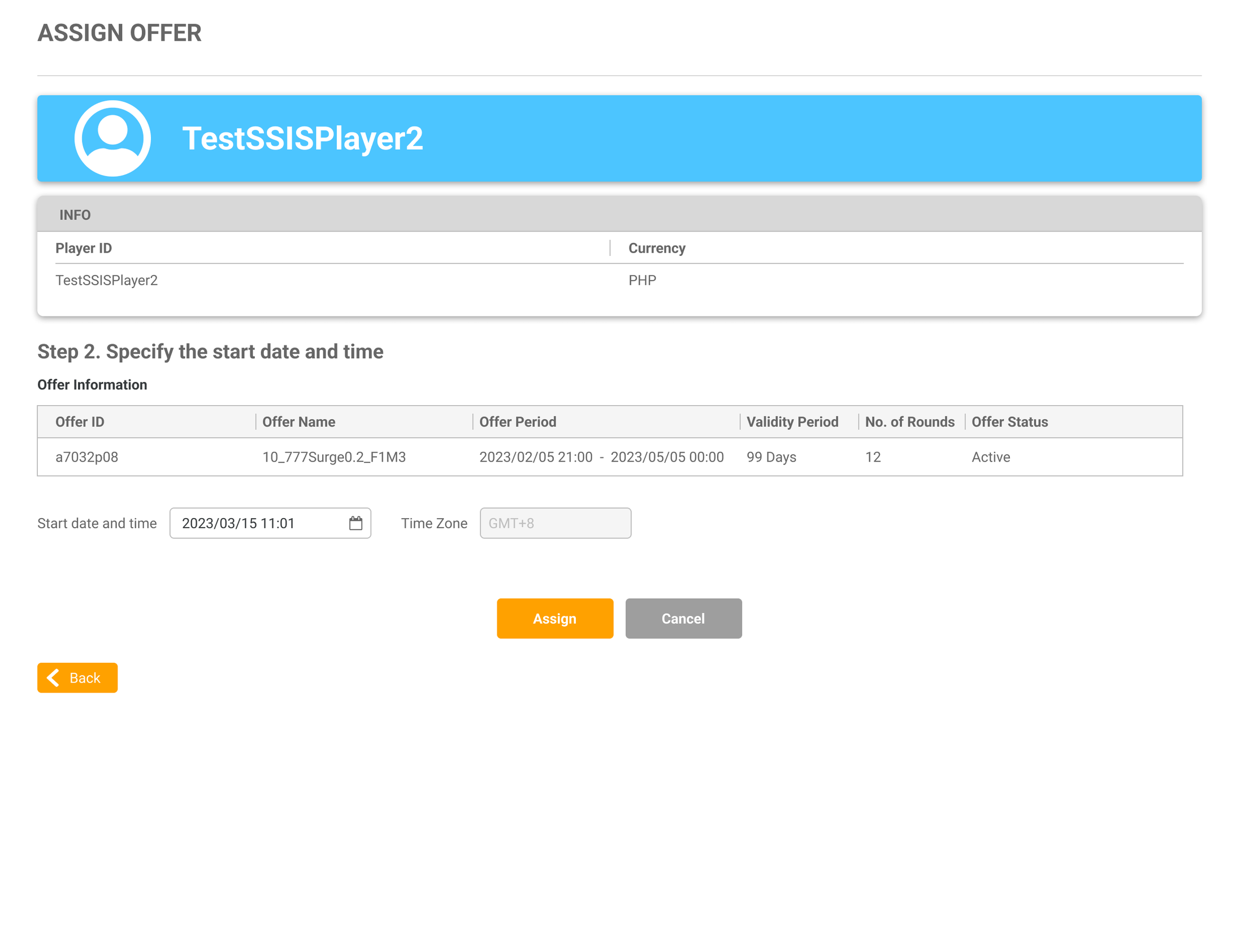
Specify the start date and time of the offer instance for the player. Refer to the Free Games Glossary for more information. The time zone field is displayed for reference purposes only; to change the time zone, visit the Settings page.
-
The date must be within the preset offer period, starting from the current date or later.
-
The end date of the offer period can serve as the start date for the instance.
-
The player can use the instance until the end of the validity period.
-
-
Click the Assign button.
|