
The Players Management tool allows users to create, search for, and view up to 1000 players associated with a Kiosk Agent.
Creating a Player
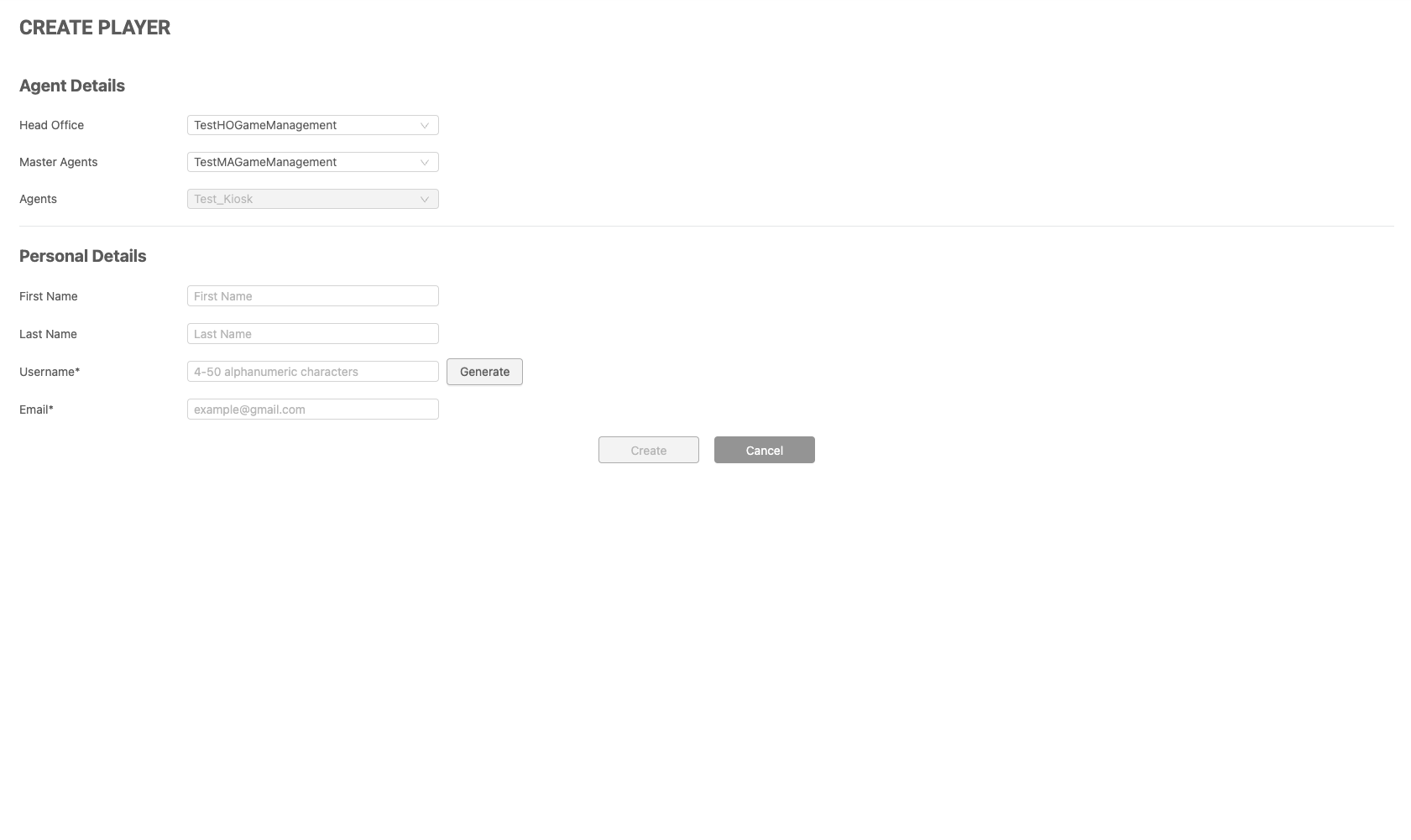
You can create a new Kiosk player by clicking the Create button at the top right of the Player Management screen. This will open the Create Player page, which requires you to fill in some details for the player account.
|
|
Field |
Description |
|---|---|
|
Agent Details |
If you are an Agent level user, you won't need to select anything here. However, if you are a Master Agent or Head Office level user, you may need to select your downlines, depending on your permissions. |
|
Personal Details |
|
Filtering the Players Management Table
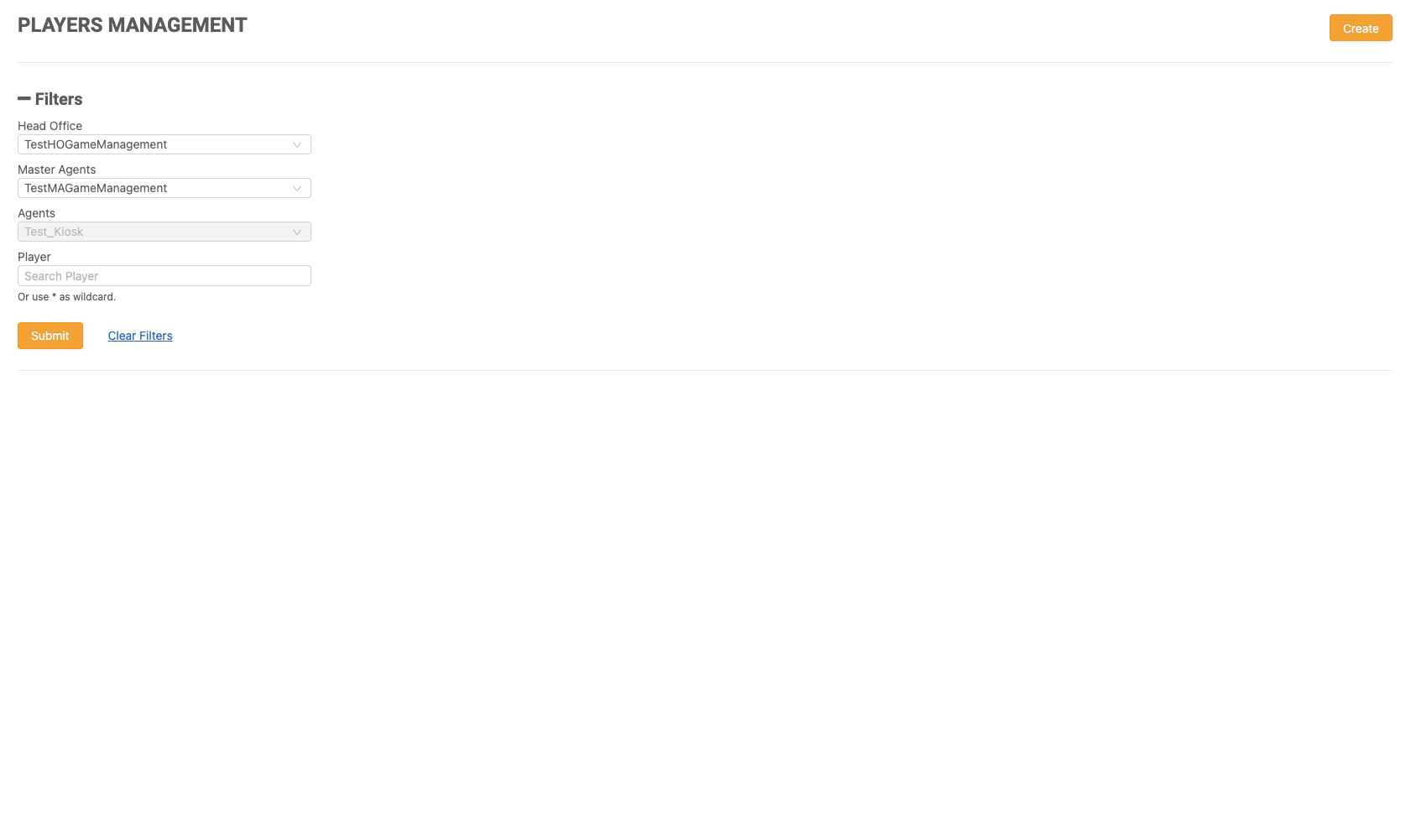
Use the filters to refine your search criteria. Click the Submit button to view the results, or click Clear Filters to reset and start over.
|
|
Filter |
Description |
|---|---|
|
Entity Filters |
Users can apply filters to view the data relevant to the entity. Only one value can be chosen from the drop-down menu. For menus with only one option, the option will be automatically displayed and selected. |
|
Player |
The results can be filtered for a single player's data by searching for them using the text box. This is an optional field. A player name can be entered, or an asterisk (*) can be used as a search wildcard. If a user clicks Submit without entering a player name, the system will return a list of all the players under the selected Agent. |
Functionality of the Kiosk Players Management Table
To adjust the filters for resubmission, click Filter (this may be displayed as an icon or as a link labeled +Filter).
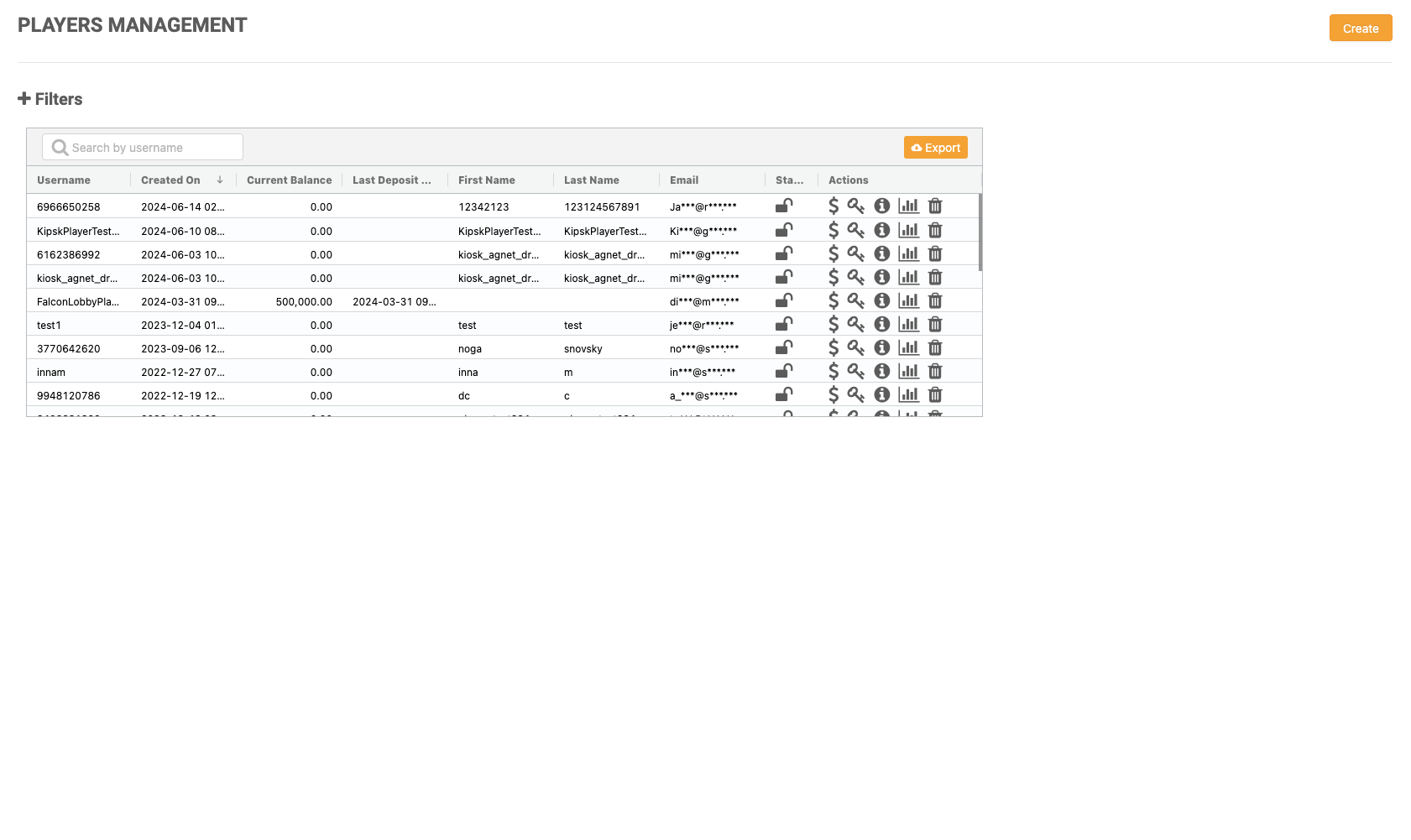
Clicking on the Export button will provide the user with an Excel .CSV file of the table summary.
Upon clicking Submit, a list of players will be displayed in order of Latest Creation Date by default. Users may click the header of each column to sort the list in a different order, and can also drag and drop the column to a desired position in the table. Additionally, a search box is available to search by username. Upon logging in, the table will be sorted in the same order as the last log in.
|
Cashier Modal
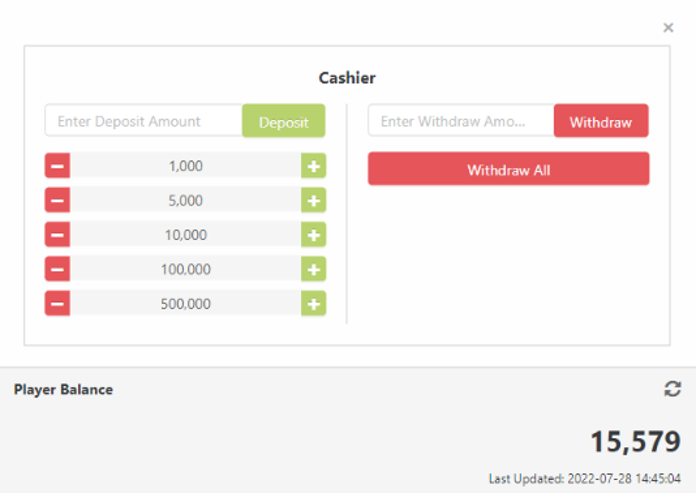
By clicking either on the row or the dollar icon, users can open the Cashier modal, enabling them to make deposits and withdrawals for a player.
|
-
Deposit/Withdraw - In the Cashier modal, users can make deposits and withdrawals for a player. They can enter the desired amount for deposit or withdrawal either by using the keyboard or by clicking on the + and - signs.
-
Withdraw All - Users can use the Withdraw All function to withdraw the entire remaining balance from a player’s account.
-
Player Balance - Displays the total balance of the player account. The total balance of the player's account will refresh automatically when the deposit or withdraw button is clicked.
Reset Password for a Player
By clicking on the key icon under Actions in the Player List, a reset password prompt will pop up. This allows you to reset the password of a player. Upon confirmation, a new password will be sent to the player's registered email address. To use a different email address, please update the Email field in the Player Info page. For security reasons, the Email field is masked.
Player Info
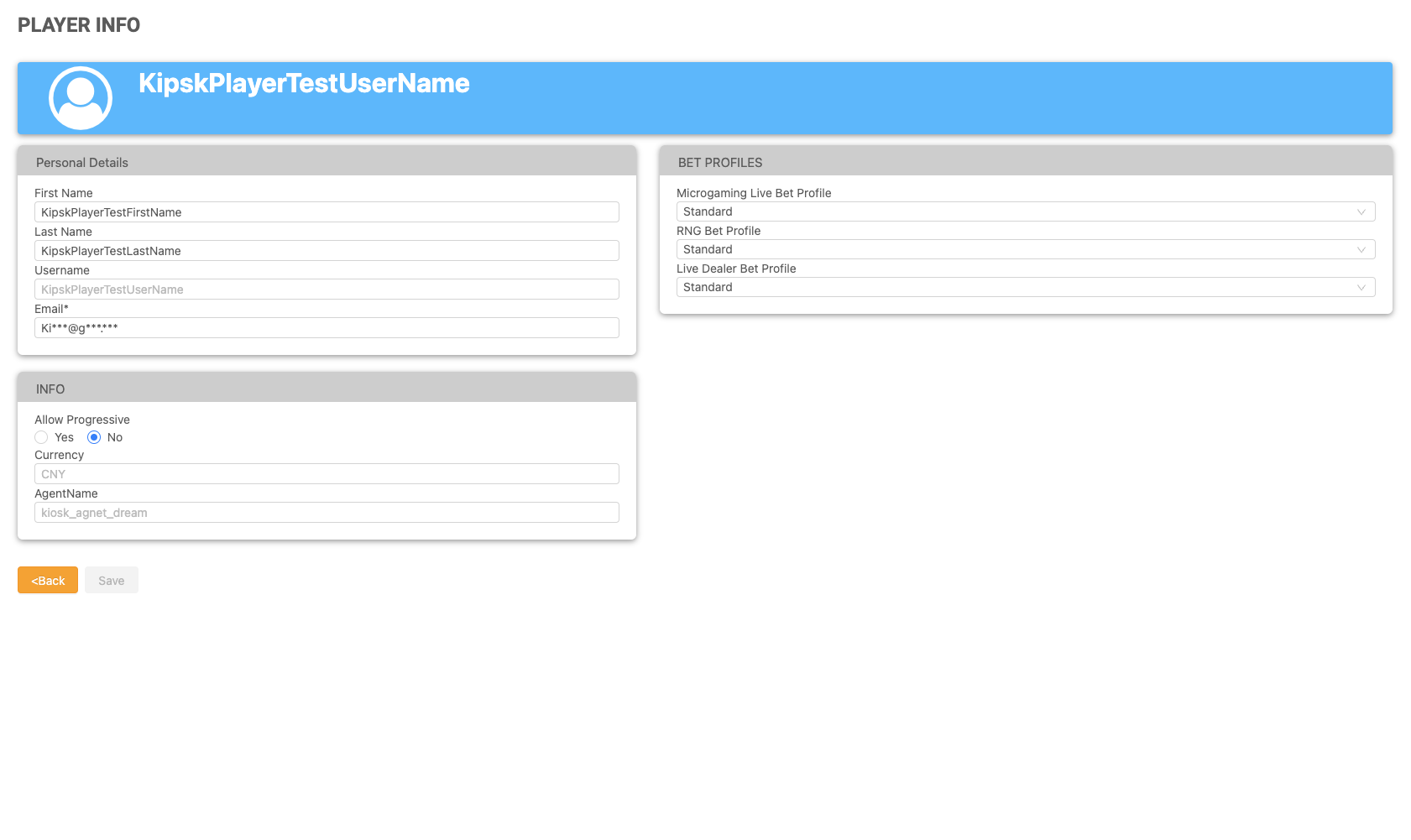
By clicking on the Info icon, the Player Info page opens, displaying the player's personal information, currency, and agent. In this page, the user can update the following fields:
-
First Name
-
Last Name
-
Email (For security reasons, the email field is masked)
-
Allow Progressive - Determines whether a player has permission to play progressive slot games by selecting the Yes/No radio buttons.
-
Bet Profiles - Users can utilize this section to choose a specific bet profile. The bet profile values are set according to the bet profile logic. Refer to Tools > Users Management > Betting Profiles Management for a detailed display regarding the bet profile logic.
|
Player Dashboard
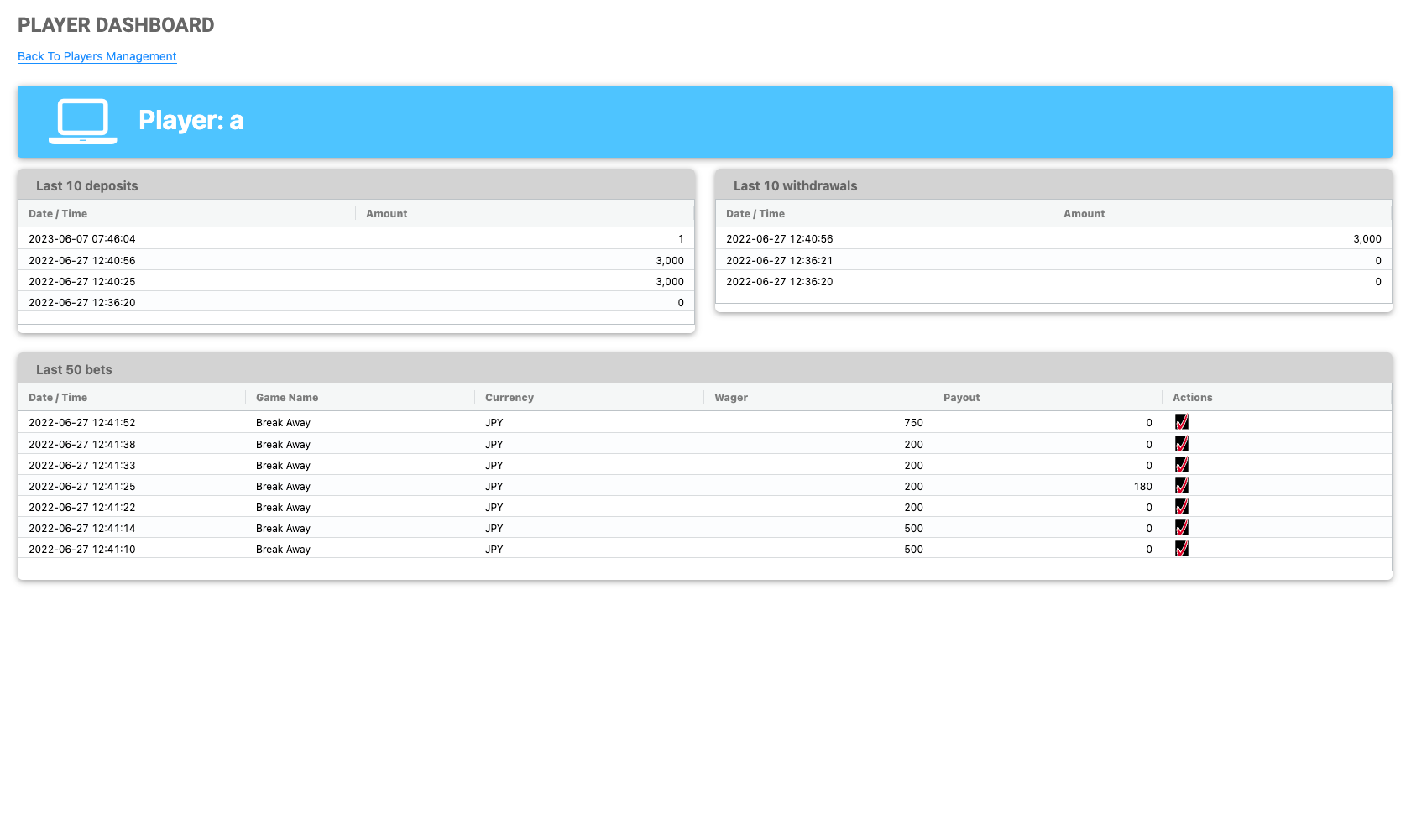
The Player Dashboard offers users a quick view of a particular player account's information without needing to access the reports. This information includes the last 10 deposits, last 10 withdrawals, and the last 50 bets made by the player, with a link to Playcheck for each bet.
|
Delete
The trash can button under Actions can be clicked to delete a player's account, provided that the account balance is zero.