
The Message Management page enables users to send out messages to their chosen entities. The page can be accessed through the Tools menu.
Message Management Permission
To access the Message Management function, the entity must have Message Management enabled under their permissions.
To enable Message Management, refer to the Editing an Entities Information article.
Create a New Message
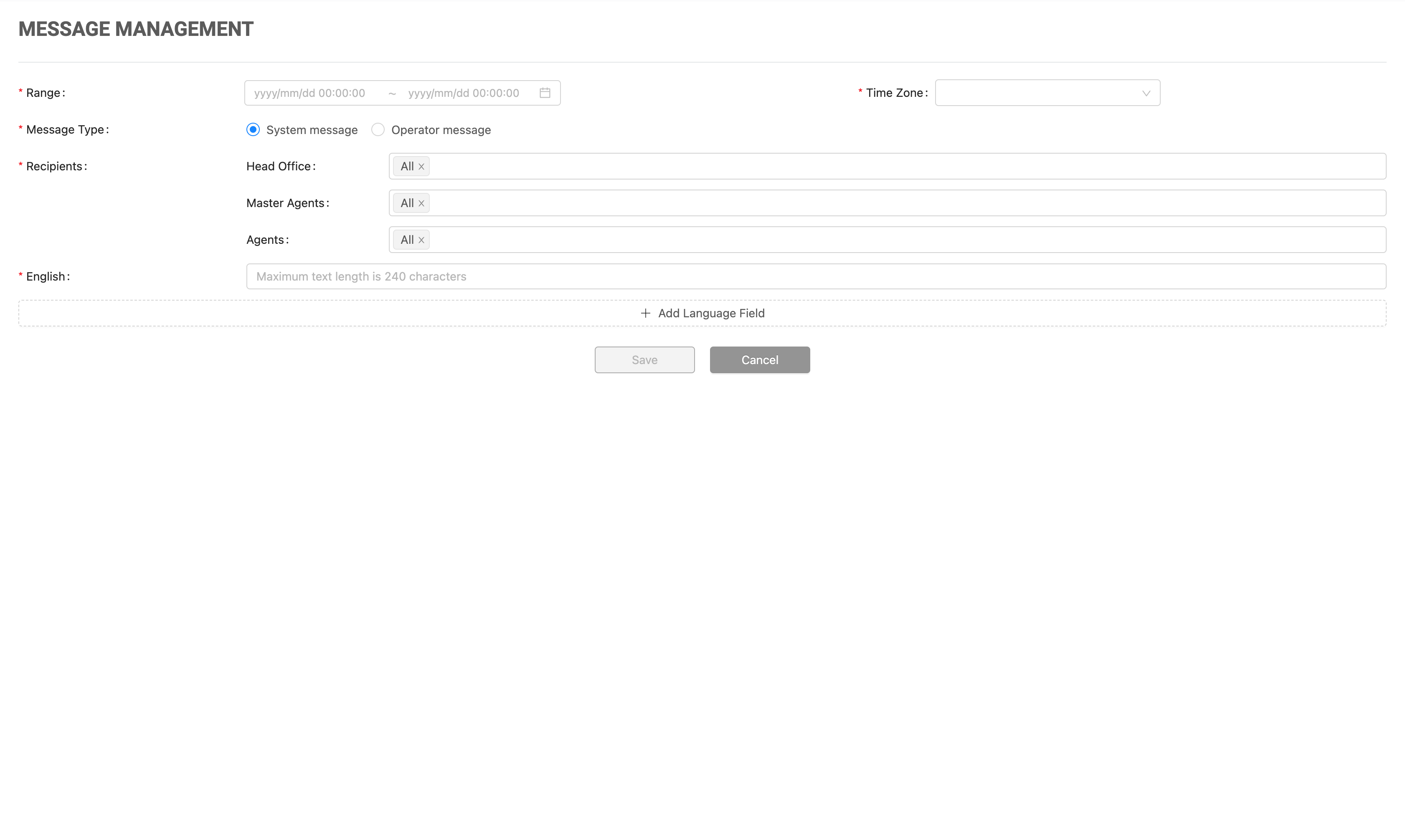
To create a new message, click the Save button.
|
|
Field |
Description |
|---|---|
|
Range |
Use the provided parameters to set the specific date and time range for displaying the message. |
|
Time Zone |
The message will be displayed within the date range of the selected time zone. |
|
Message Type |
System Message
|
|
Recipients |
Users can apply filters to choose which entities to send the message to. The default option is set to All. The list of entities is displayed in alphabetical order. Users can search for an entity by entering keywords in the search field. The system will display matching entities as the user types. |
|
English |
English is the default language - the user must enter a message written in English. |
|
+ Add Language Field |
To add messages for other languages, the user can click the + Add Language Field and select a language using the drop-down menu. Messages will be displayed in the user's system language (e.g., Chinese messages will be shown when the user's system language is set to Chinese). In the absence of language-specific messages, the English message will be presented to users regardless of their selected language. The maximum text length is 240 characters. |
Message Management List
|
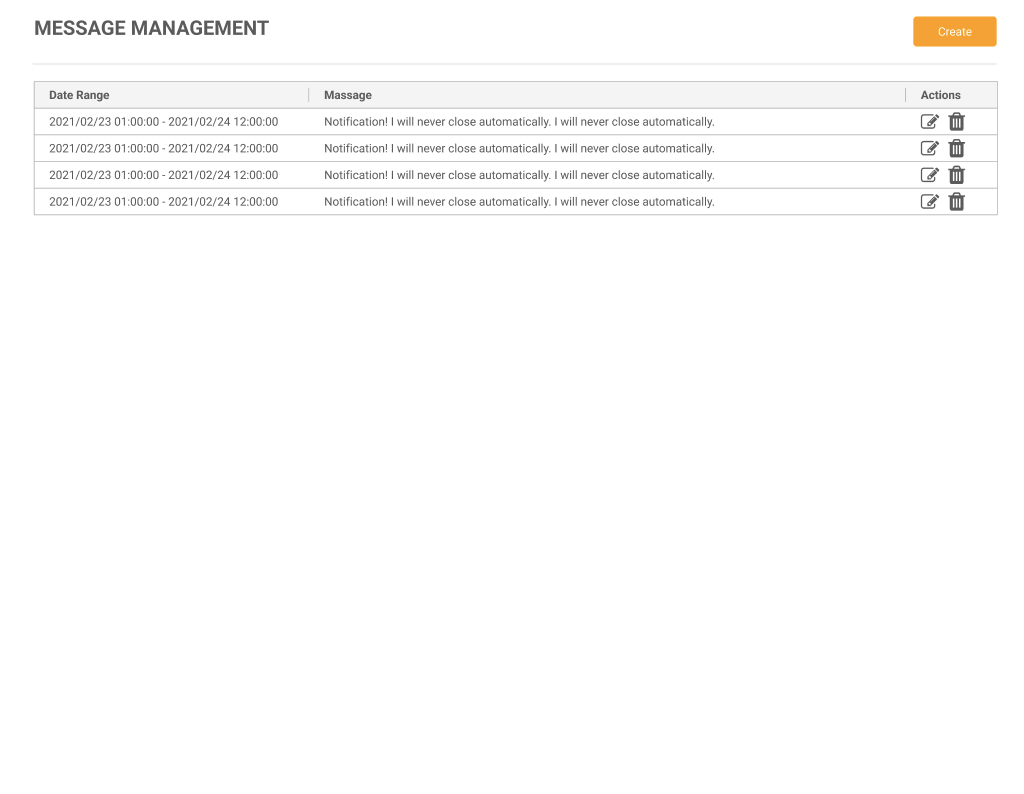
The Message List page displays a table of configured messages. The list includes the following columns:
-
Date Range: The effective date and time range for the message.
-
Message Excerpt: A preview of the message content (the first 120 characters).
The message list is ordered by date range, with the most recent messages at the top.
Each message entry includes Edit and Delete icons.
-
Edit: Clicking the Edit icon opens the message content for modification. All message fields are editable except Recipients and Message Type.
-
Delete: Clicking the Delete icon displays a confirmation pop-up: "Are you sure you want to delete this message?"
Expired messages are retained in the list; users are responsible for deleting expired messages.
Expired messages will not be displayed to users, even if they remain in the list.