
Overview
-
The complete list of campaign URLs for all campaign types: https://bigasia.atlassian.net/wiki/spaces/SHSC/pages/2685468673/MG+Campaign+URLs+Master+List+V2
-
Each campaign type links to a Canto folder where the promotion team uploads campaign images.
-
Each campaign URL links to two Canto albums: one for Desktop and one for Mobile.
-
Campaign pages may display a Terms & Conditions (T&C) footer at the bottom, controlled by keys managed in Phrase. The promotion team oversees these keys to enable instant content updates without deployment.
Process of Updating the Campaign Image
-
Upload campaign images to the corresponding album (Desktop or Mobile) within the MG+ Campaign folder in Canto.
-
If the campaign supports multiple languages, upload an image for each language in the album.
-
Image naming conventions and dimensions are not strict.
-
Images can be either a Coming Soon image (shown before the campaign starts) or a Campaign image (after launch).
-
-
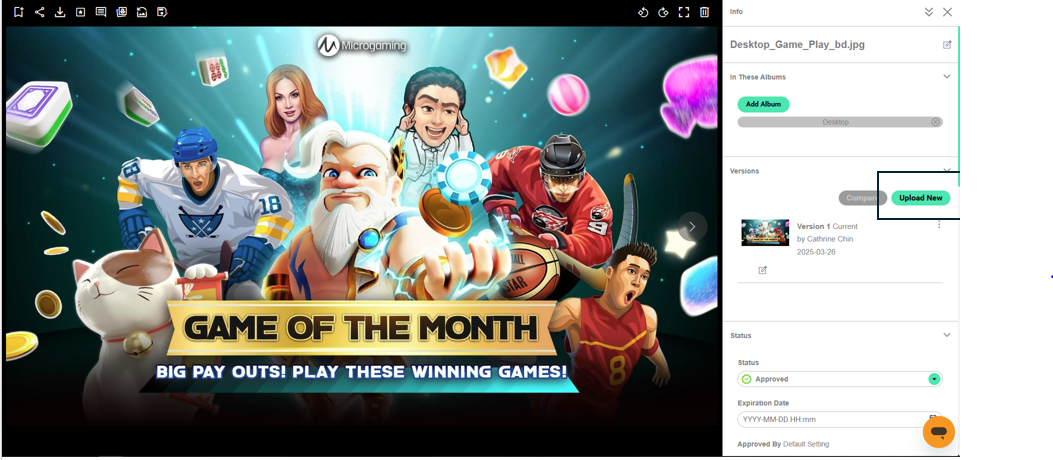
To update an existing language's campaign image, do not remove the original image. Instead, click “Upload New” to maintain the image URL and prevent broken links.
-
Canto image settings:
-
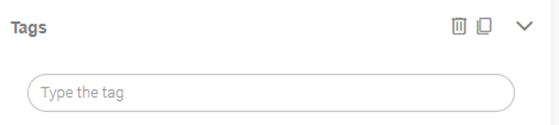
Add the currency tag (e.g., “USD”) in the tag field.
-
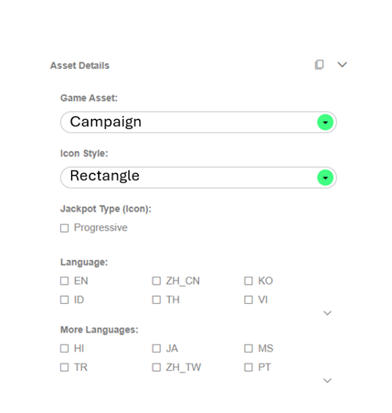
Game Asset: Campaign
-
Icon Style: Rectangle
-
Select one language only for each image
-
-
After uploading, the new image will appear on the campaign URL page.
Edge Case
For campaign types with only one URL (e.g., https://mgr.basebit.net/#/static/cny-exclusive1), select “EN” for the image language in Canto. Adding a currency not required in this case.
Process of Adding New Currency/Language in Campaigns and Epic Win Campaigns
Responsibilities of the Promotion Team
-
Create a ticket requesting the RCT team to create new URLs.
-
The RCT team will update the campaign URL page accordingly.
-
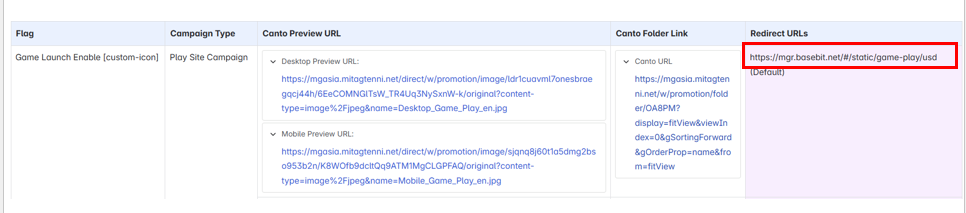
Campaign types requiring new urls include:
-
-
Follow previously defined image upload steps here.
-
Notify the RCT product team after uploading images to Canto.
-
Phrase configurations
-
Provide content for tab images

-
Provide content for Promo Arena header banners

-
Responsibilities of RCT Team
-
Create new albums in Canto when new content codes are introduced:
-
Create campaign folders under appropriate hierarchy:
-
Album naming should follow the format:
{campaign code}_desktopor{campaign code}_mobile -
Replace hyphens (“-”) in campaign codes with underscores (“_”) when creating album names. For instance, a campaign code like
exclusive1-game-playbecomes the album nameexclusive1_game_play_desktop.
-
-
Add new languages in Phrase when new currencies are added.
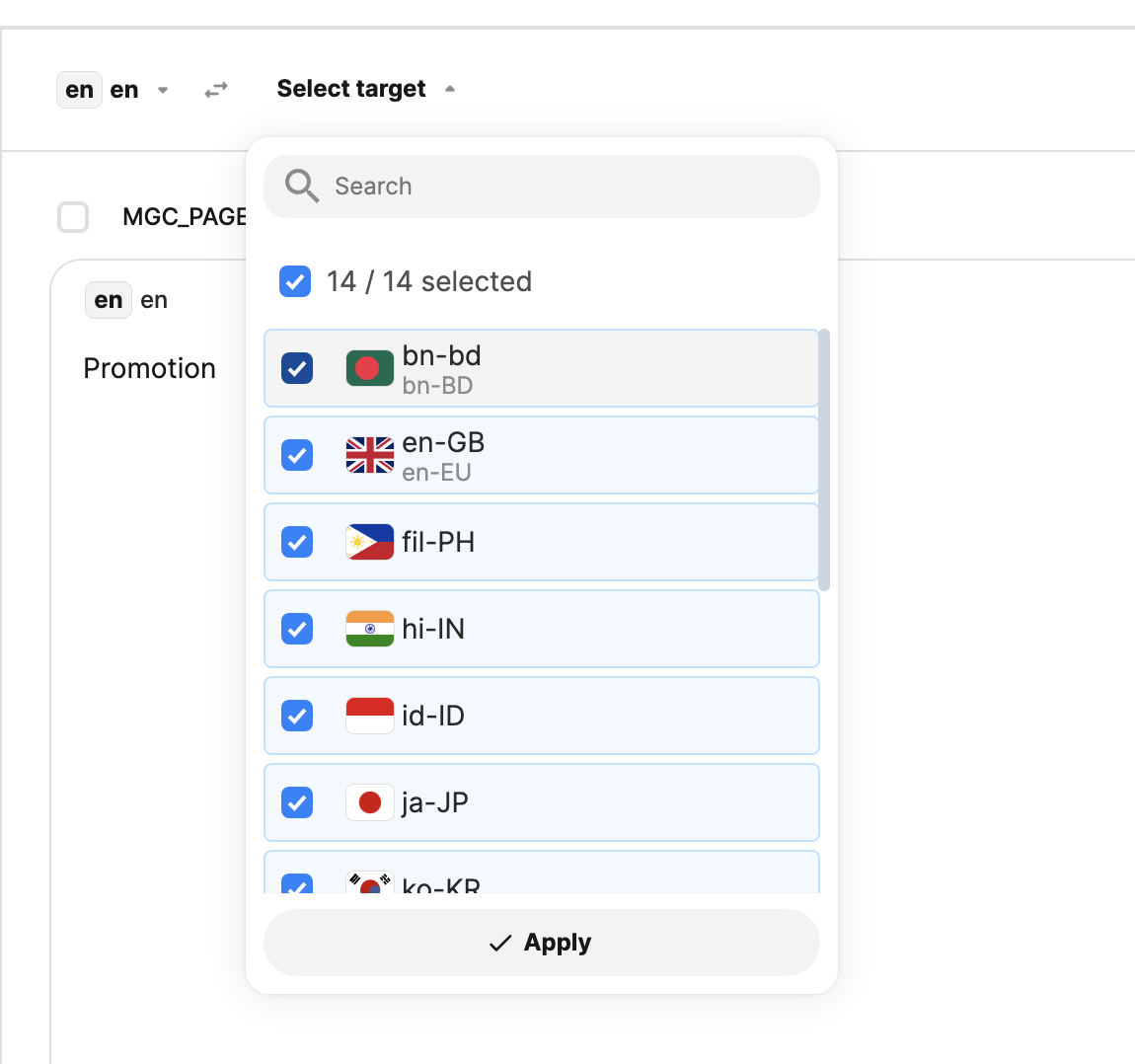
Process of Adding New Content Codes
-
Submit a ticket to the RCT team with the new content code details.
-
RCT team will set up new Canto albums for the promotion team to upload images.
Process of Creating New Static Campaigns
-
Follow the defined campaign setup steps here.
-
No need to inform the RCT team.
Process of Creating New Game Launch Campaigns
-
Submit a ticket to the RCT team to create the new game launch campaign.
-
Specify in the ticket:
-
URL (e.g., https://mgr.basebit.net/#/static/exclusive1-game-play)
-
Content Code (e.g., GTBonusDrop)
-
Currency (e.g., CNY)
-
Game list with game codes
-
Icon size preference (large or small)
-
First 6 icons will be large if more than 6 icons are present
-
-
Deployment date/time/time zone (for Coming Soon period)
-
Campaign start date/time/time zone
-
Campaign end date/time/time zone
-
-
Canto configurations:
-
Replace the Coming Soon image with the campaign image upon launch.
-
Ensure the marketing team has uploaded the required game icons in Canto.
-
See guidelines for uploading game icons (#3 on this page).
-
-
Adding Terms & Conditions to an M2Play Campaign
M2Play campaign pages can display a Terms & Conditions (T&C) footer with campaign-specific hyperlinks. The footer is shown only when a designated T&C key exists in Phrase. The promotion team manages this content directly in Phrase, allowing updates to go live without any deployment.
-
Create the T&C key in Phrase
In Phrase, create the keycampaignCode.term-conditions.descriptionsunder the M2Play Campaign folder. -
Verify the T&C footer
Once the key is created, the campaign page will automatically display a T&C footer. -
Access the T&C page
The T&C footer links to a dedicated Terms & Conditions page for the campaign. -
Update content as needed
Any changes made to the key in Phrase are reflected live, without requiring a deployment.