
The Batch Job List displays all game configuration jobs. Each job defines a collection of game lists along with 20 distinct currencies to be deployed to specific entities (Head Offices, Master Agents, and Agents) on a designated effective date.
Click the Create Job button on the top right to create a job. Newly created jobs will be displayed first.
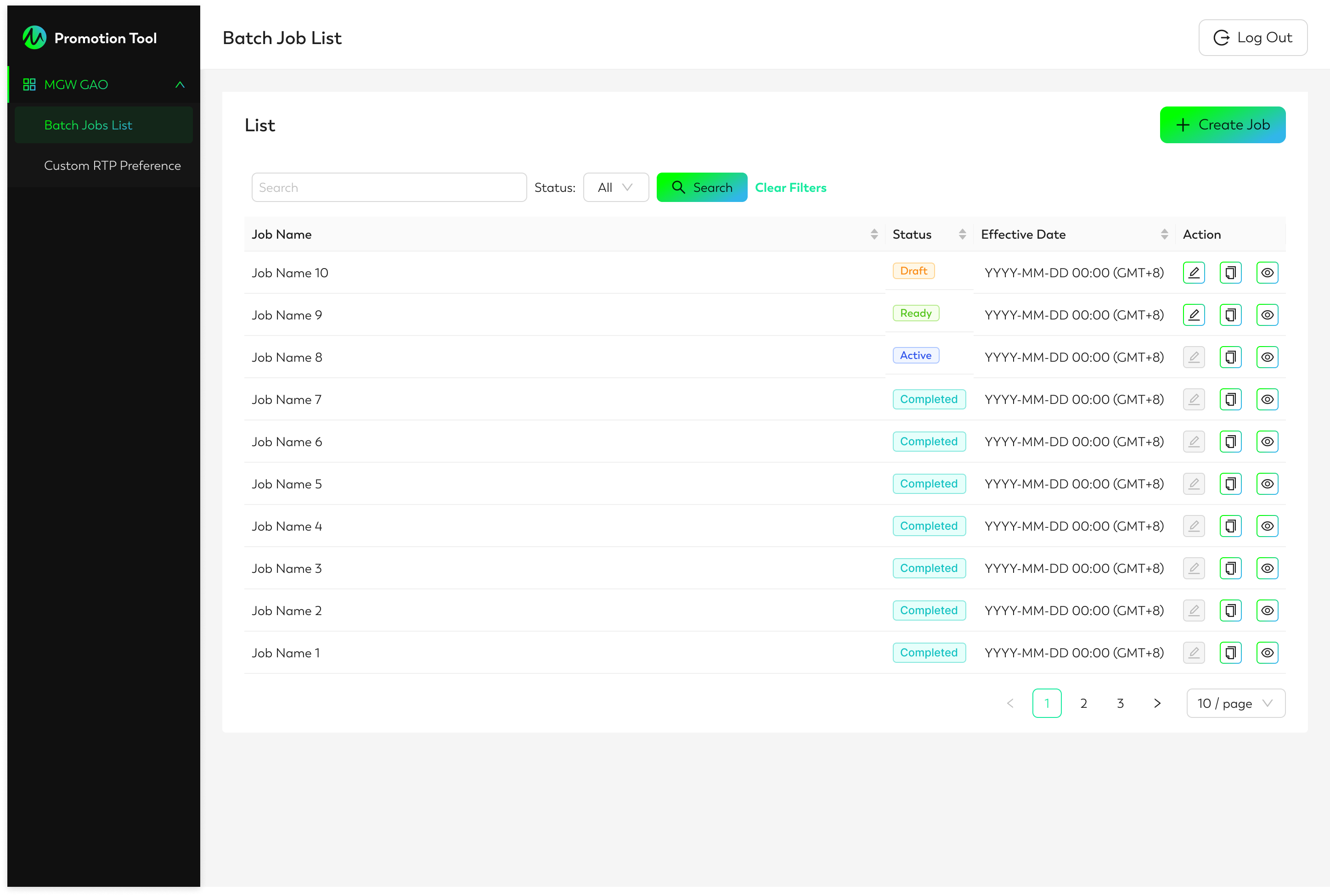
To search for a specific job, use the search bar to type in keywords, and use the Status filter to narrow your search. Below are the columns and actions available under batch job list:
|
Column/Action |
Description |
|
Job Name |
Create a name for the batch job for easier identification. |
|
Status |
Shows whether the job is Draft, Ready, Active, or Completed |
|
Effective Date |
The date and time when the job will take effect. |
|
Action (Edit) |
Modify jobs that are in Draft or Ready status. |
|
Action (Duplicate) |
Create a copy of any job. The new job will be Draft, and its effective date, status, and time zone must be set manually. |
|
Action (View) |
Review the game list for a job without editing. All other actions are disabled. |
Here is a more comprehensive explanation to each job status:
-
Draft: The user is still editing the job.
-
Ready: The batch job has been created, and the current date is before the effective date. On the effective date, the status will automatically change from Ready to Active.
-
Active: The job is currently in use in the production environment. Only one job can be Active at a time.
-
Completed: When an Active job is replaced by a new Active template, the status of the old job will be updated to Completed.
Note: A Completed job cannot be reverted back to Active or other status.