
Normal Tournaments
-
No need to inform RCT Team.
-
Configure the tournament details in the infinity tool developed by the Alpha Team.
-
Update the translations in phrase.
-
Guidelines provided in another page.
-
-
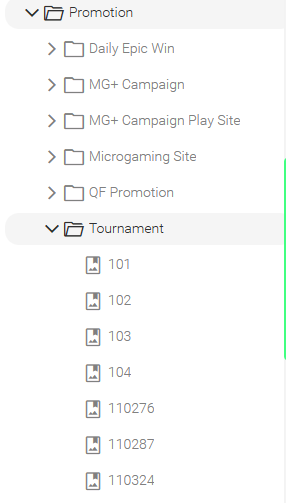
Upload the banner image of tournament in Canto.
-
Create an album under this folder for each tournament
-
Naming convention of the album:
-
{tournamentcode}
-
e.g. 123456
-
-
Upload the banners for different currencies in the album.
-
Dimension: 1440 x 330 px
-
Name of the banner does not matter.
-
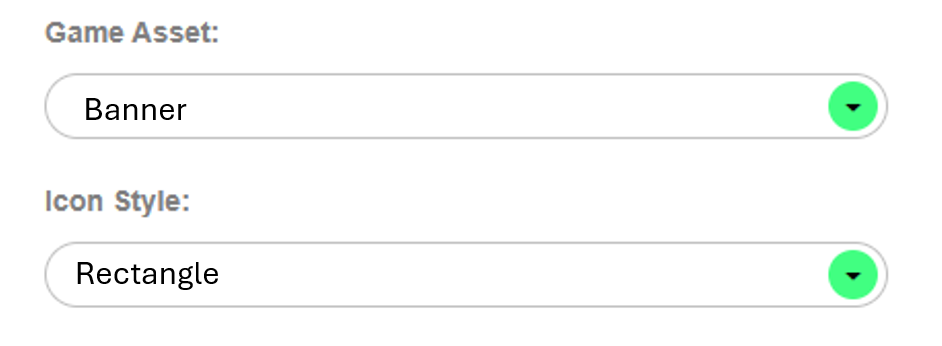
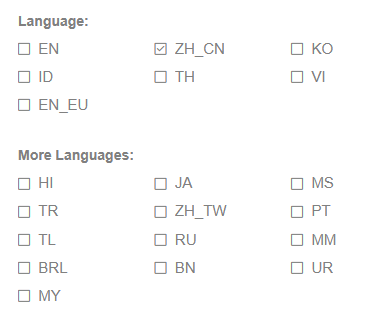
Select the correct tags in Canto.
-
Game Asset: Banner
-
Icon Style: Rectangle
-
Language
-
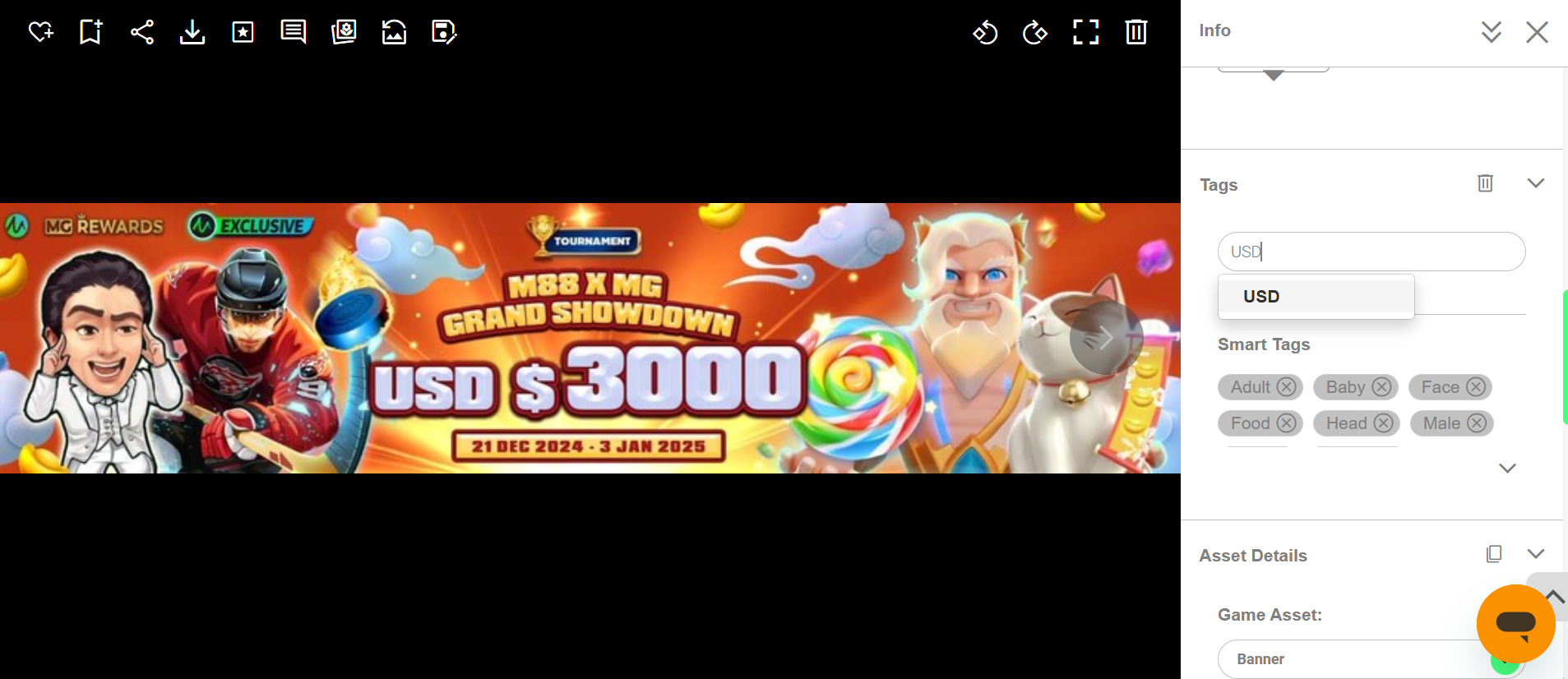
Special note for 'EN': Since multiple currencies require English content, please include an additional currency tag for all English banners.
-
The following currencies need this tag:
-
USD
-
TTH
-
SUI
-
CAD
-
CC
-
WOW
-
IC
-
GC
-
SC
-
-
-
-
-
Special Game Icons for Tournament
-
Follow the same steps here.
-
Canto configurations
-
Add a new album under this Canto folder.
-
Name of the album: game code, remove SMG_, add “custom” after the game code.
-
For example, the game code is SMG_10000wishes. The album name is 10000WishesCustom.
-
-
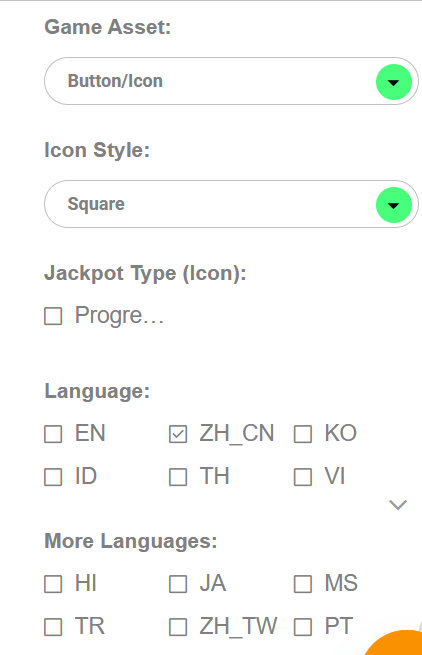
Upload the game icons in English and Chinese to the album with the following format:
-
Dimension: 600 x 600
-
Name of the game icons: [GameCodeCustom]__icon_Square_600x600_en
-
For example: If the game code is smg_PongpongMahjongJackpots, the name will be:
smg_PongpongMahjongJackpotsCustom_icon_Square_600x600_en
smg_PongpongMahjongJackpotsCustom_icon_Square_600x600_zh_cn
-
-
Select the correct tags and langauges in each of the images
-
-
-
-
Phrase configurations
-
Add a new key in Phrase
-
Format:
Key Name: [tournamentCode].game-custom-icon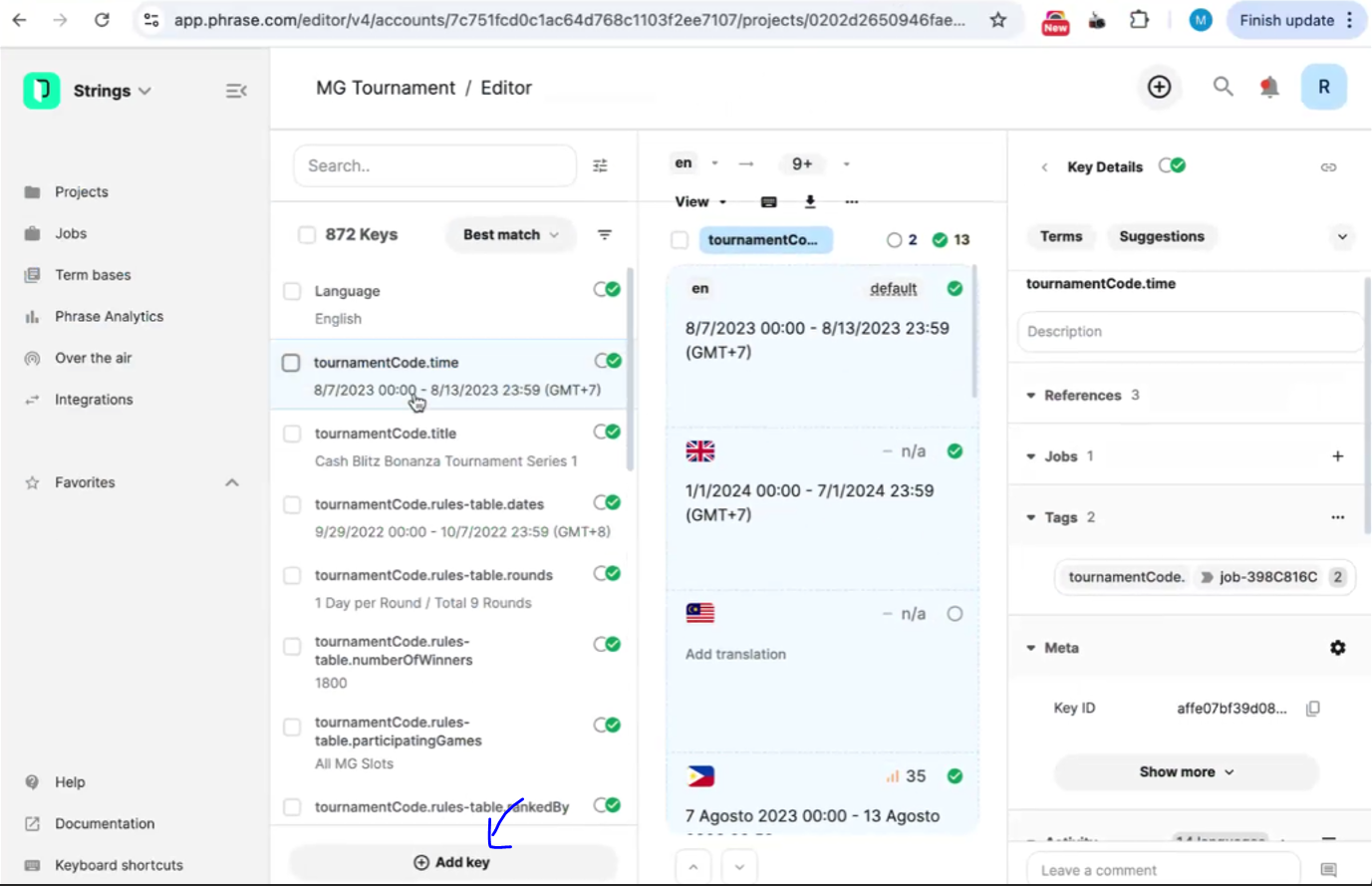
Add the key here -
Values:
All game codes that need special icons (if there is more than 1 game code, please list out the game code in another row, without comma)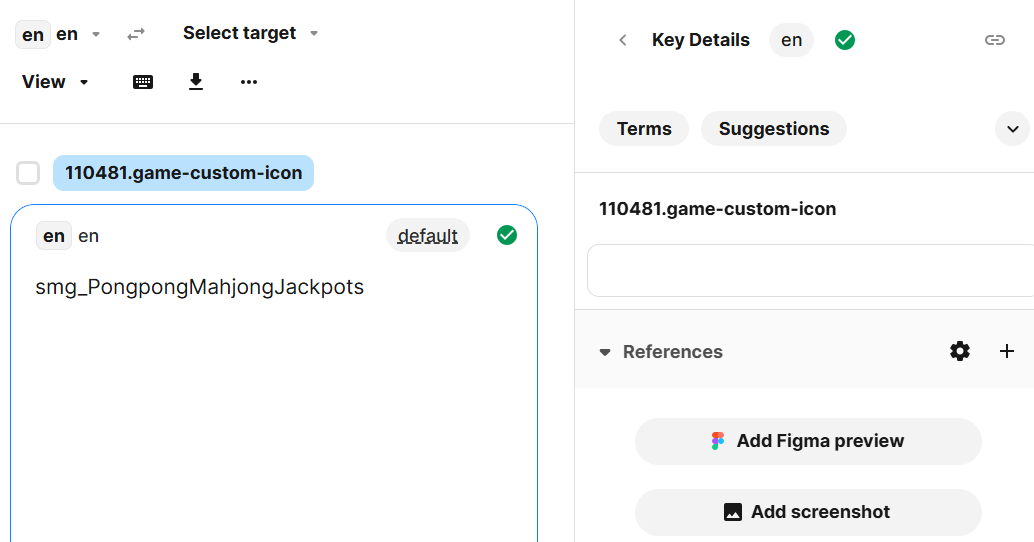
Add the value here
-
-
How to Add a New Currency/Language in Tournament for Non-Sweepstakes Operators
Responsibilities of the Promotion Team
-
Create a ticket to the RCT team.
-
Update the translation via Phrase with the Language code provided by RCT.
-
Provide the content of the tab image

-
For new language, provide the content of the country flag

-
Provide the content of the Tournament Reward banner

-
Phrase (job-6B80E06E)
-
Responsibilities of RCT Team
-
Image Builder API
-
Add the new langauge to the image builder API (needs deployment)
-
-
Phrase configurations
-
Dev team will add this “currency” table in Phrase.
-
PO needs to add a new language code and indicate the currency symbol when there is a new language in Phrase. It determines what we see in the tournament card.
-
-
Tournament Page
-
Add the new language flag in the language selector
-
Add the new Tournament Reward banner
-
Add the new langauge to the central site tab
-
Note
If there is no currency symbol added to Phrase, the system will use the default currency symbol of the language selector of the tournament page. e.g. English → USD
Warning
If the above steps are not completed, the tournament preview page will not be able to show the content and banner image of the tournament.
How to Add a New System Currency (e.g. XS1, XG1) in Tournament for Sweepstakes Operators
Responsibilities of the Promotion Team
-
Create a ticket to the RCT team. (Indicate the new system currency and its display currency)
-
Update HO ID, Network ID, System Currency and Display Currency in this link https://app.appsmith.com/app/tournament-display-currency-map/page1-67f8bdf3860f092ca277e21c
-
Update the translation via Phrase with the Language code provided by RCT.
-
Even though all sweepstakes operators use English, we create different language code for different display currencies in phrase. E.g. en-GC, en-SC, etc.
-
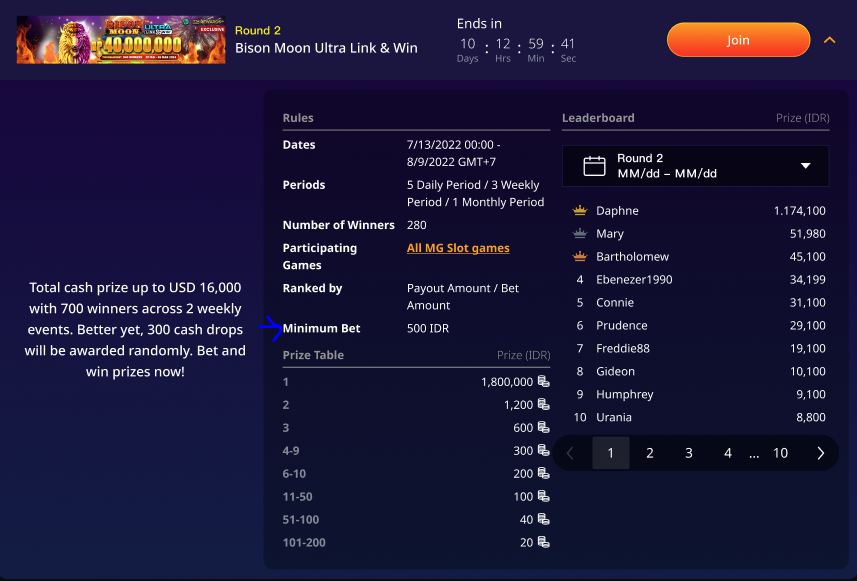
All the strings are the same as the English strings of non-sweepstakes operators except “Minimum Bet” to be replaced by “Minimum Spin” - This can be configured in phrase
-
Responsibilities of RCT Team
-
Phrase configurations
-
Dev team will add this “currency” table in Phrase.
-
PO needs to add a new language code and indicate the currency symbol when there is a new language in Phrase. It determines what we see in the tournament card.
-
-
Tournament Page
-
Use English in the language selector
-
Use English Tournament Reward banner
-
Add the new langauge to the central site tab
-
Note
If there is no currency symbol added to Phrase, the system will use the default currency symbol of the language selector of the tournament page. e.g. English → USD
Warning
If the above steps are not completed, the tournament preview page will not be able to show the content and banner image of the tournament.
How to Add a New Display Currency (e.g. GC, SC) in Tournament for Sweepstakes Operators
Responsibilities of the Promotion Team
-
Update HO ID, Network ID, System Currency and Display Currency in this link https://app.appsmith.com/app/tournament-display-currency-map/page1-67f8bdf3860f092ca277e21c
-
Update the translation via Phrase with the Language code provided by RCT.
-
Even though all sweepstakes operators use English, we create different language code for different display currencies in phrase. E.g. en-GC, en-SC, etc.
-
All the strings are the same as the English strings of non-sweepstakes operators except “Minimum Bet” to be replaced by “Minimum Spin” - This can be configured in phrase
-
Responsibilities of the DFT Team
-
DFT team will update the vault and deploy.
-
Don’t need a new build.
Responsibilities of RCT Team
-
Phrase configurations
-
Dev team will add this “currency” table in Phrase.
-
PO needs to add a new language code and indicate the currency symbol when there is a new language in Phrase. It determines what we see in the tournament card.
-
Note
If there is no currency symbol added to Phrase, the system will use the default currency symbol of the language selector of the tournament page. e.g. English → USD
Warning
If the above steps are not completed, the tournament preview page will not be able to show the content and banner image of the tournament.