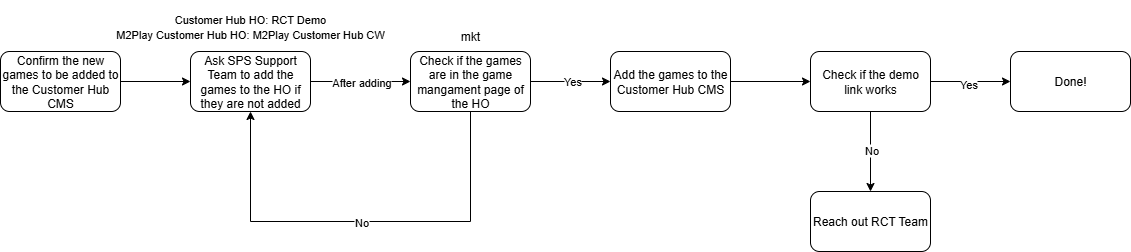
Process
-
Make sure the game is part of the Customer Hub Headoffice: RCT Demo / M2Play Customer Hub Headoffice: M2Play Customer Hub CW game list.
-
Login to MG+ Backoffice.
-
Click Tools on the side menu.
-
Click Users Management.
-
Click the Content Management

-
You can see the game list of this headoffice
-
The games management table displays a list of games in the headoffice games list. If the game is not listed, please create a support ticket for Arik to add the game.
-
Ticket System: https://spiral.atlassian.net/servicedesk/customer/portal/3
-
Login to the ticketing system.
-
Click HO Settings.
-
Click Enable/Block Games for HO.
-
Create a ticket.
-
For Headoffice, choose RCT Demo / M2Play Customer Hub CW.
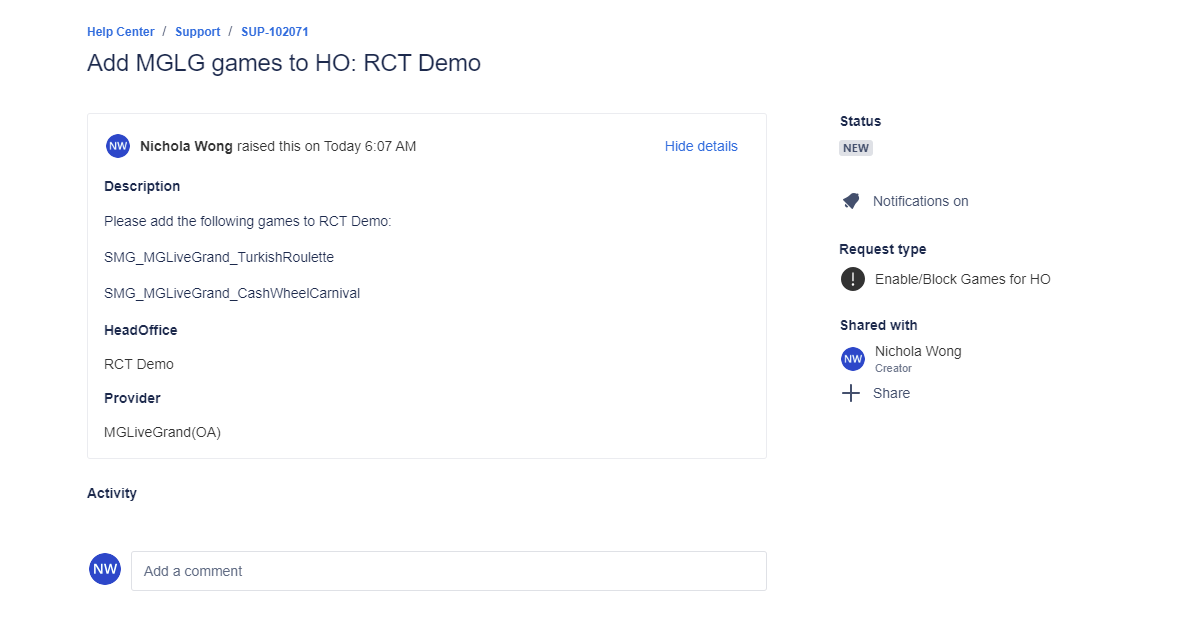
Example ticket.
-
-
-
-
-
For Micrograming Live games, make sure that the game is added to the PLS lobby. If not, reach out to the PLS Team.
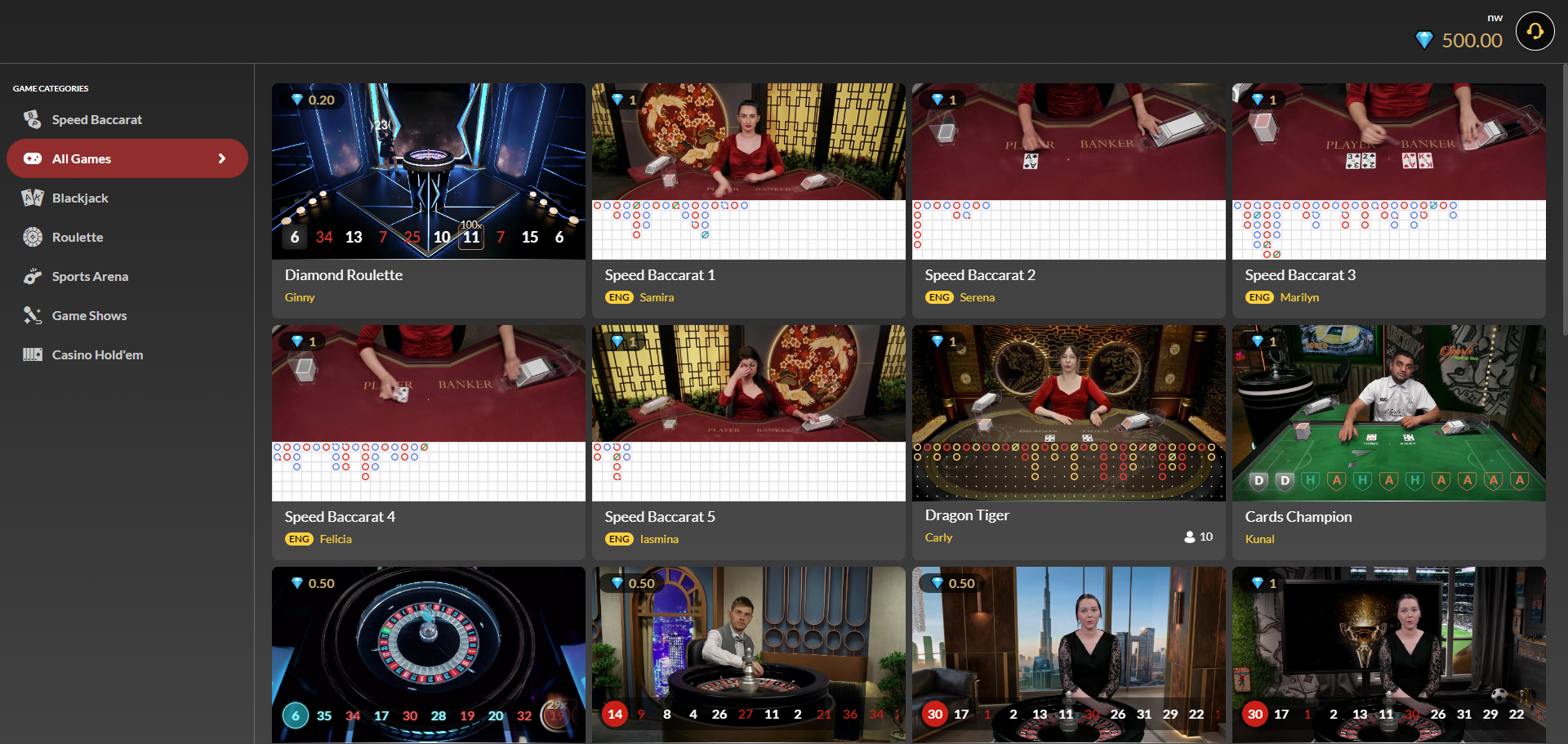
PLS Lobby
-
Upload game icons to Canto noting the following:
Customer Hub
Upload game assets to the Game Assets or Game Assets - Bespoke Games folders. If they’re not uploaded to either of these two folders, then the API can’t fetch the assets.
M2Play Customer Hub
Upload game assets to the M2Play - Game Assets folder. If they’re not uploaded to the folder, then the API can’t fetch the assets.
a. Game folder name is the same as the game code (trim off “SMG_”).
e.g. If the game code is SMG_MGLiveGrand_Roulette → game folder name is MGLiveGrand_Roulette.
b. Game icons should be 600 x 600.
c. English and Chinese icons need to be uploaded.
d. Select asset details:
i. Game Asset: Button/Icon
ii. Icon Style: Square
iii. Language: English icon - EN; Chinese icon - ZH-CN
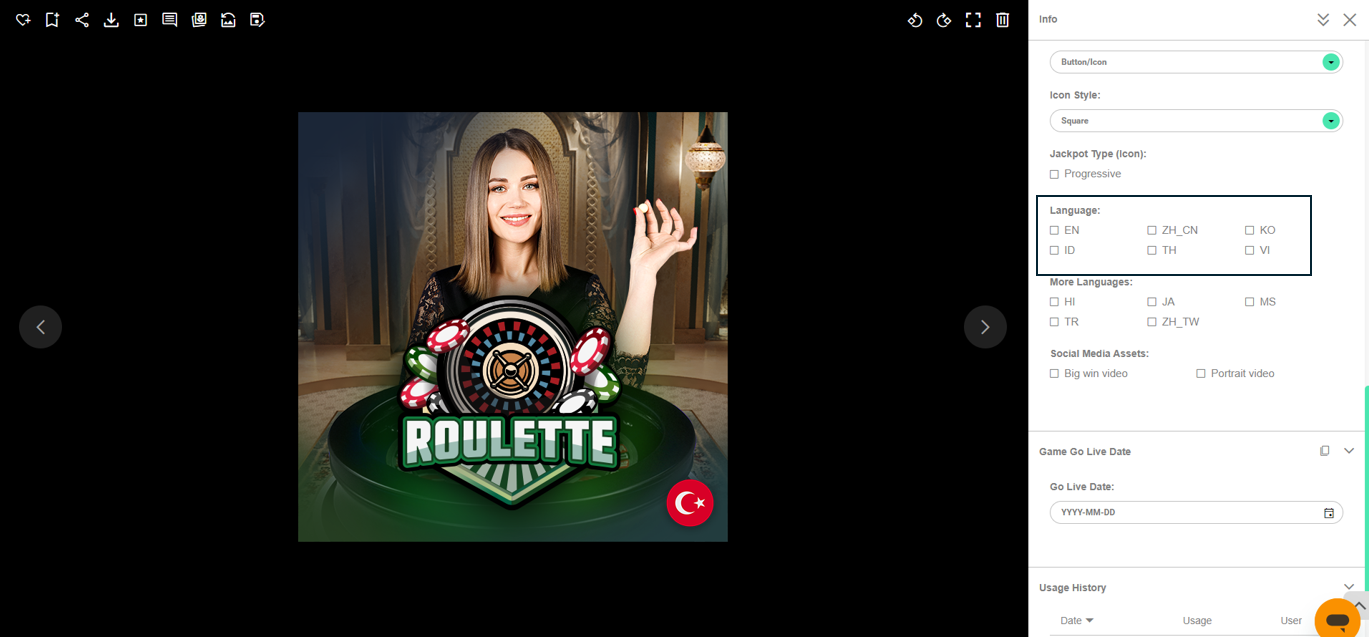
-
Upload game icons 1 hour before you need them in the Customer Hub CMS (for urgent requests, contact RCT to clear the cache).
-
On the Customer Hub CMS, go to the Game Pool page.
-
Click the + Add Game button.
-
Fill in the fields per the form.
-
Enter the game code in the Game Code field to automatically retrieve the game icon from Canto.
-
Game Play field:
-
Enable: Enabling this will add a Play Now button to the game's page on the mgasia.com website.
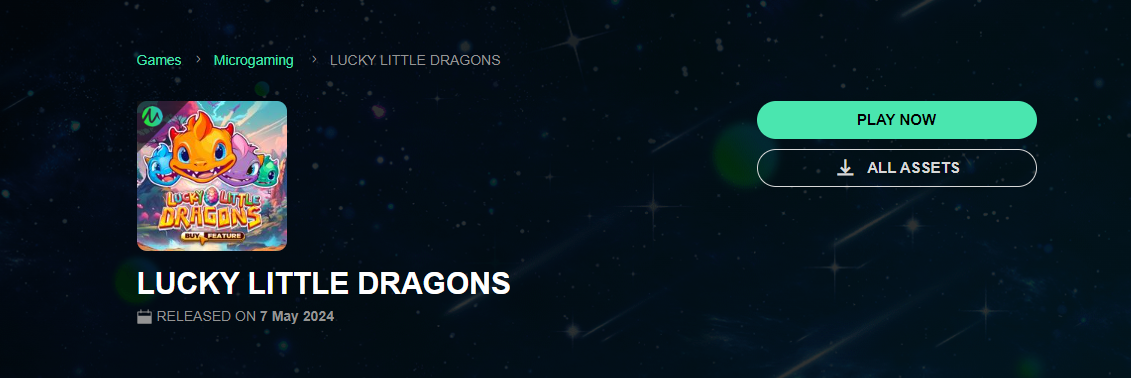
Play Now button on the microgaming.game site.
-
Disable: Disabling this will hide the Play Now button from the game’s page on the microgaming.game website.
-
-
Game Play field:
-
Regular Game Play: This mode is available for all games except Microgaming Live games. If chosen, players can utilize their balance to play the game.
-
Demo Play: Available for all games. This option must be selected for Microgaming Live games. If chosen, players will be provided with a preset amount to play with.
-
Microgaming Live games: 500 diamonds. If the amount is 20 or less, it will reset to 500.
-
Other games (Slots/MG Live etc): 1,000,000 (1 million) in all currencies.
-
-
-
Process Diagram