
-
Upload the screenshot or video to Canto.
Customer Hub
Upload game assets to the Game Assets or Game Assets - Bespoke Games folders. If they’re not uploaded to either of these two folders, then the API can’t fetch the assets.
M2Play Customer Hub
Upload game assets to the M2Play - Game Assets folder. If they’re not uploaded to the folder, then the API can’t fetch the assets.
-
Add tags per language using the format below:
|
Language |
Format |
Example |
|---|---|---|
|
English |
Screenshot_XXX_EN |
Screenshot_BaseGame_EN |
|
Chinese |
Screenshot_XXX_ZH |
Screenshot_HyperSpins_ZH |
|
Korean |
Screenshot_XXX_KO |
Screenshot_SpecialFeature2_KO |
-
For the XXX portion - Different tags will affect which description the content is grouped under on the Game Highlights page. For example, if you add the tag Screenshot_SpecialFeature1_EN to the image on Canto, it will appear under the description of Special Feature 1 on the Game Highlights page.
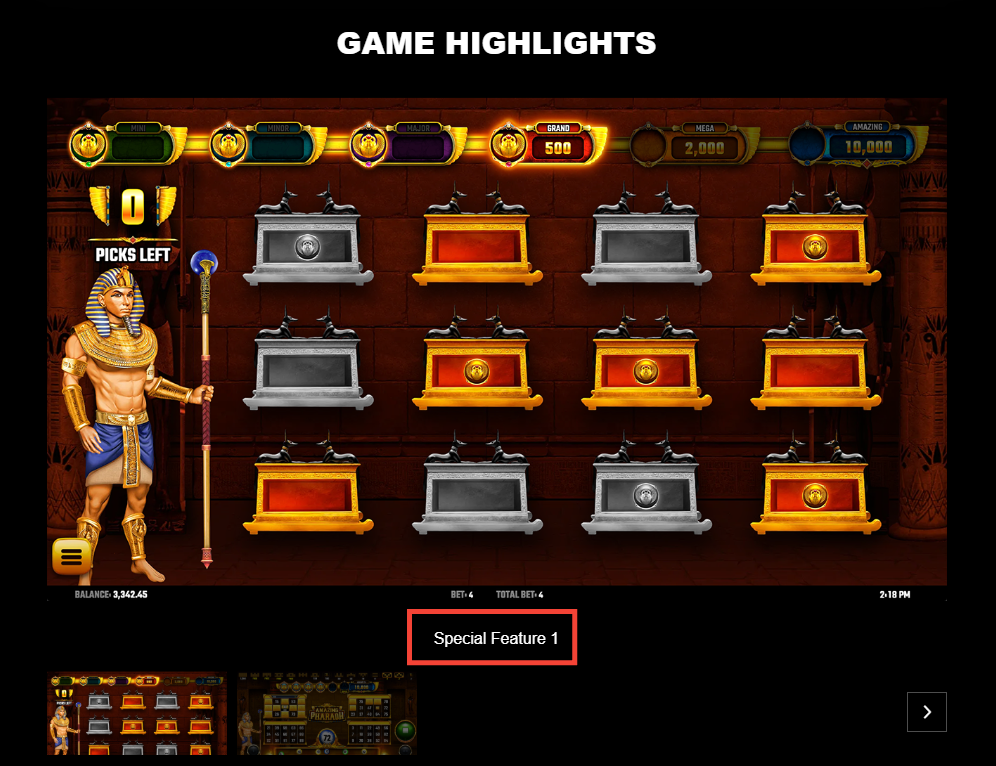
If you would like to add new descriptions to the Game Highlights page, contact the RCT team and provide the description in English and Chinese.
|
Tag |
English Description |
Chinese Description |
Korean Description |
|---|---|---|---|
|
Screenshot_BuyFeature |
Buy Feature |
购买功能 |
보너스 구매 |
|
Screenshot_LinkWin |
Link&Win |
Link&Win |
Link&Win |
|
Screenshot_ClusterChase |
ClusterChase |
ClusterChase |
ClusterChase |
|
Screenshot_HyperSpins |
HyperSpins |
HyperSpins |
HyperSpins |
|
Screenshot_EpicStrike |
EpicStrike |
EpicStrike |
EpicStrike |
|
Screenshot_WinTime |
WinTime |
WinTime |
WinTime |
|
Screenshot_FreeSpins |
Free Spins |
免费旋转 |
프리 스핀 |
|
Screenshot_SpecialFeature1 |
Special Feature 1 |
特殊功能 1 |
특수기능 1 |
|
Screenshot_SpecialFeature2 |
Special Feature 2 |
特殊功能 2 |
특수기능 2 |
|
Screenshot_SpecialFeature3 |
Special Feature 3 |
特殊功能 3 |
특수기능 3 |
|
Screenshot_SpecialFeature4 |
Special Feature 4 |
特殊功能 4 |
특수기능 4 |
|
Screenshot_SpecialFeature5 |
Special Feature 5 |
特殊功能 5 |
특수기능 5 |
|
Screenshot_BaseGame |
Base Game |
基础游戏 |
기본게임임 |
|
Video_SneakPeek |
N/A |
N/A |
N/A |