
In the CMS, users cannot edit brands but they can manage categories.
Categories are grouped per brand.
Managing Categories
-
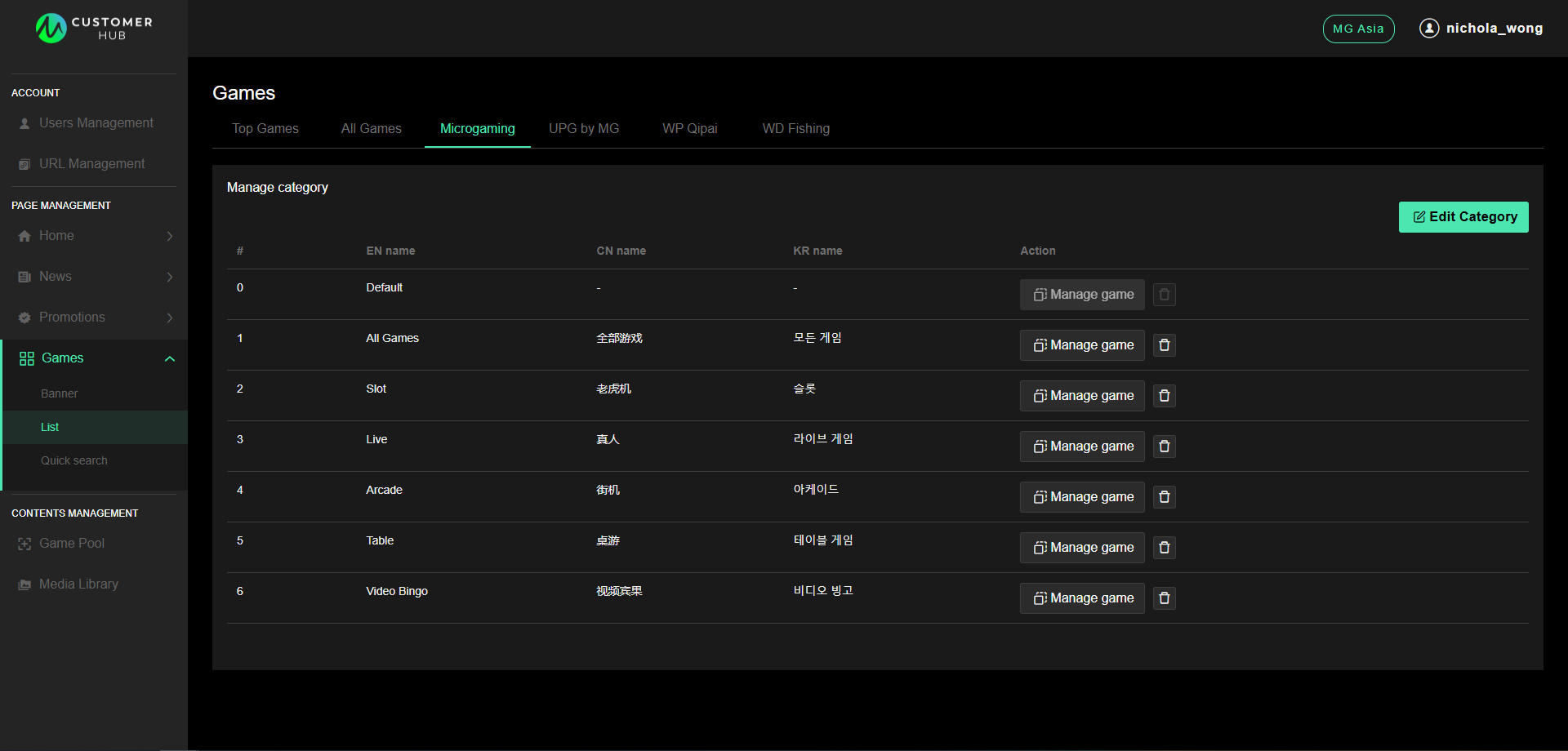
On the Customer Hub CMS, click Games under the Page Management section, then click List.
-
You'll find tabs representing different brands at the top of the interface (ie. Microgaming/UPG by MG/WP Qipai/WD Fishing).
-
Click on a specific brand tab to navigate to its category management section.
-
Click the Edit Category button to edit the categories.
-
If a list of different categories exist, you can change the titles of the categories (per language) by typing in the fields.
-
Click the Add Category button to add a new category.
-
-
To manage the games displayed within a category on the game page, select the Manage game action button adjacent to the category. This will direct you to the edit games page.
-
Click the Edit games button to adjust the order in which games appear
-
To include a new game in the category, select Add games.
-
-
To remove specific games, click the trash can icon. Then, select the games you wish to delete and confirm by clicking Delete at the bottom of the page
-
-
To delete the entire category, click the trash can icon located on the category's row.
You will not be able to create subcategories under "Top Games" or "All Games." When a game is added to any brand, it will automatically appear in "All Games." If you want a game to appear in "Top Games," you will need to add it manually.
Brands
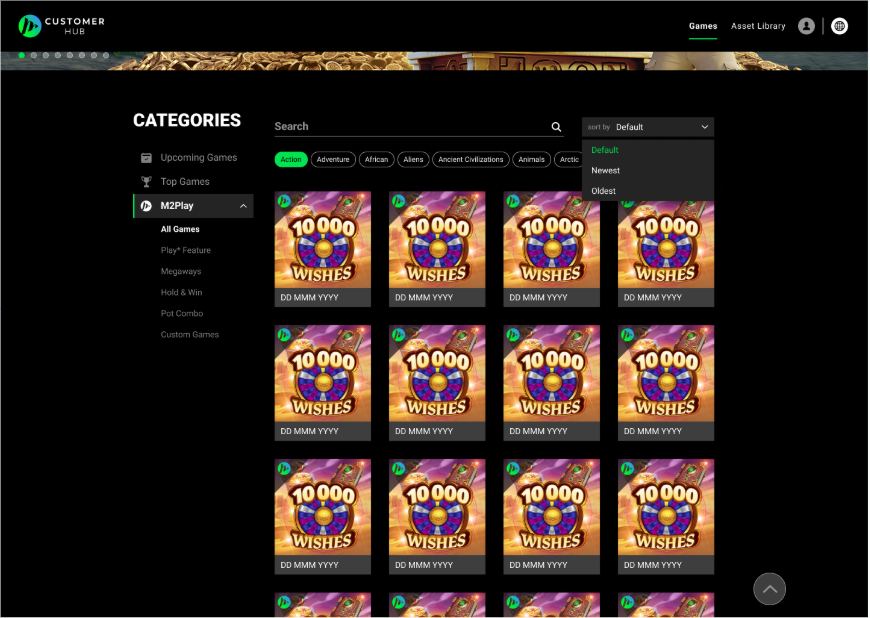
The brand affiliation determines the logo displayed.
Customer Hub
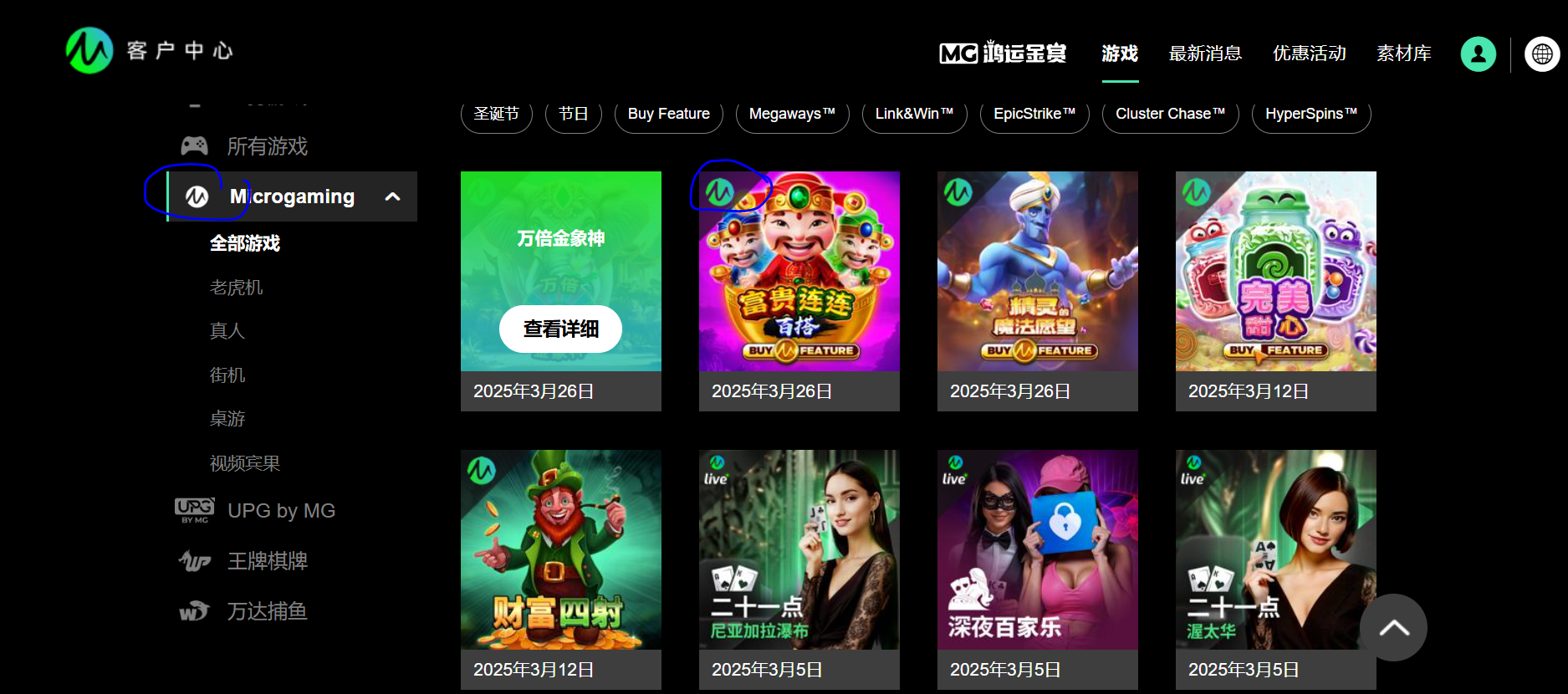
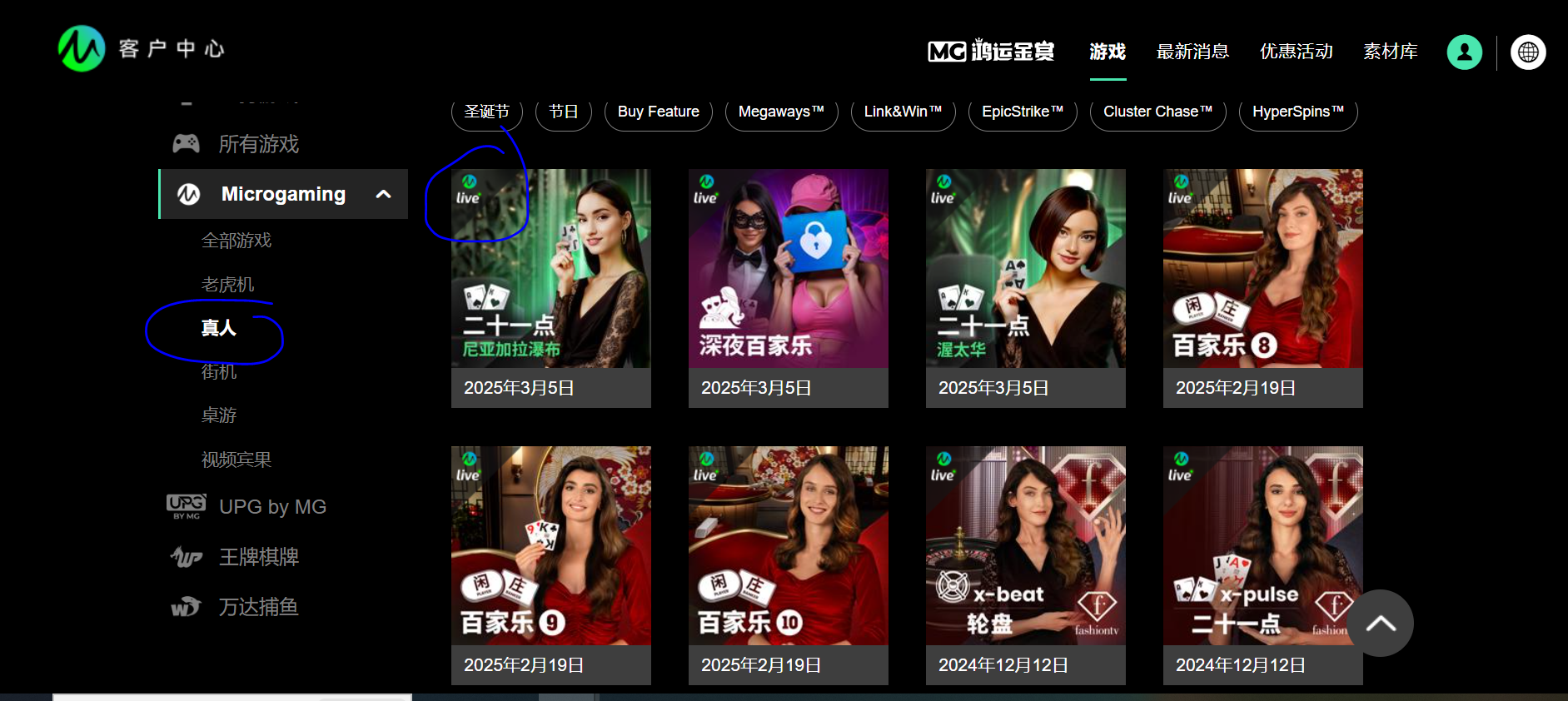
M2Play Customer Hub
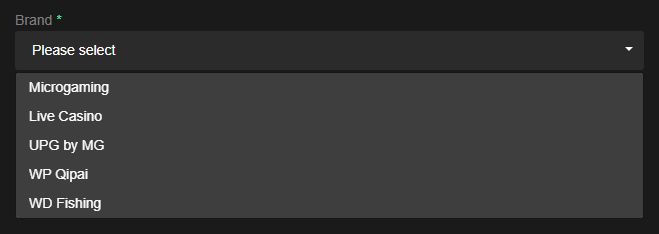
When adding a game in the CMS, the user is required to choose a brand; this selection cannot be changed later. For more information, refer to the Adding Games to the Game Pool page.
Brand Logo Change Requests
For the following changes, please reach out to the RCT team:
-
A new brand logo.
-
Altering the default logo.
-
Assigning a unique logo to a specific category (deviating from the standard brand logo).