
Users can upload a banner and configure its on-click behavior for their lobby on the Create and Edit a Custom Template page.
-
From the Add/Edit Template page, scroll down to Basic Settings, and click the Banner Management button.
-
Choose the type of banner to add to your lobby using the radio button.
-
Banner Only: Upload an image to add to your lobby.
-
Static Campaign: A campaign type that features a single, non-interactive static image. It does not include any active functions or interactive elements.
Upload a banner image to add to your lobby. Enter a URL to redirect players to your desired campaign page.
An example of a static campaign.
-
Game Launch Campaign: Presents a static image with game icons below it; eligible players can click the icons to launch the games.
Select the content code to direct users to the corresponding campaign. The promotions team provides the code for each new campaign.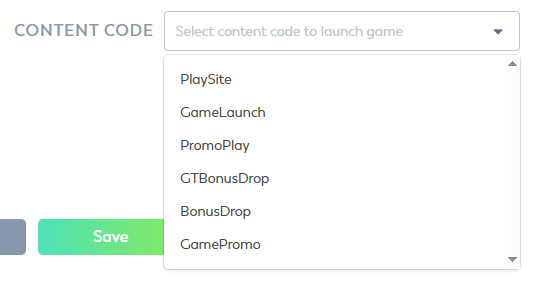
.gif)
An example of a game launch campaign. Players can click on the game icons to launch the game directly from the promotion page. -
Game: Selecting this option allows the user to link a game to a banner. An Add Game button will appear, directing the user to a page of available games (the same as those in the Game Pool).
-
Only one game can be linked.
-
The chosen game's language automatically aligns with the lobby's language.
-
The chosen game’s currency aligns with the player’s currency.
-
-
-
A maximum of 10 banners can be added. Click the Add Banner button to add more, and drag and drop images to rearrange their sequence.