
-
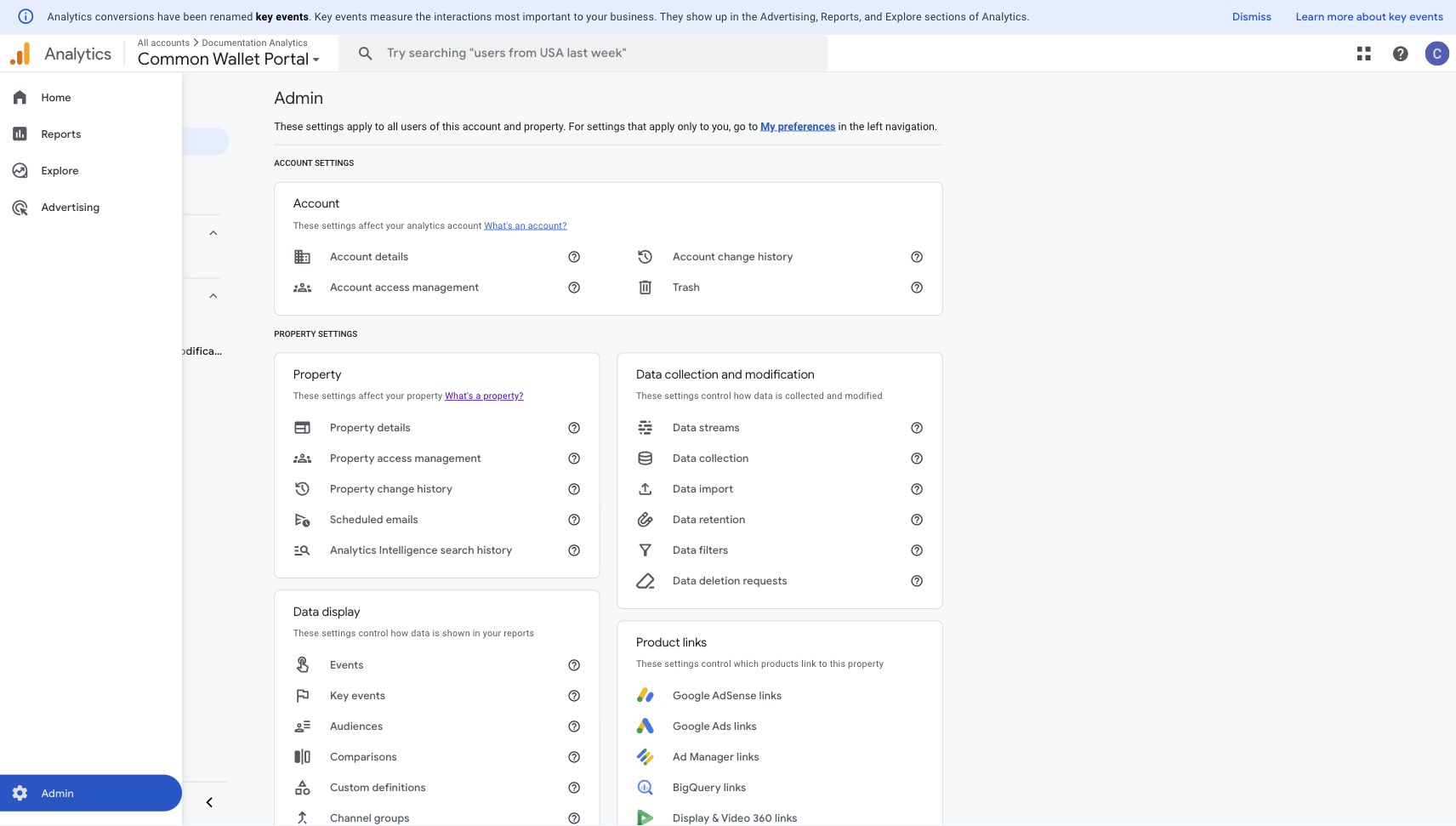
Click Admin at the bottom.
-
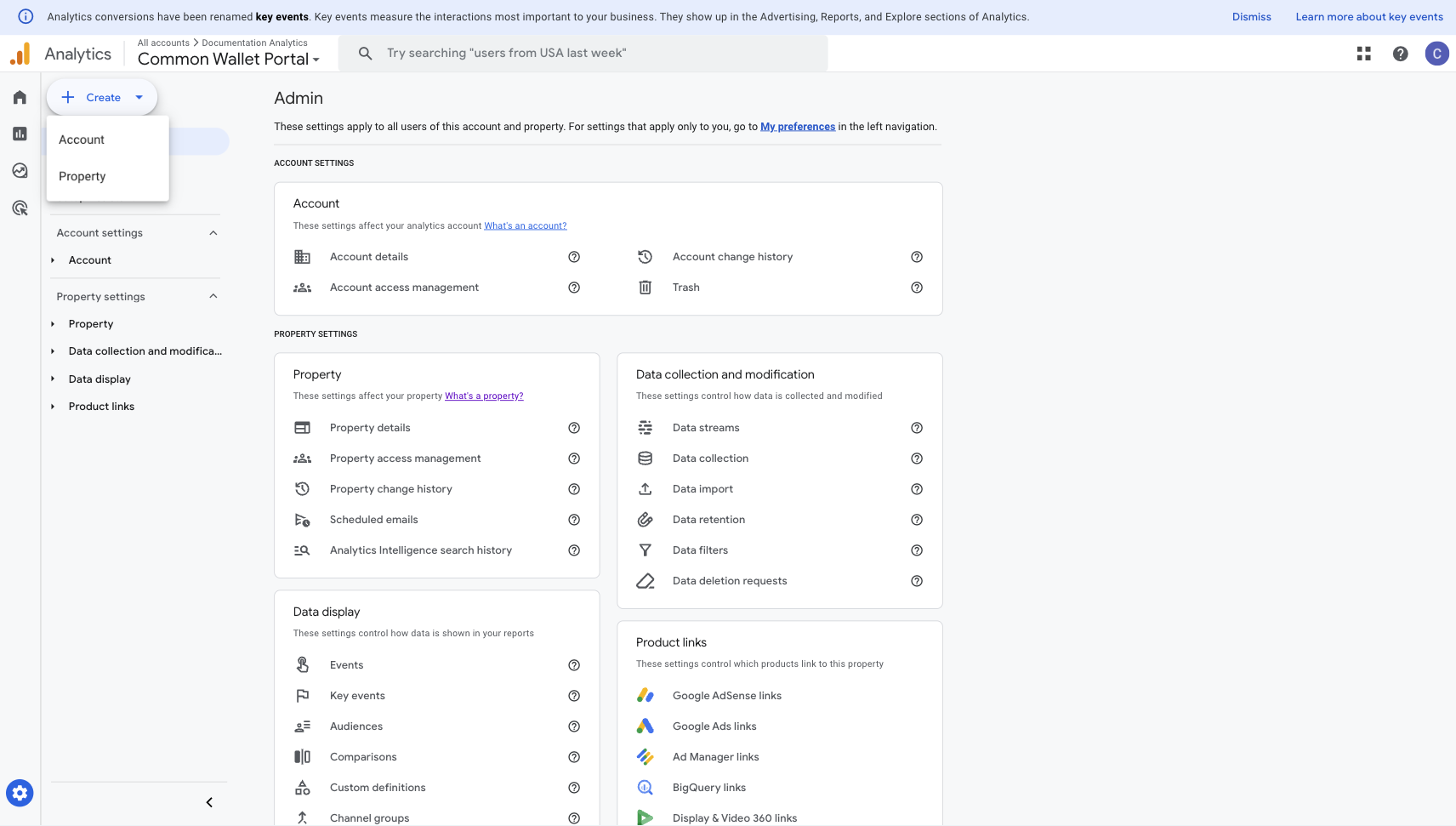
Click Create > Property
-
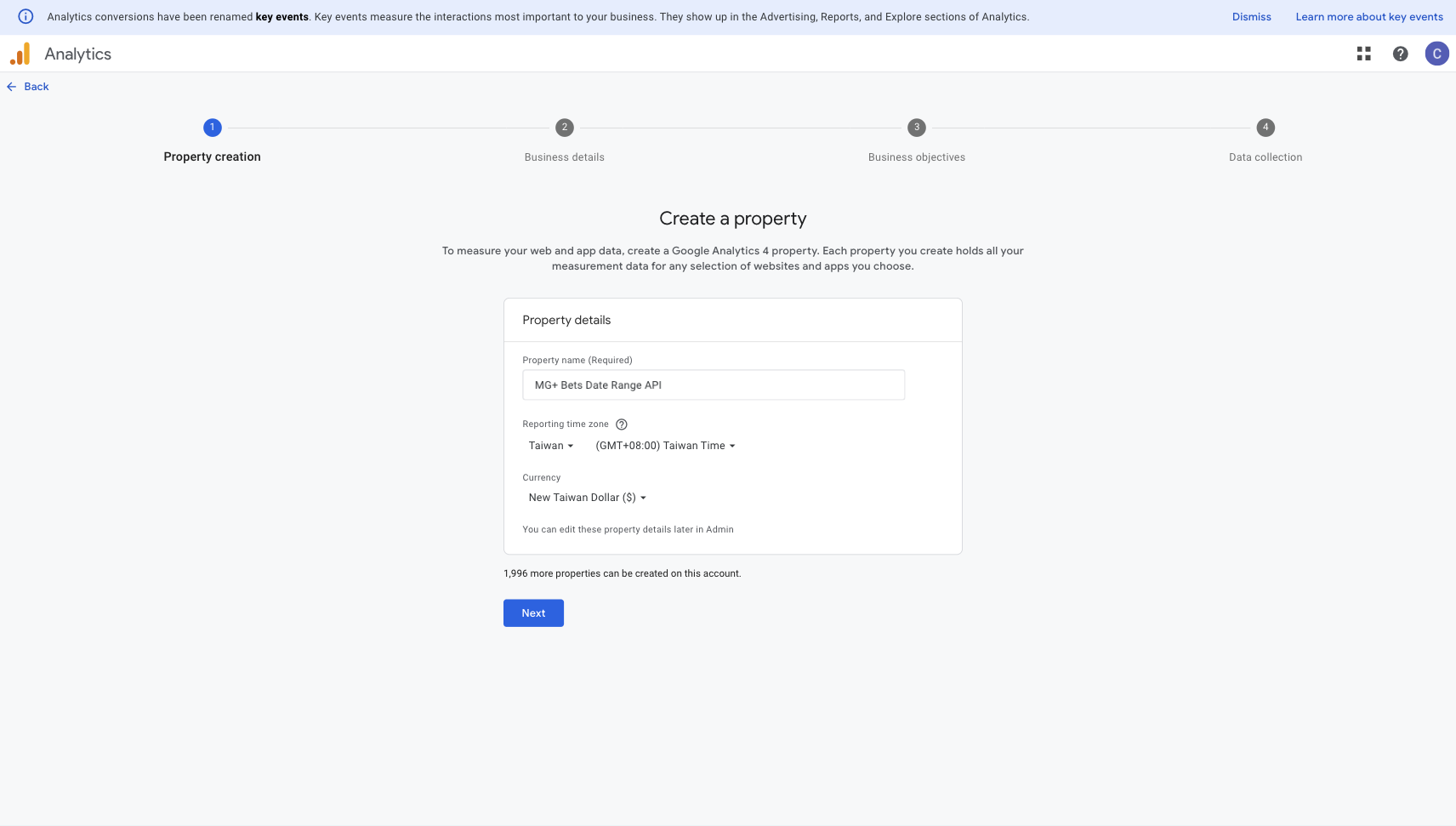
Set up Property Name as the website name.
-
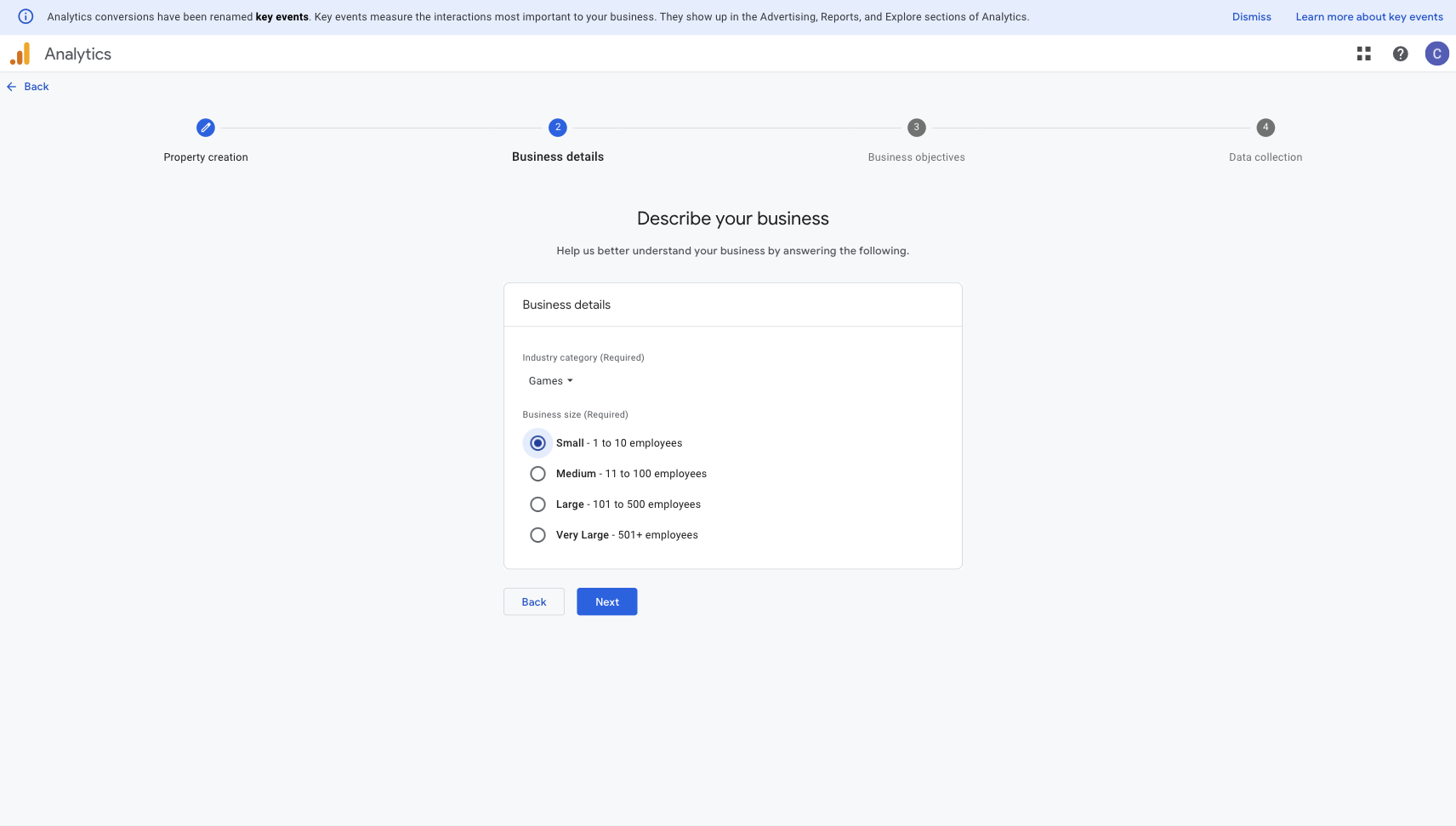
Fill in Business Details as below (this isn’t important).
-
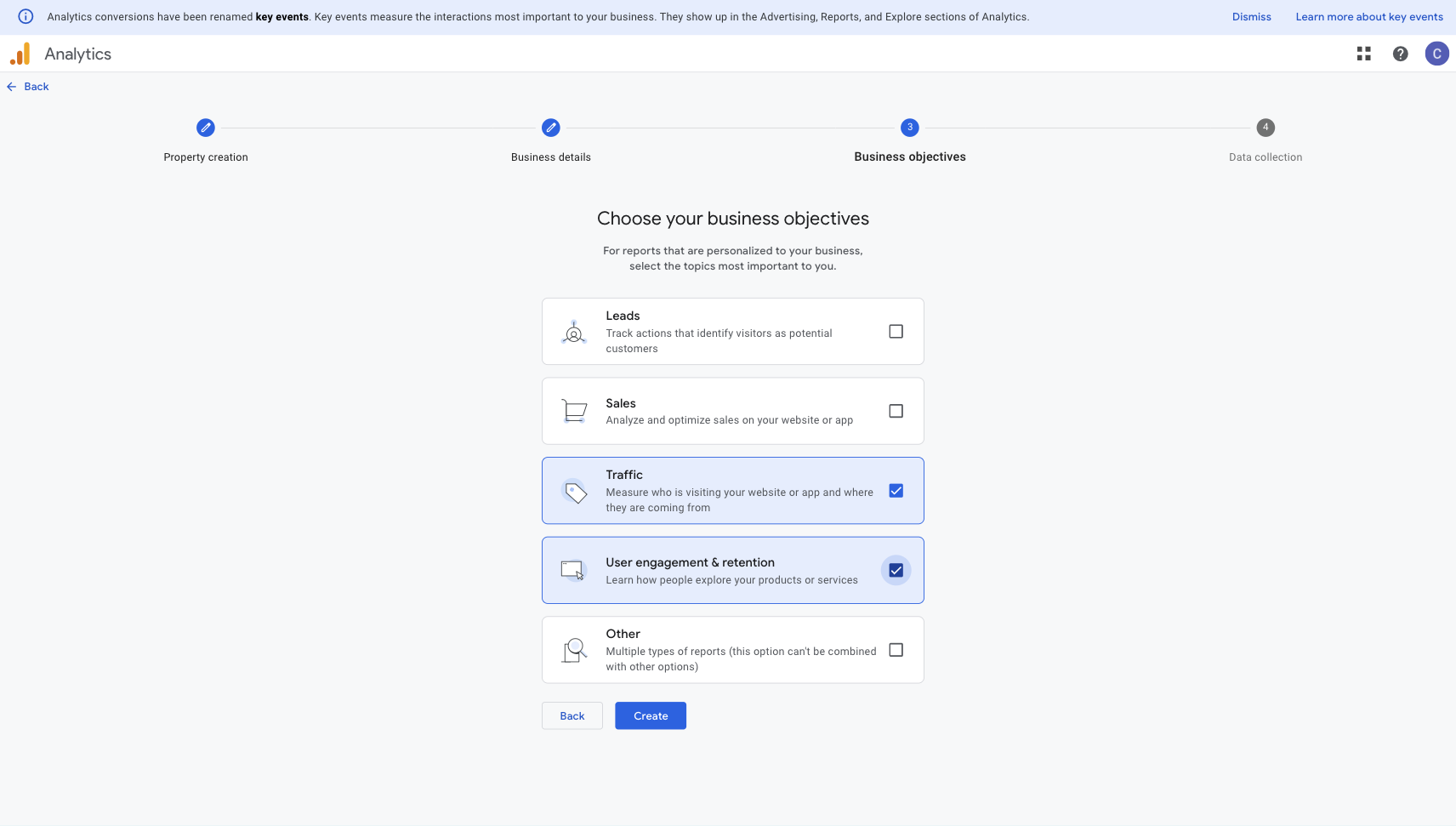
Choose the Traffic and the User Engagement toggles.
-
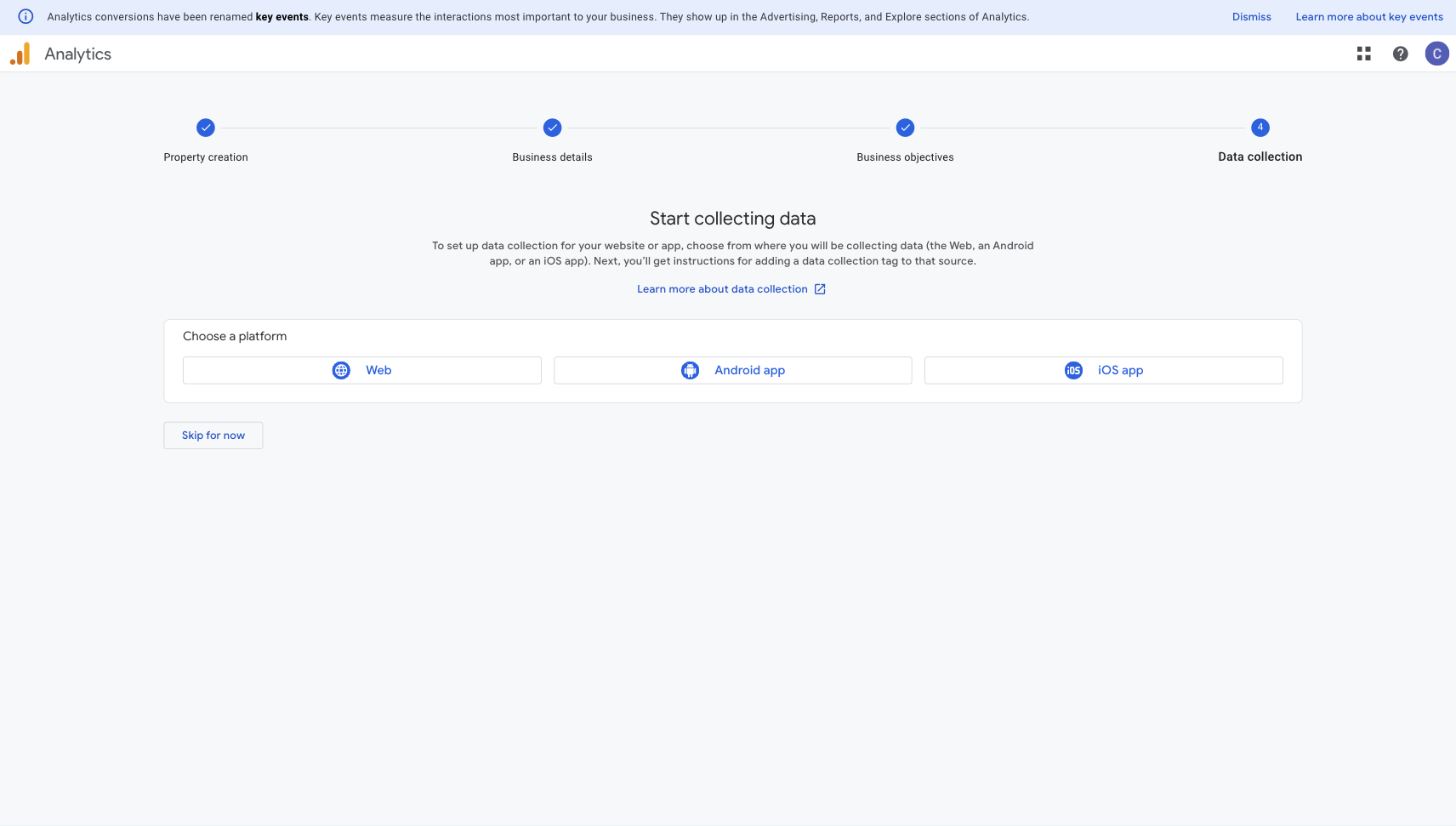
Choose Web.
-
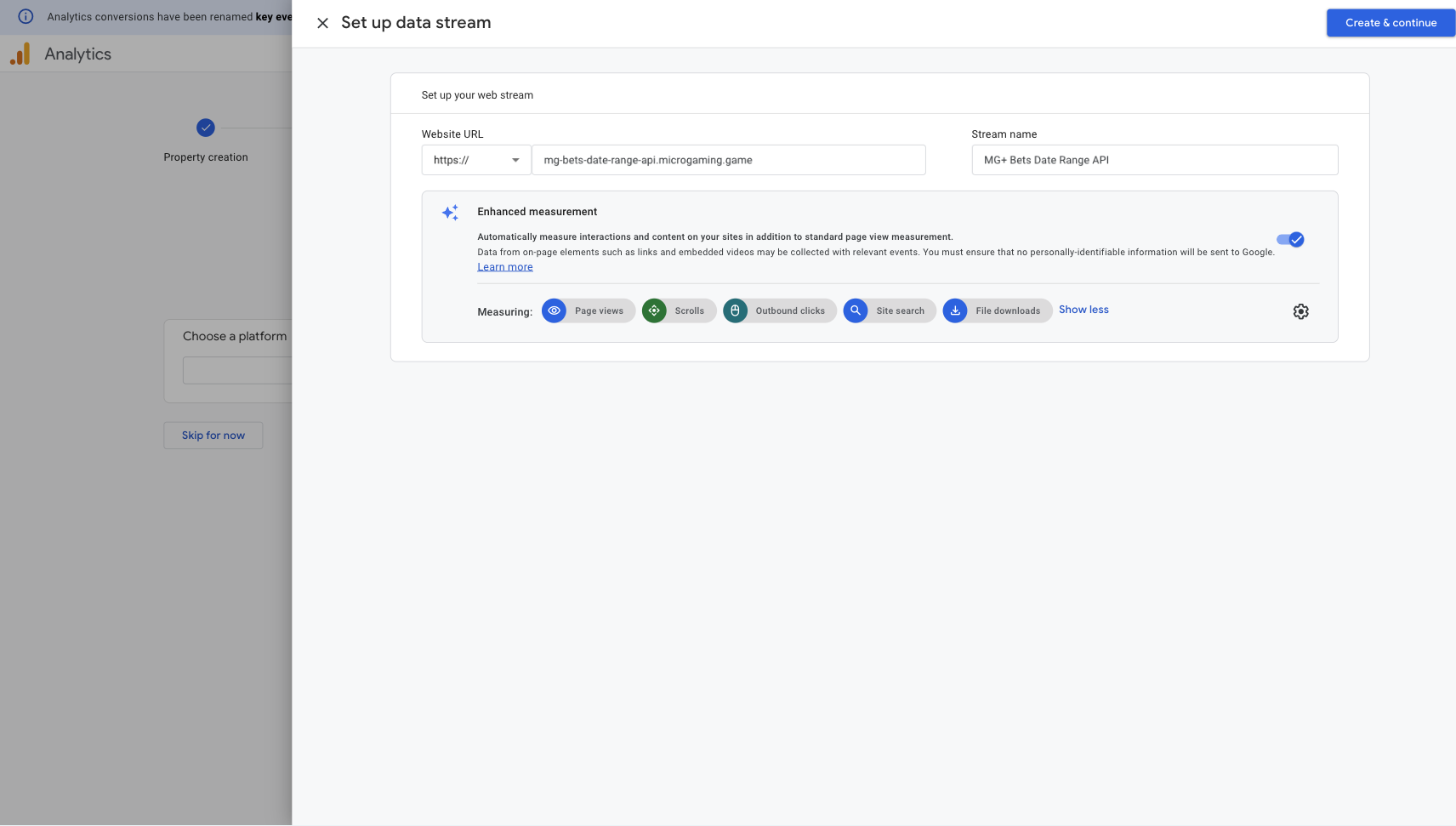
Input details (website, name, events). Click Create and Continue.
-
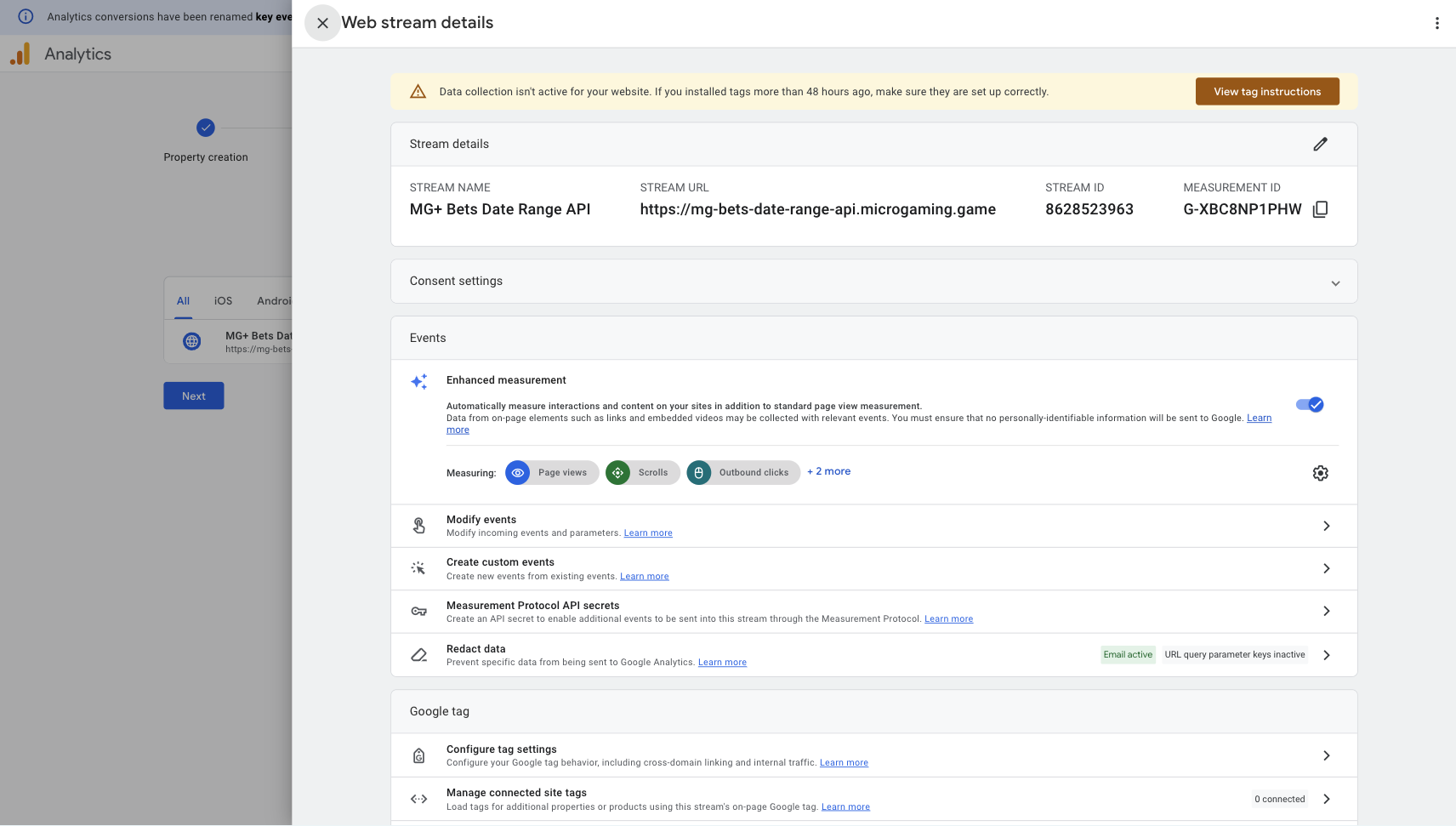
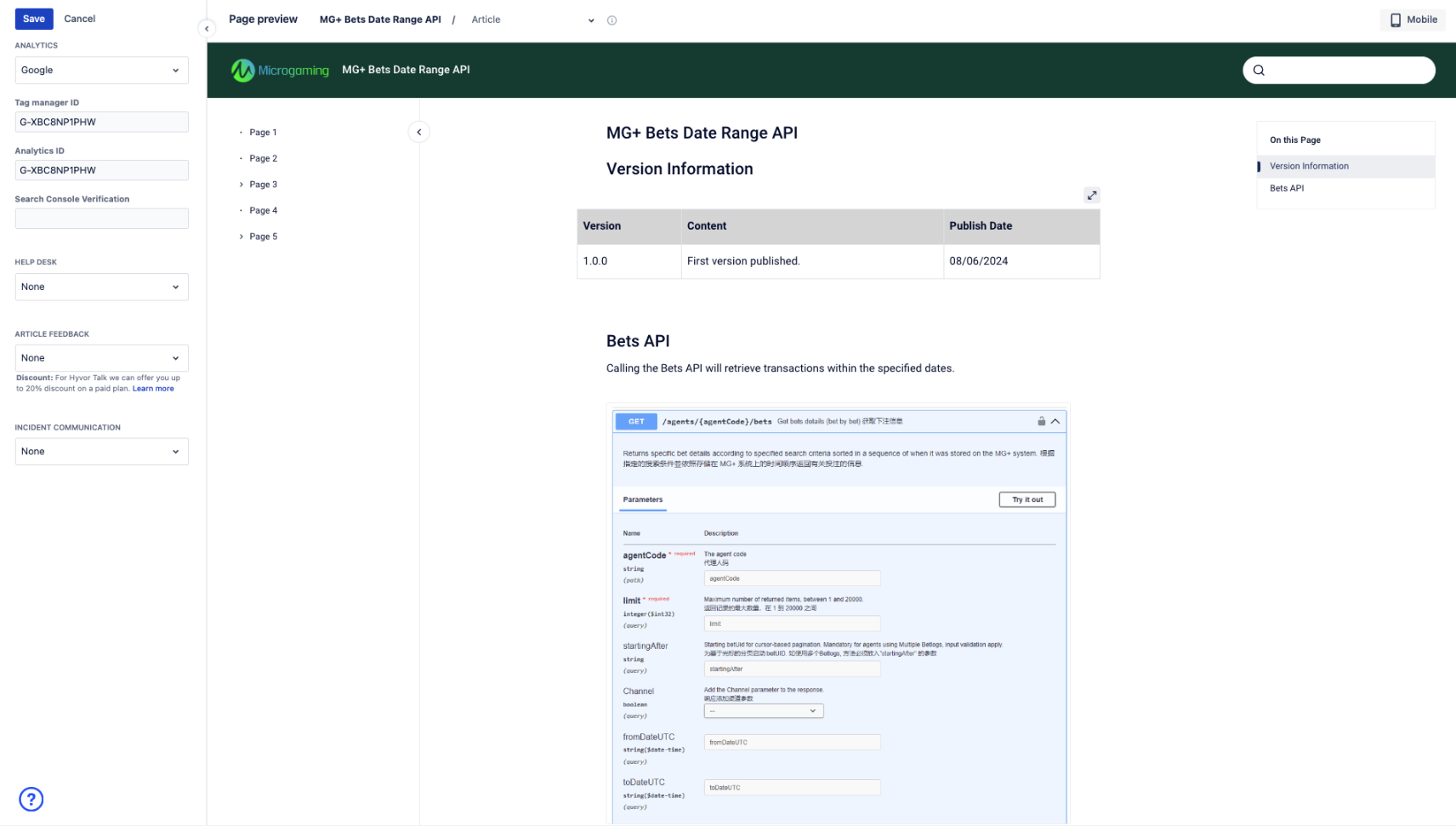
Copy the Measurement ID (this is the Google Tag).
-
Input the tag into Scroll Viewport.
-
Save, update website.
-
Go to Reports.
-
Click Library.
-
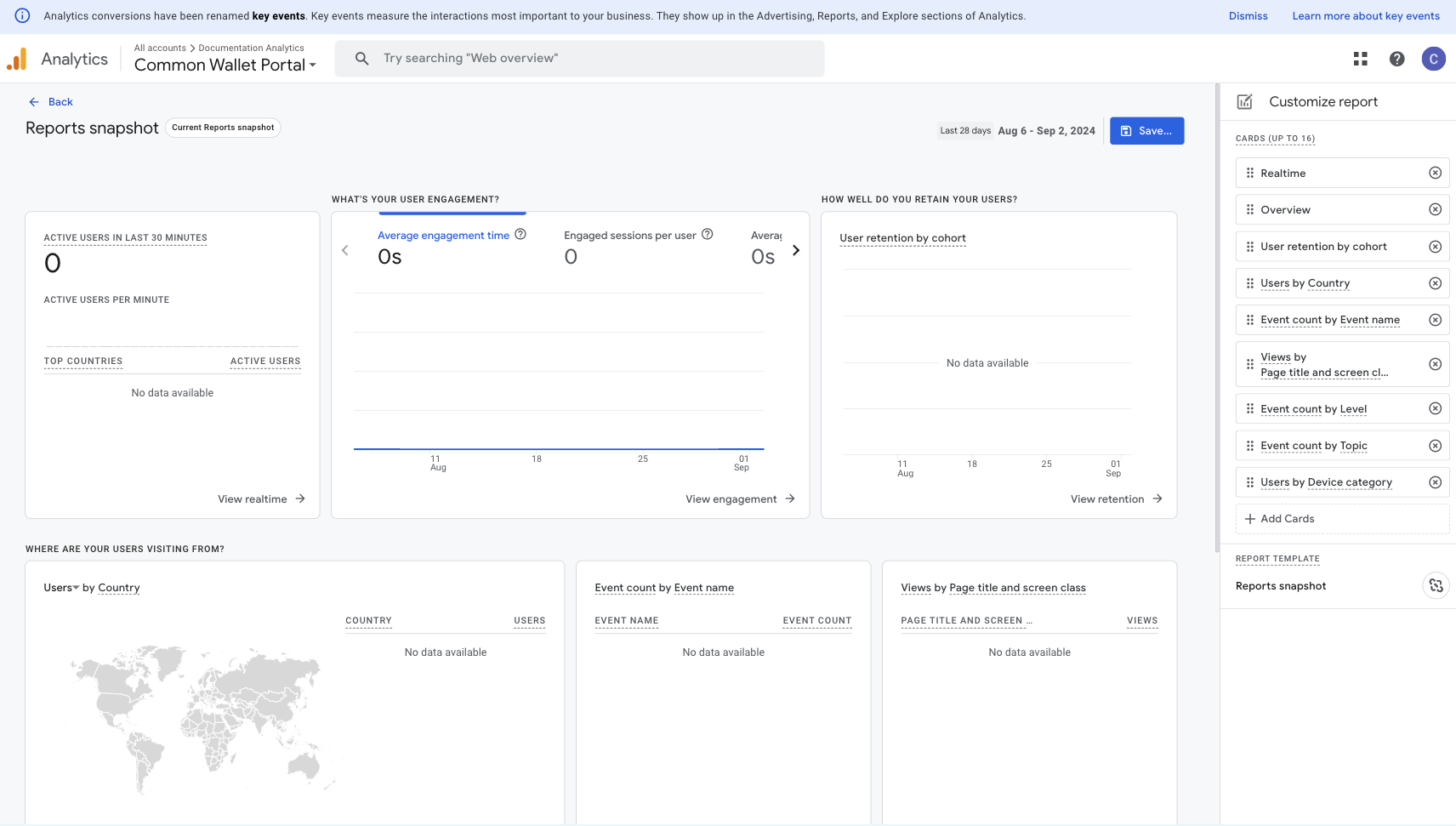
Edit the Reports Snapshot.
-
Use these properties to set up the report.
-
Save changes to current report.
-
Go back to the Library.
-
Set the saved Reports snapshot as the Current Reports Snapshot.