
Tests can be either done individually or in parallel. To perform a single test, follow the steps below:
-
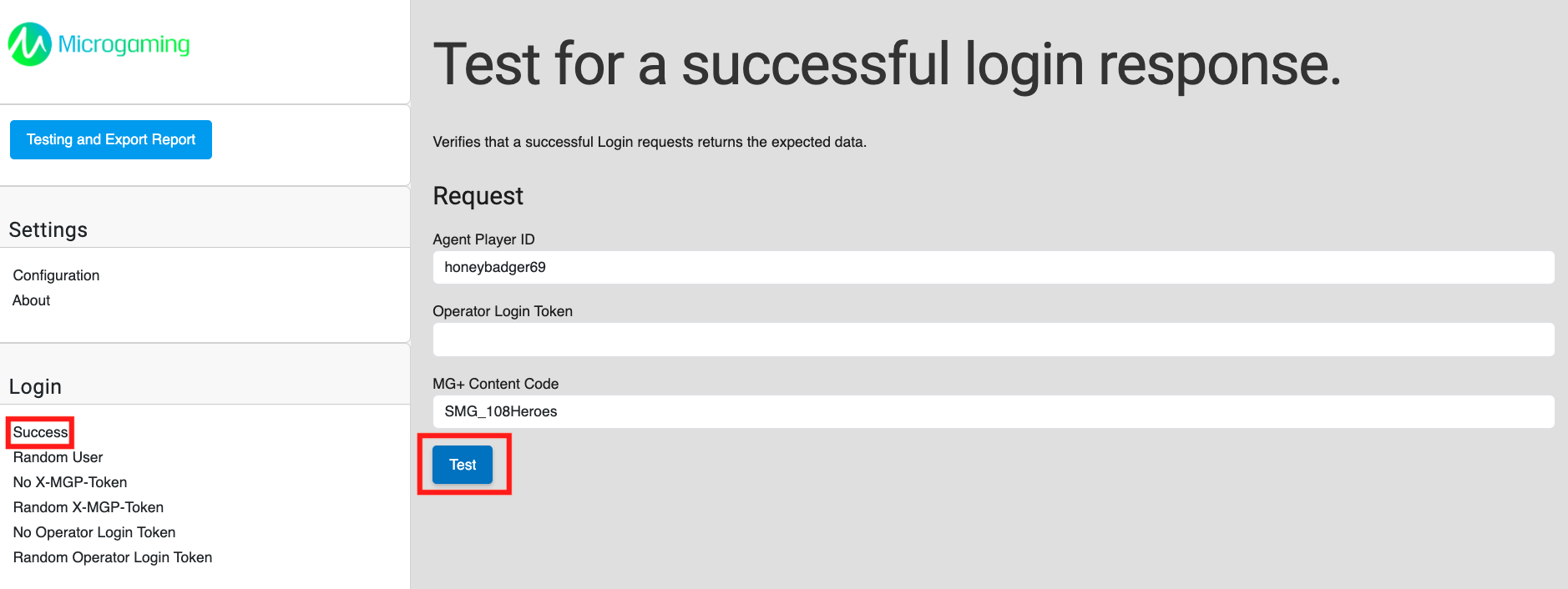
Select the test from the side menu and click Test. In this example, we will be testing for a successful login response.
-
The test will show the results on the same page.
-
In a successful test, you will see a green light next to the test on the sidebar.
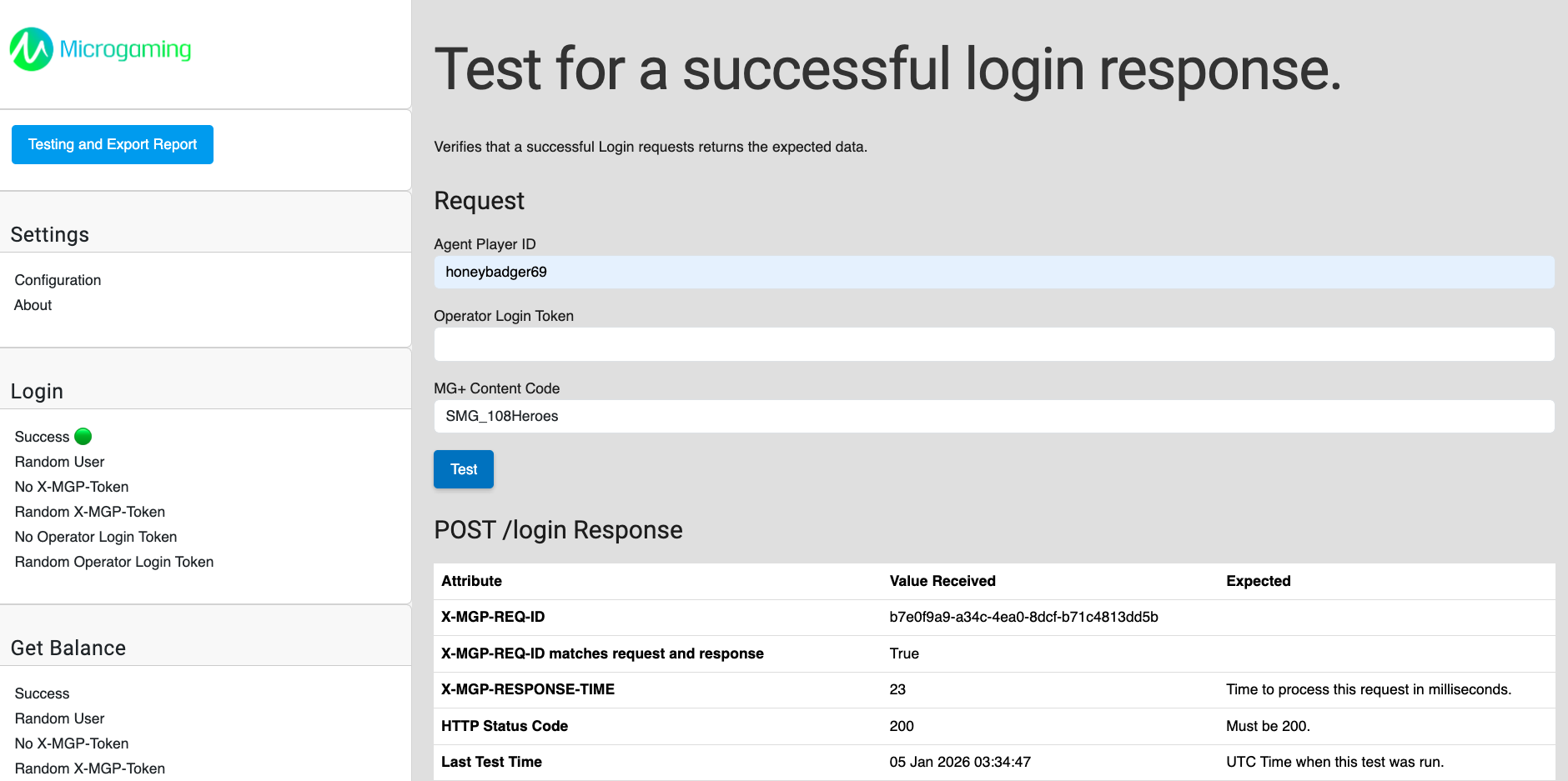
In this example, the expected values match with what was received, indicating a successful test.
-
In a failed test, you will see a red light next to the test on the sidebar and the response will give an indication of what the reason for the failure was.
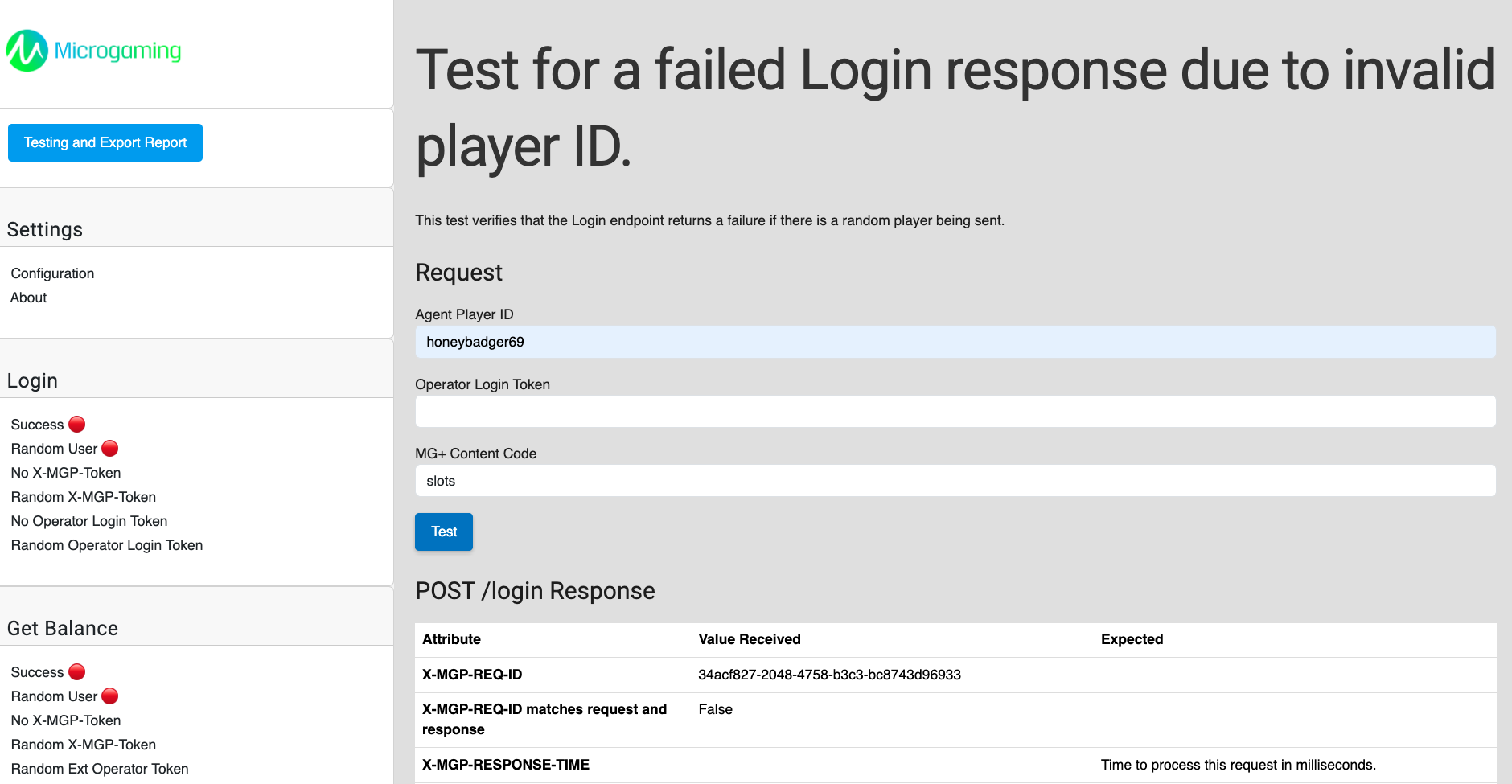
In this example, the test tool indicates that the X-MGP-REQ-ID does not match the request and response.
-
To run multiple tests concurrently, follow the steps below:
-
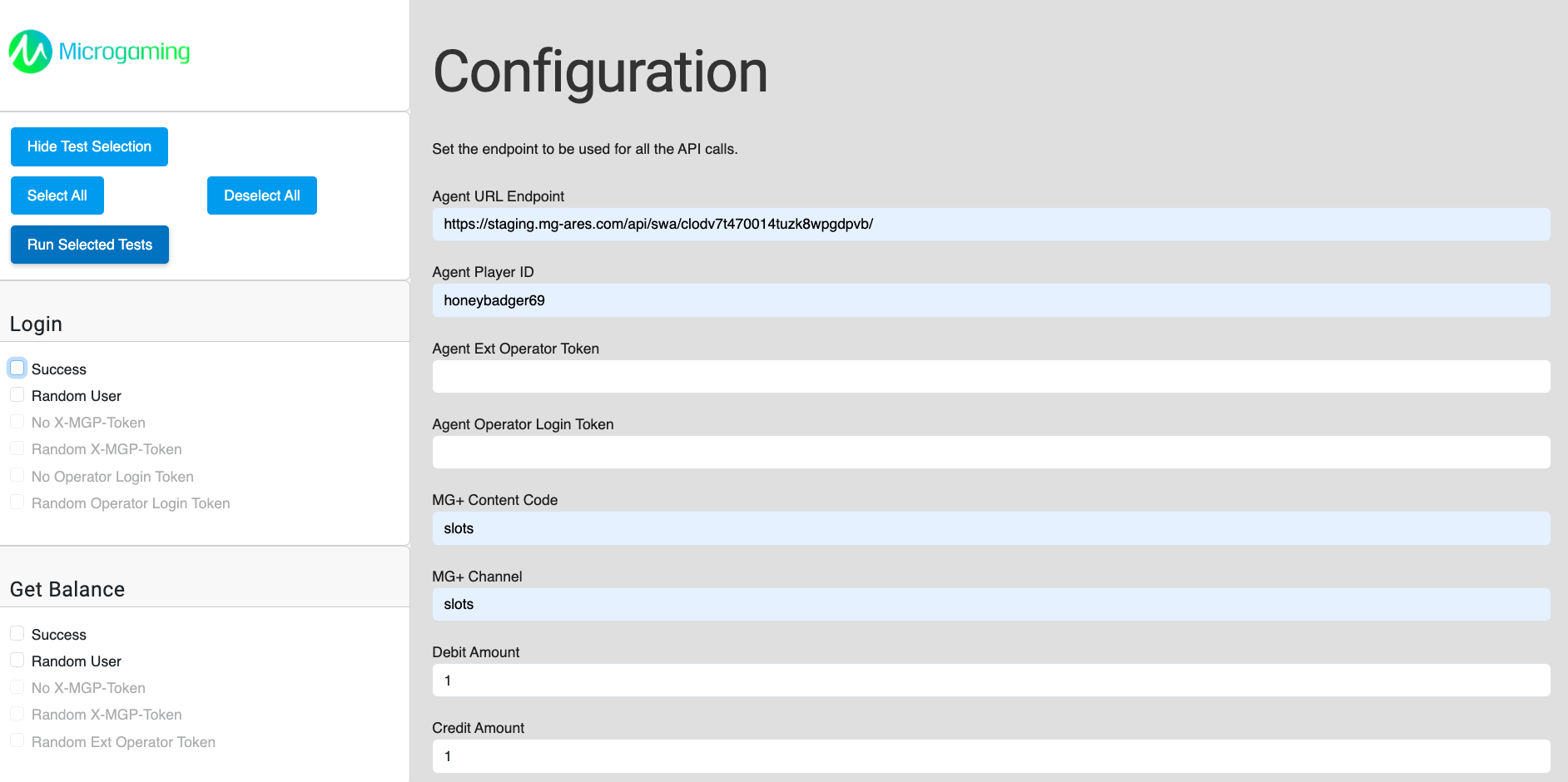
Select Testing and Export Report, then tick the boxes next to the tests you wish to perform. You can click Select All to select all available tests, or Deselect All to cancel selection.
-
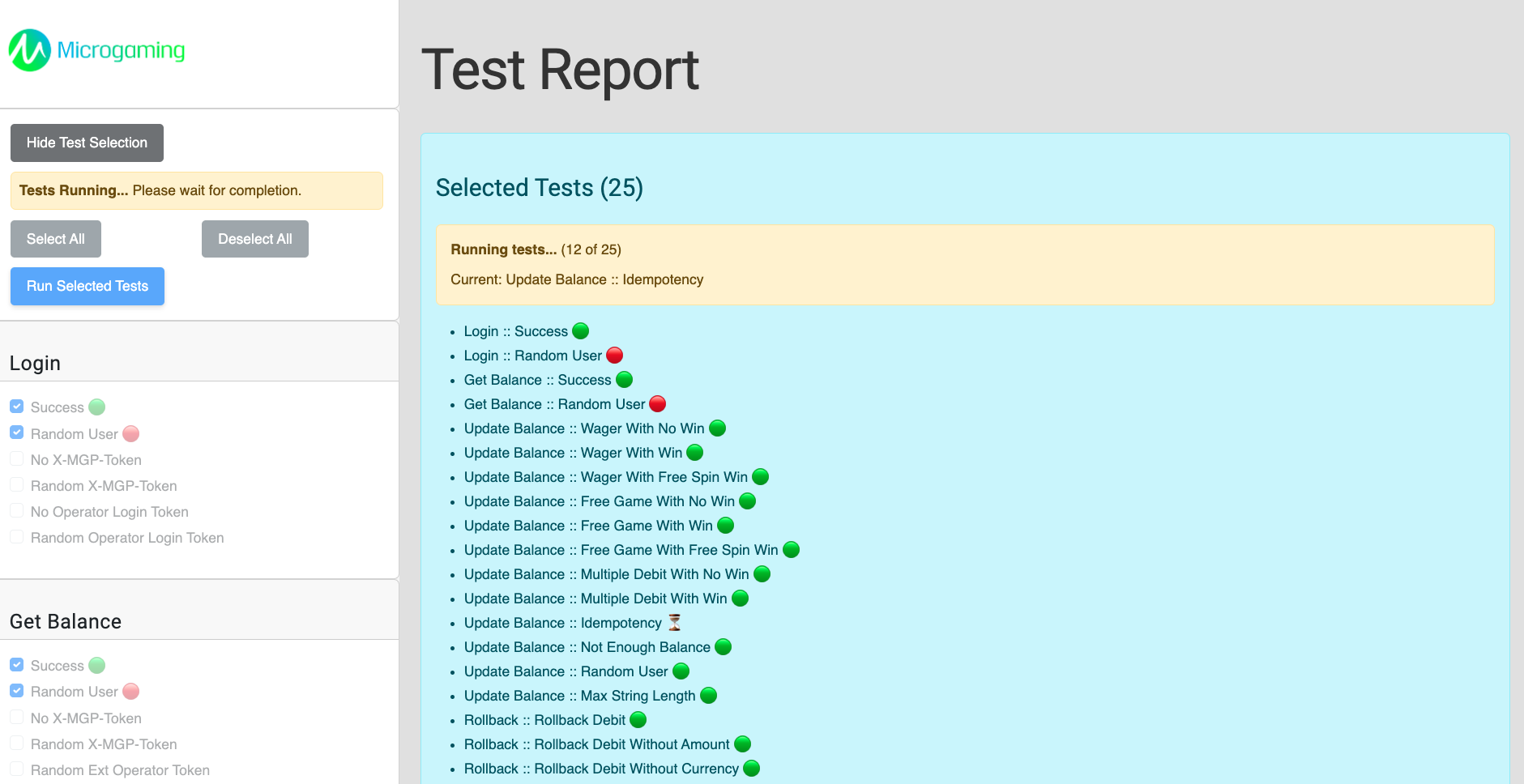
Once you have selected the tests, click Run Selected Tests to begin. The system will execute all selected tests while displaying a progress bar along with the immediate results, indicated by green or red lights.
-
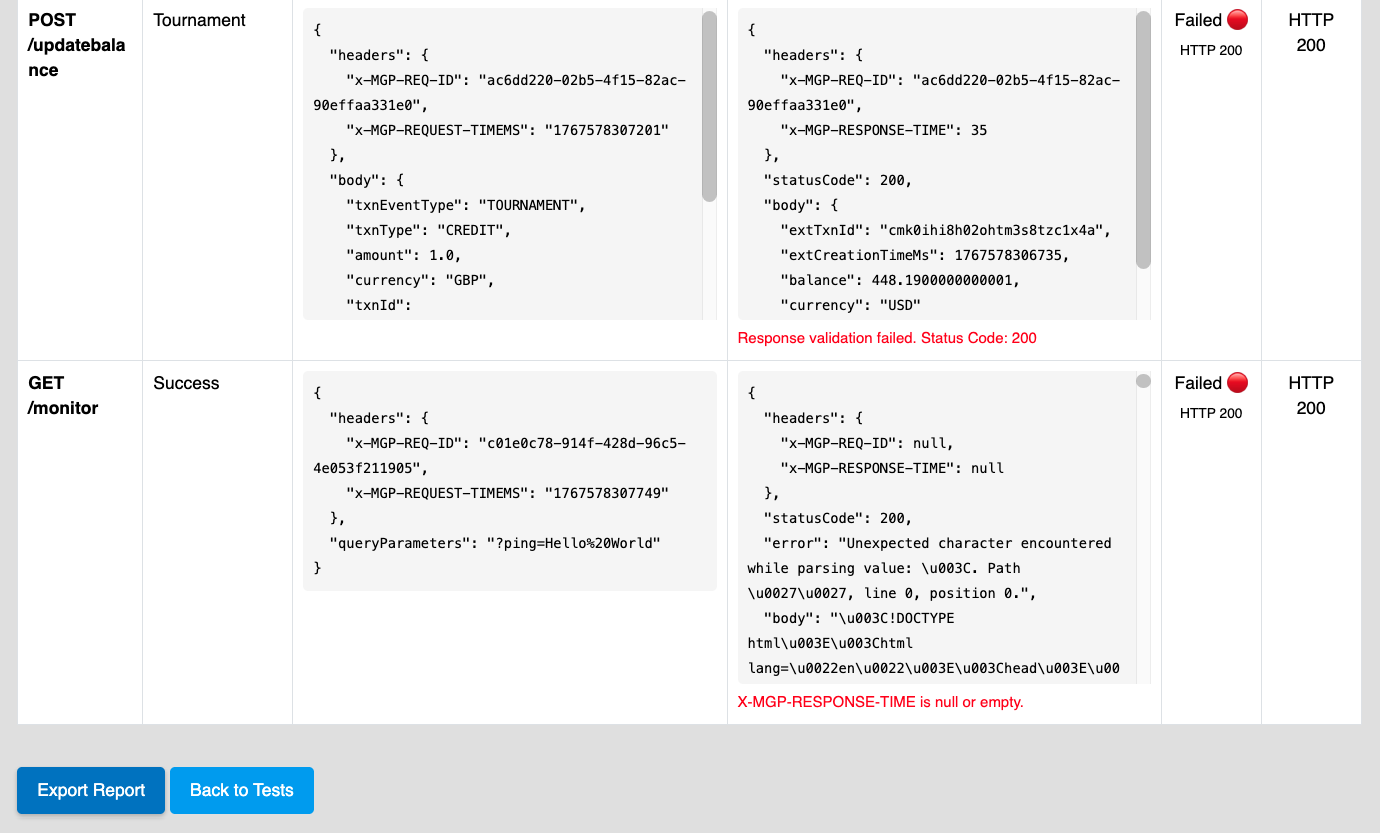
Once the tests are completed, a test report will be available. Click Export Report at the bottom of the report page to download the report in CSV format.
|
Field |
Description |
|---|---|
|
Test API |
Indicates which API endpoint and request method the test ran. |
|
Scenario |
Specifies the test scenario. |
|
Request Body |
Displays the request data sent by the test. |
|
Response Body |
Displays the response data returned by the API. |
|
Result |
Displays the test result, including the status indicator (green/red) and HTTP response code. |
|
Expected |
Indicates the expected result used for comparison. |